

Excel is a strong tool for organizing, analyzing, and showing data. Many industries and professions use it. Collaboration and data sharing are now common, so it’s vital to keep data integrity. Locking cells is a key feature that keeps your spreadsheets safe from accidental changes. In this guide, you’ll discover what Excel cells are. You will also learn how to lock cells step-by-step. Plus, you’ll find the benefits of locking cells and answers to common questions.
What Are Cells in Excel?
In Microsoft Excel, a cell is the basic unit of a worksheet where data is entered. Each cell is identified by a unique address, defined by the column letter and row number (e.g., A1, B2). You can enter text, numbers, formulas, or functions into these cells.
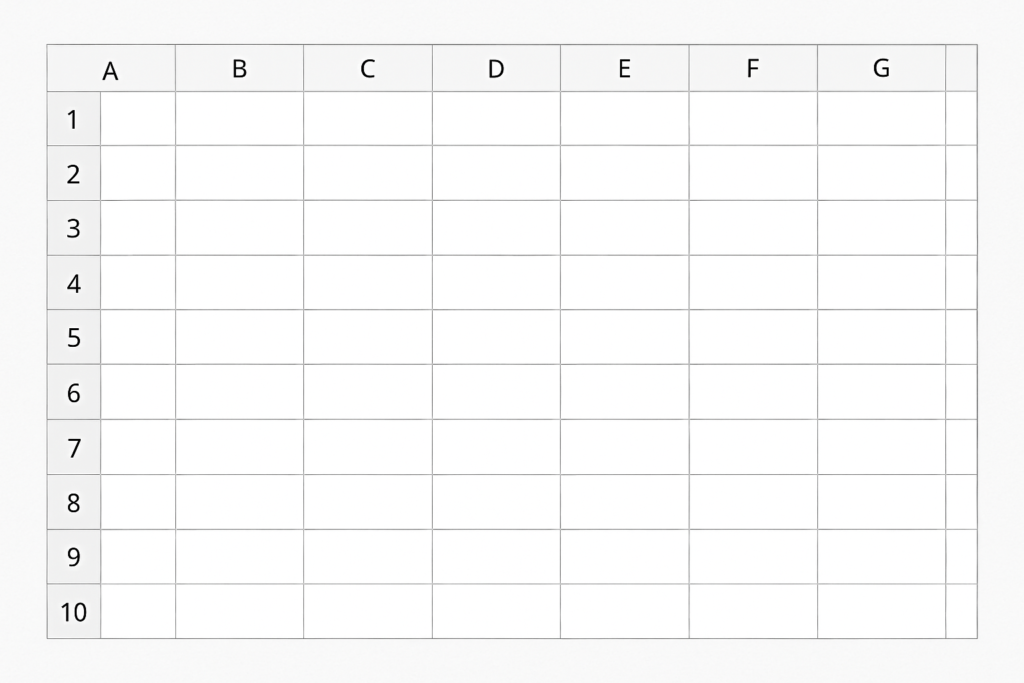
Key features of Excel cells:
- Cells can be formatted to display data in various styles (e.g., currency, date).
- They support formulas for calculations and data analysis.
- You can reference cells in other formulas or sheets for dynamic updates.
Cells are the backbone of Excel. Controlling their behavior, like locking them, is key for accuracy in sensitive documents.
How to Lock Cells in Excel? (Step-by-Step Guide)
By default, Excel locks all cells. However, this setting works only when the worksheet is protected. Here’s how to lock specific or all cells in Excel:
Step 1: Select the Cells You Want to Lock
If you want to lock all cells, you can skip this step. Otherwise:
- Select only the cells you want to lock.
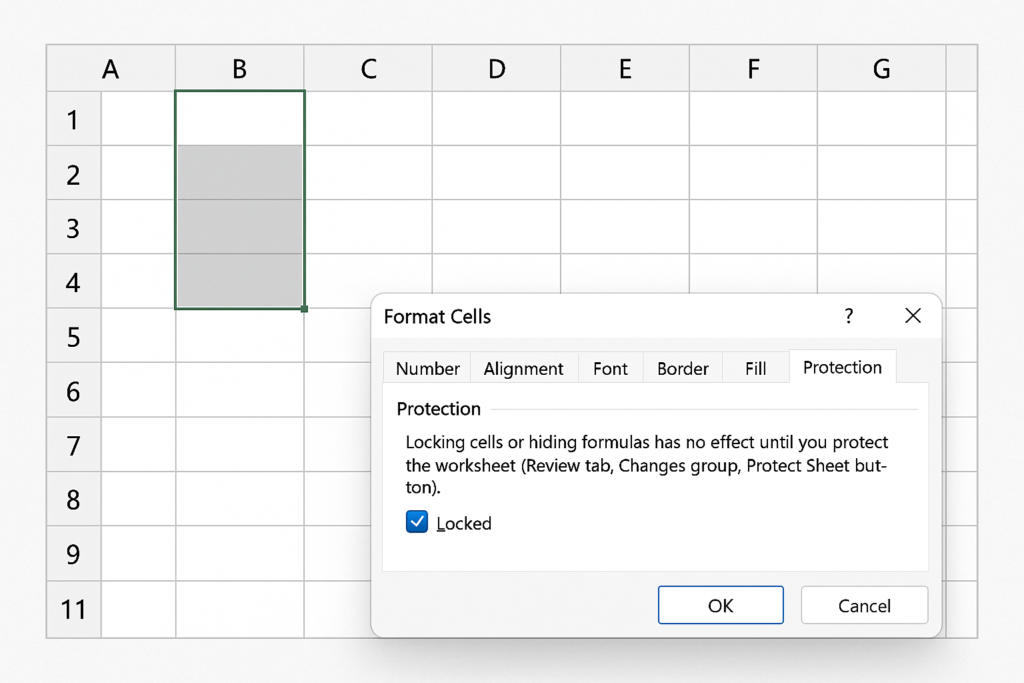
- Right-click and choose Format Cells.
- Go to the Protection tab.
- Check the box labeled Locked, then click OK.
Note: To unlock cells you don’t want locked, uncheck the “Locked” box for those specific cells before protecting the sheet.
Step 2: Protect the Worksheet
Now that you’ve marked cells as locked:
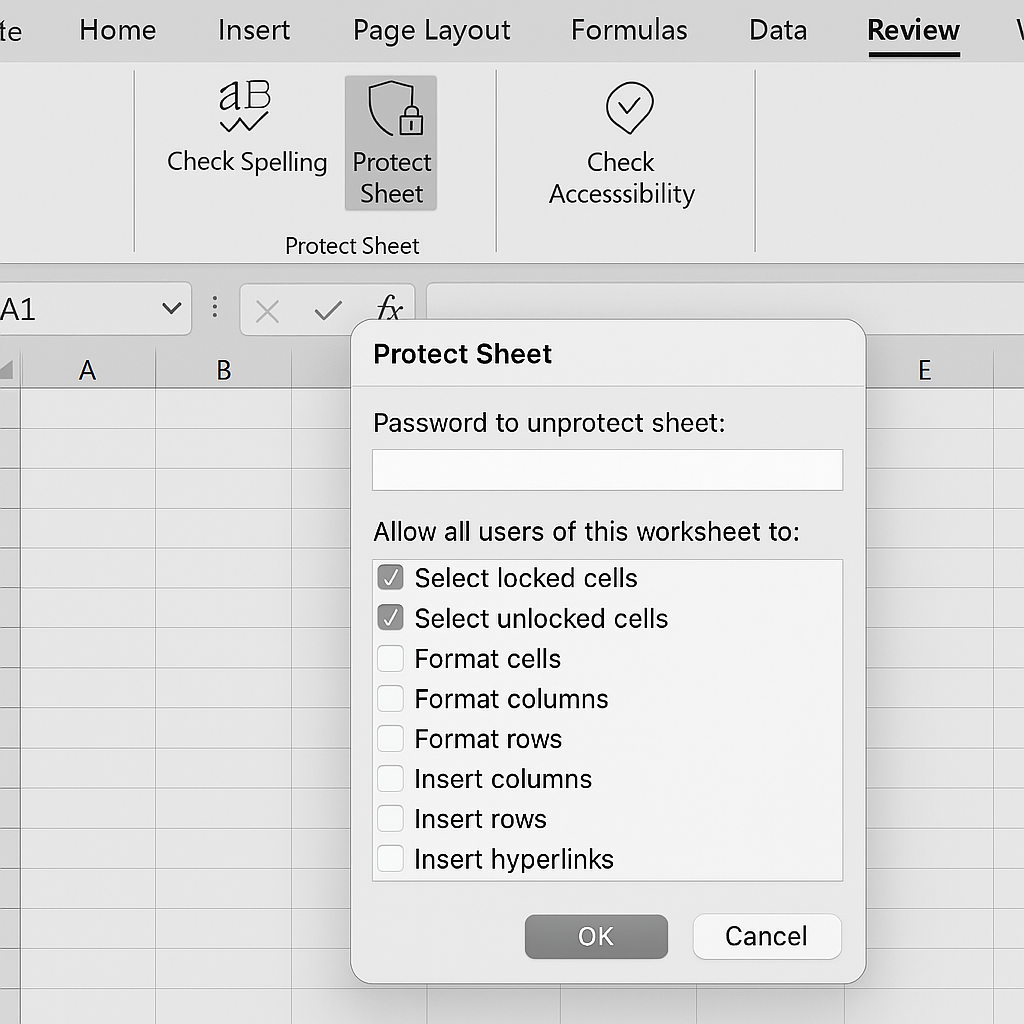
- Go to the Review tab on the Excel ribbon.
- Click on Protect Sheet.
- Set a password (optional but recommended).
- Choose the actions you want to allow for users (like selecting unlocked cells).
- Click OK to enable protection.
Step 3: Verify Locking
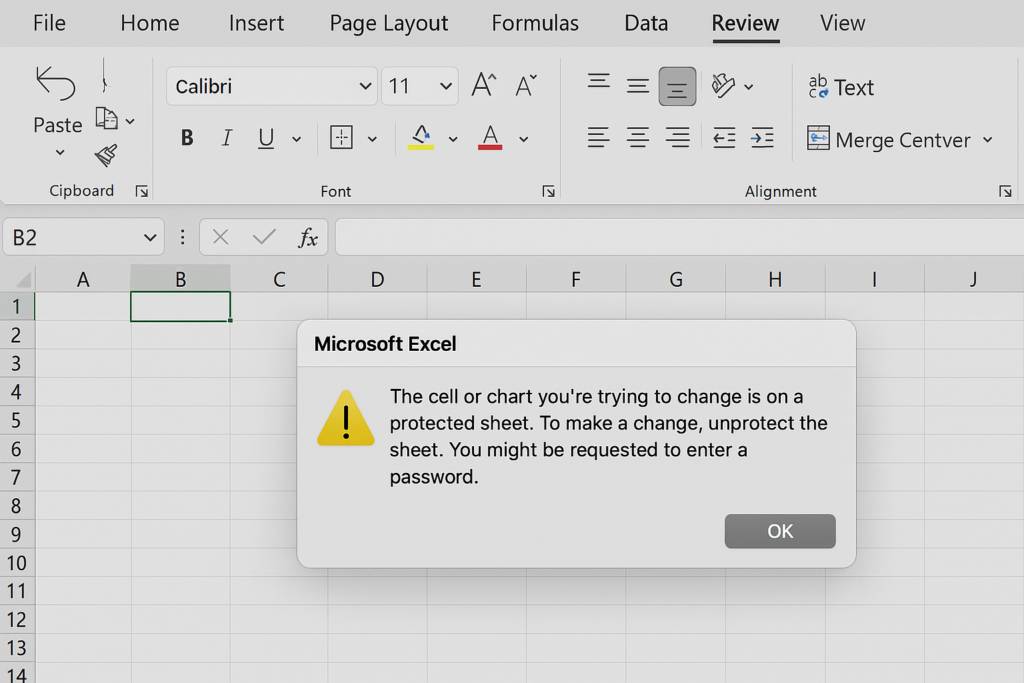
Try editing a locked cell. You should see a prompt that says the cell or chart is protected. This confirms that the protection is active.
Benefits of Locking Cells in Excel (Explained in Detail)
Prevents Accidental Edits
In shared workbooks, users may unintentionally overwrite important formulas or data. Locking cells prevents unwanted changes by restricting edit access.
Why it matters: It keeps complex calculations, financial reports, and formulas accurate and intact.
Improves Data Security
Excel isn’t a cybersecurity tool. However, locking cells and using password protection can help prevent unauthorized changes.
Why it matters: It helps in HR, accounting, and business documents. Sensitive data needs controlled access.
Controls User Access in Team Environments
In collaborative spreadsheets, you may want some team members to enter data in certain fields. However, they shouldn’t change formulas or layouts.
Why it matters: It boosts workflow efficiency. It helps team members edit only the relevant fields. This way, we keep important structures safe.
Maintains Formatting Consistency
Locking cells keeps cell formatting intact. This stops users from changing borders, colors, or fonts that can affect how easy reports are to read.
Why it matters: Ensures visual consistency in dashboards, templates, and printable reports.
Supports Template Protection
Locking cells in templates, like invoices or schedules, lets users enter data only in specific areas. This way, important parts stay unchanged.
Why it matters: Reduces user error and protects structural components of the template.
How to Lock Cells ��in Excel to Protect your Formulas & Only Allow Input where Needed
FAQ’s: Locking Cells in Excel
Do I need a password to lock cells?
No, adding a password during protection is optional. However, it adds an extra layer of security.
Can I allow users to edit some cells?
Yes. Unlock the cells you want users to edit before protecting the sheet. Only locked cells will be restricted.
Is it possible to lock only formulas?
Absolutely. Select only the cells with formulas, lock them, and then protect the sheet. This prevents others from editing your formulas while leaving other cells editable.
Can I still sort or filter locked cells?
Only if you allow those options during the sheet protection process. By default, sorting and filtering may be disabled on protected sheets.
Does locking cells affect cell references or calculations?
No. Locking only restricts manual edits. Cell references and formulas work as long as the data sources are valid.
Conclusion
Locking cells in Excel is easy but important. It helps keep your spreadsheets accurate, secure, and consistent. Locking cells keeps your data safe from accidental changes and misuse. This is important when you’re creating a report, financial model, or team-wide template.