

When you use financial models, business reports, or data presentations in Excel, you often need to add context, source references, or notes. This helps avoid cluttering your main data. That’s where footnotes come in handy. Excel lacks a built-in footnote feature like Word. However, you can still create footnotes using simple methods. This helps improve communication and transparency.
What is a Footnote?
A footnote is a note at the bottom of a page. It helps clarify, cite, or expand on the main content. In Excel, footnotes aren’t supported like in Microsoft Word. However, you can create them manually. Use text boxes, cell references, or comments to style your footnotes.
Common uses for footnotes in Excel:
- Clarify assumptions in financial models
- Cite data sources
- Add disclaimers
- Explain formula logic or conditions
- Provide additional comments for stakeholders
How to Add a Footnote in Excel?
Here are different ways to add footnotes in Excel. Choose based on your document type and style preference.
Method 1: Add a Footnote Using Superscript and a Text Box
Step-by-Step:
- Select the cell where you want the footnote reference.
- Add a number (e.g., 1) next to your content.
- Select just the number and press Ctrl + 1 (Format Cells).
- Go to the Font tab, check the Superscript box, and click OK.
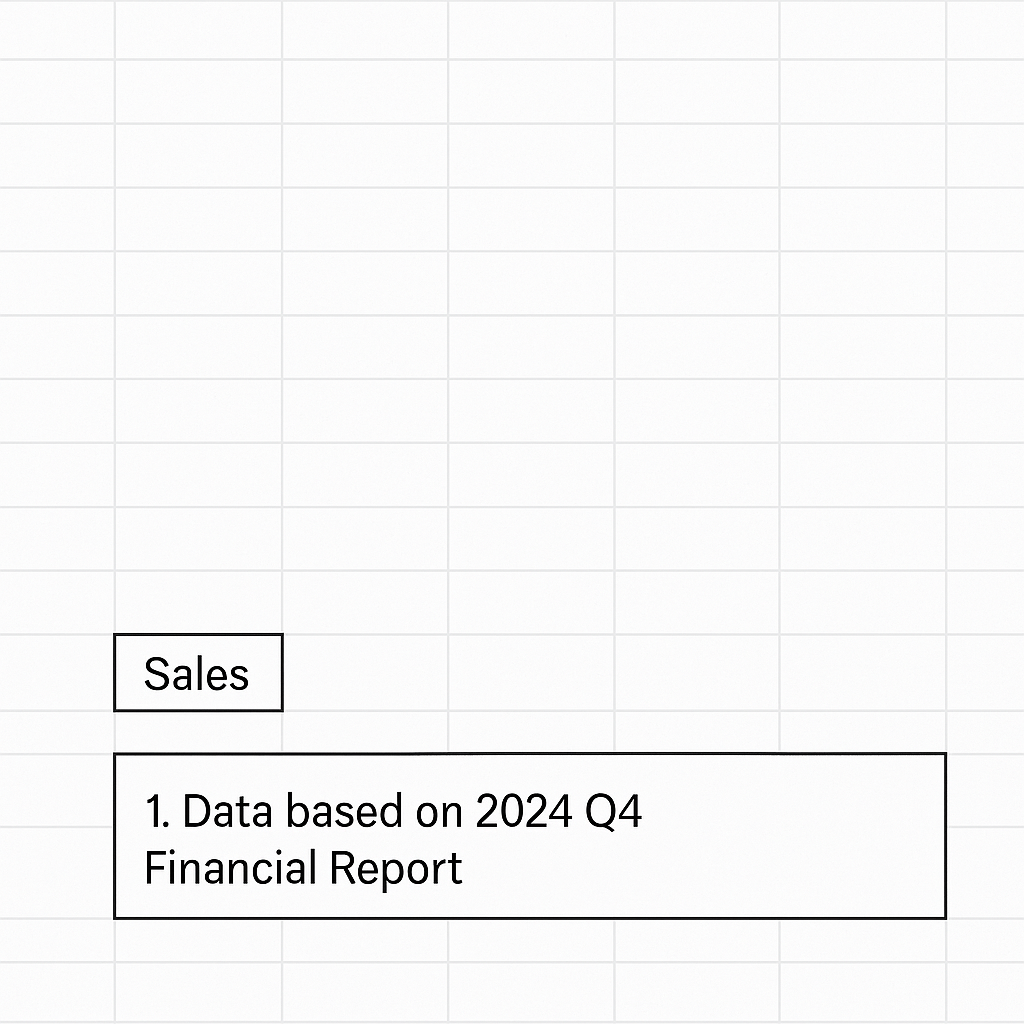
- Now scroll to the bottom of the sheet and insert a Text Box from Insert > Text Box.
- In the text box, write the footnote: 1. Data based on 2024 Q4 Financial Report
Best for: Reports or dashboards meant to be printed or shared as PDF.
Method 2: Use a Separate Footnote Section in the Worksheet
Step-by-Step:
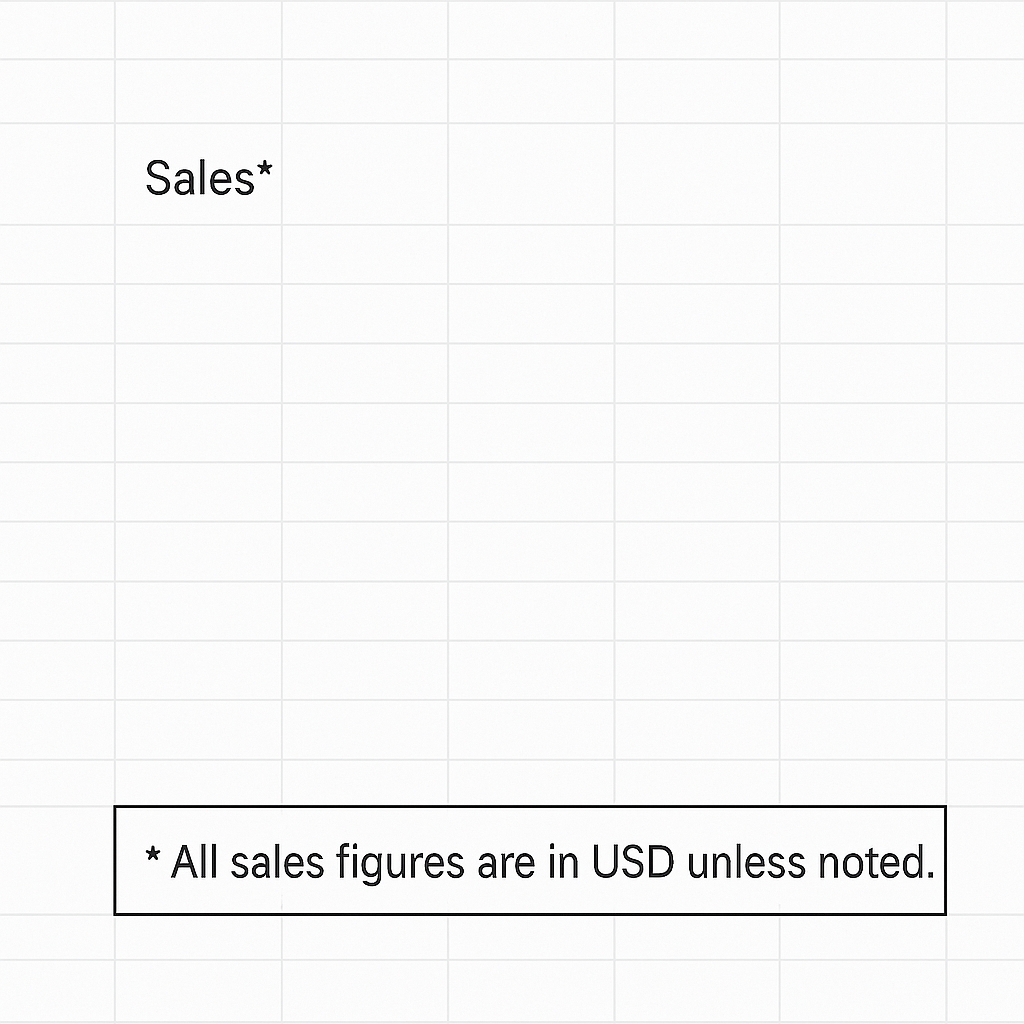
- Leave a few empty rows at the bottom of your worksheet.
- In one cell (e.g., A50), write the footnote reference: * All sales figures are in USD unless noted.
- In your data cell, add an asterisk (*) or number as a footnote marker.
Best for: Clear, formal documentation or when using multiple footnotes.
Method 3: Add Footnotes Using Comments or Notes
Step-by-Step:
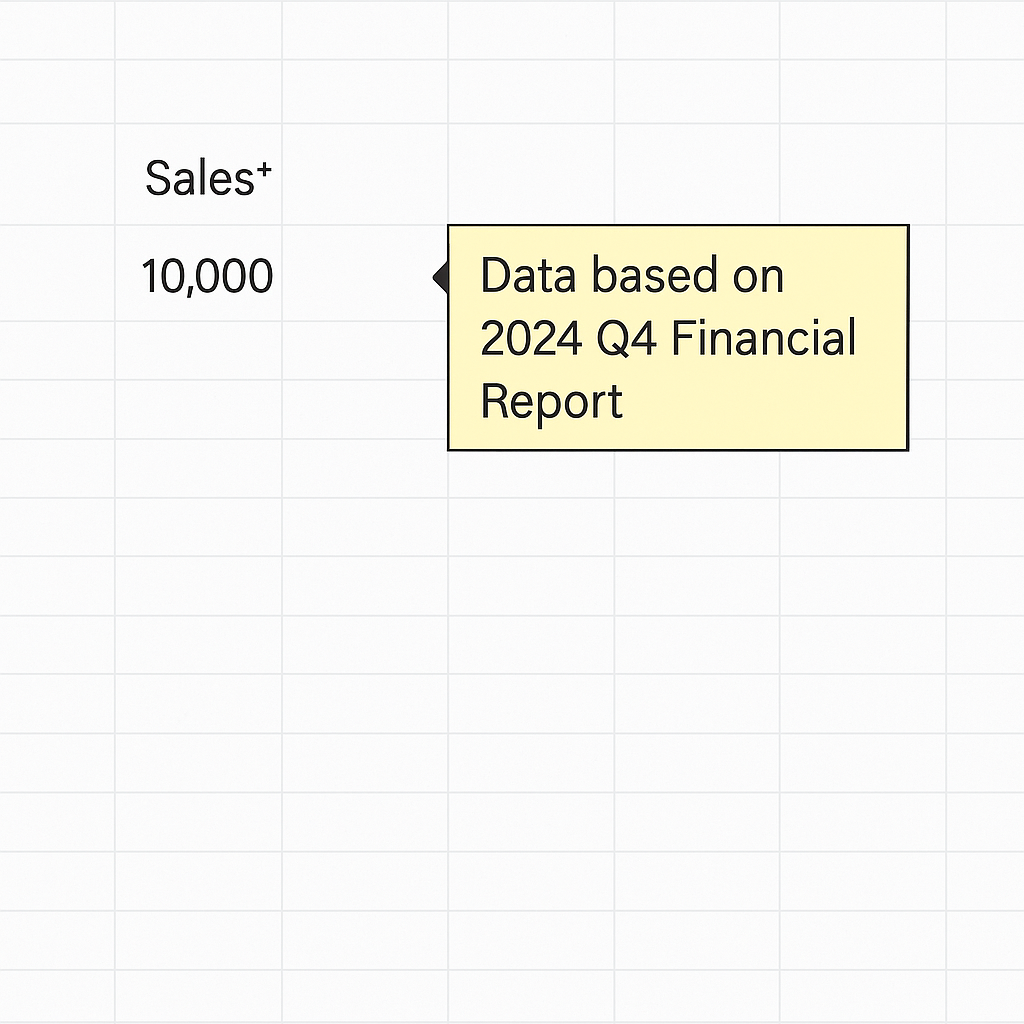
- Right-click the cell where clarification is needed.
- Choose New Note or New Comment.
- Enter the footnote or explanation in the popup box.
Notes are static, while Comments are used for collaboration (especially in Excel Online).
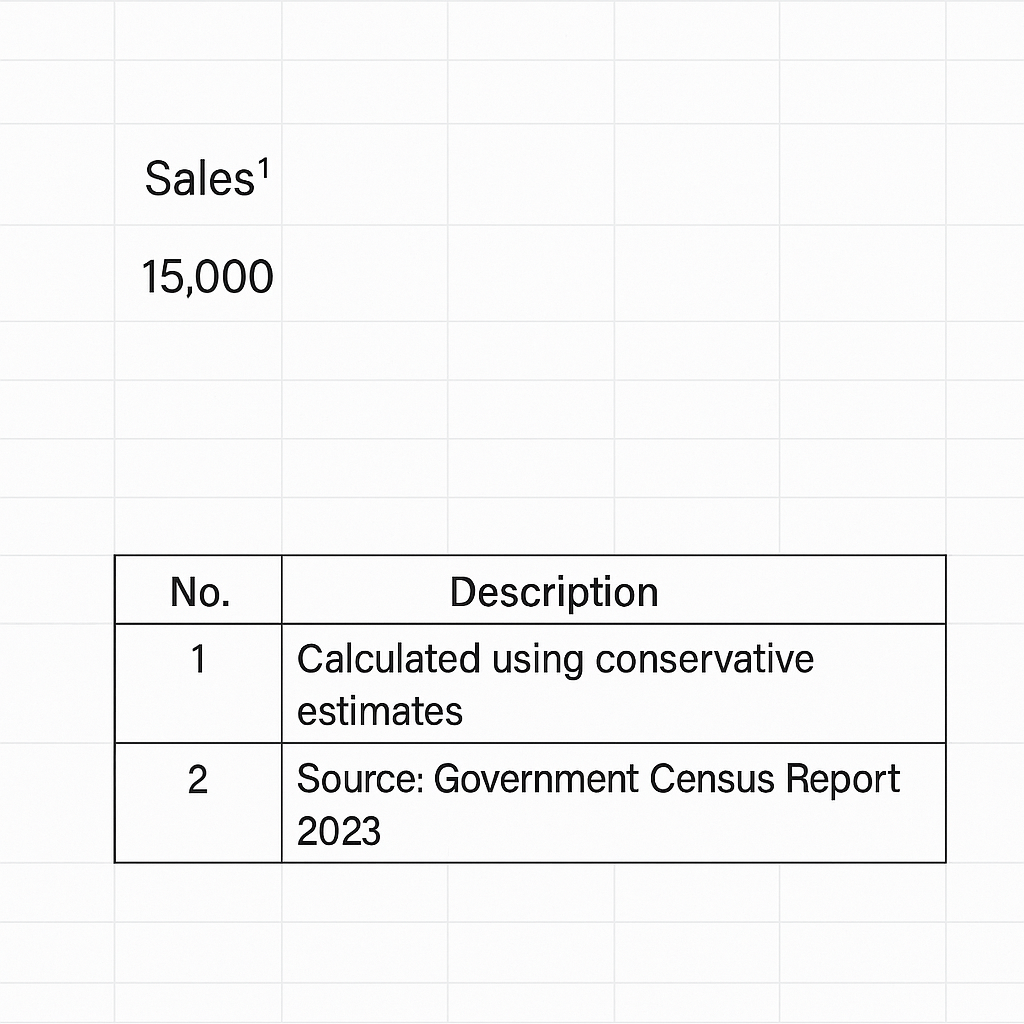
Method 4: Combine Superscripts with a Dedicated Footnote Table
This is helpful for worksheets that have a lot of references. It lets you add organized annotations.
- Add superscript numbers in the data cells.
- Create a footnote table at the bottom:
| No. | Description |
| 1 | Calculated using conservative estimates |
| 2 | Source: Government Census Report 2023 |
Best for: Formal presentations and academic-style reporting.
Benefits of Using Footnotes in Excel
Enhances Clarity and Transparency
Footnotes let you add context without overwhelming the main data. This helps readers understand assumptions, exceptions, or calculation methods clearly.
Why it matters: Clarity in financial models and audit sheets builds trust. It also lowers the risk of misinterpretation.
Supports Source Attribution
Adding sources to footnotes boosts your data’s credibility. This is key when you reference third-party stats or studies.
Why it matters: It follows EEAT guidelines by showing data sources. This builds trust in SEO and content transparency.
Improves Communication for Teams and Stakeholders
Footnotes help users like finance teams, marketers, and analysts understand complex sheets. They don’t need verbal explanations.
Why it matters: It saves time, cuts confusion, and helps documentation move smoothly between teams or clients.
Professional Formatting for Reports
Footnotes that are well-placed mimic Word-style formatting. They also improve the look of Excel dashboards, financial reports, and data summaries.
Why it matters: It makes Excel files complete and polished. This is especially helpful in consulting, finance, and analytics.
Flexible and Customizable
You can style footnotes to fit your brand. Customize the font, color, and layout to match.
Why it matters: Enables consistent design across documents for enterprise and client-facing reports.
Add footnotes with superscript numbers in Excel worksheets or charts
FAQ’s: Adding Footnotes in Excel
Does Excel have a built-in footnote feature like Word?
No. Excel lacks a built-in footnote feature. You can, however, create footnotes manually. Use text boxes, superscripts, notes, or comments to add them.
Can footnotes be printed in Excel?
Yes. Text boxes, cell footnotes, and table-style notes will print if they are in the print area.
What’s the difference between a note and a comment in Excel?
- Note: Static message tied to a cell, good for explanations.
- Comment: Collaborative thread, often used for team discussions.
Can I link a footnote to a specific cell?
You can’t use hyperlinks directly. Instead, use symbols or numbers. Then, reference them in the footnotes.
Are footnotes visible in Excel Online?
Yes, you can see both comments and notes. The visual style, including superscripts and text boxes, may change depending on your browser and device.
Conclusion
Excel lacks a built-in footnote tool, but it has flexible ways to add notes. You can use text boxes, superscripts, and comments to make references or clarifications. These footnotes make your spreadsheets clearer and more professional. They also boost collaboration and trust in the document.