
In the world of spreadsheets, clean and structured data is everything. Line breaks can disrupt your workflow when you prepare reports, clean CSV files, or consolidate form responses. These hidden characters make data spill over lines in one cell. This issue complicates sorting, filtering, and using formulas. The good news is that removing line breaks in Excel is easy. Once you know the right techniques, it works well.
What Are Line Breaks in Excel?
A line break is a hidden character. In Windows, it’s usually CHAR(10). In older systems, it’s CHAR(13). It makes the text start on a new line in the same cell.
How Do Line Breaks Appear?
- Manually entered by pressing Alt + Enter
- Copied from websites, PDFs, or text files
- Imported via CSV/TSV files or APIs
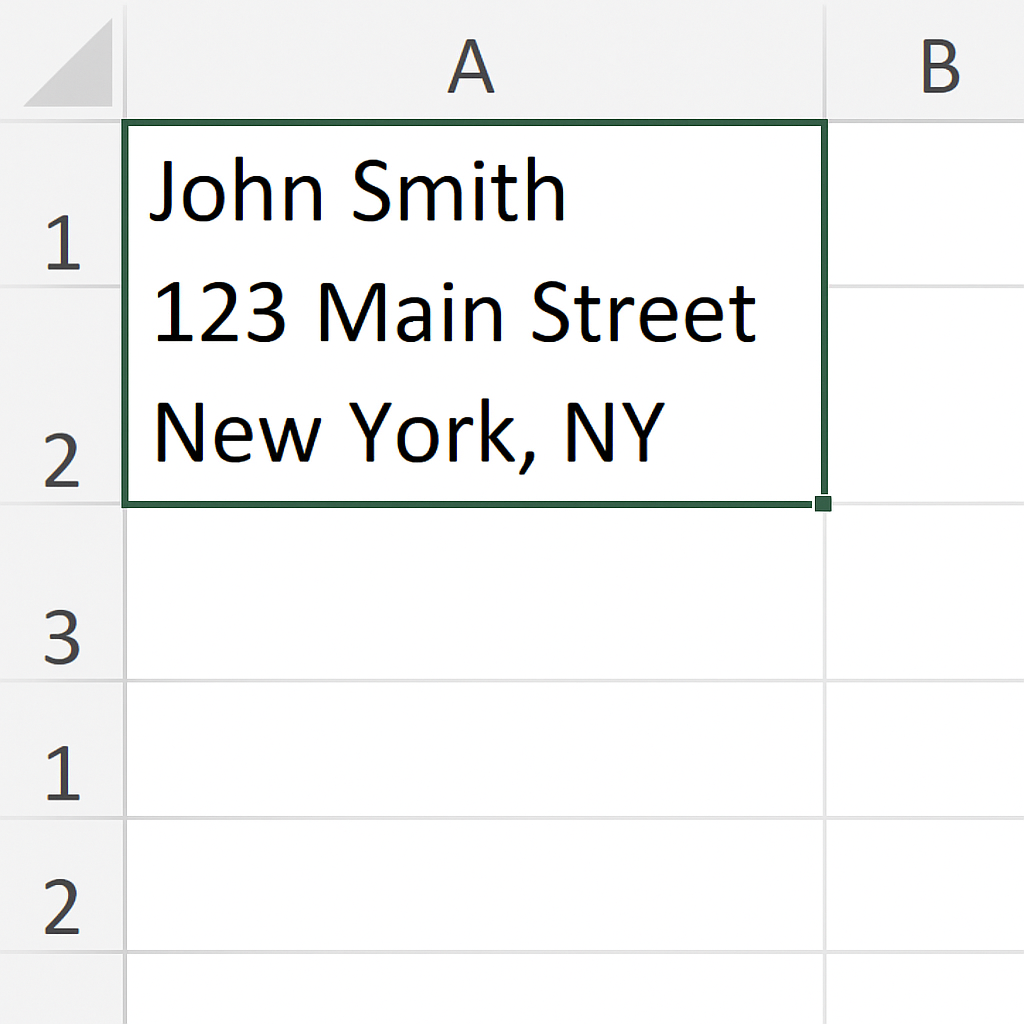
Example:
Cell A1: John Smith 123 Main Street New York, NY
This cell contains multiple lines, making it difficult to analyze or export cleanly.
How to Remove Line Breaks in Excel?
There are several effective methods to remove line breaks depending on your use case. Below are the best ones:
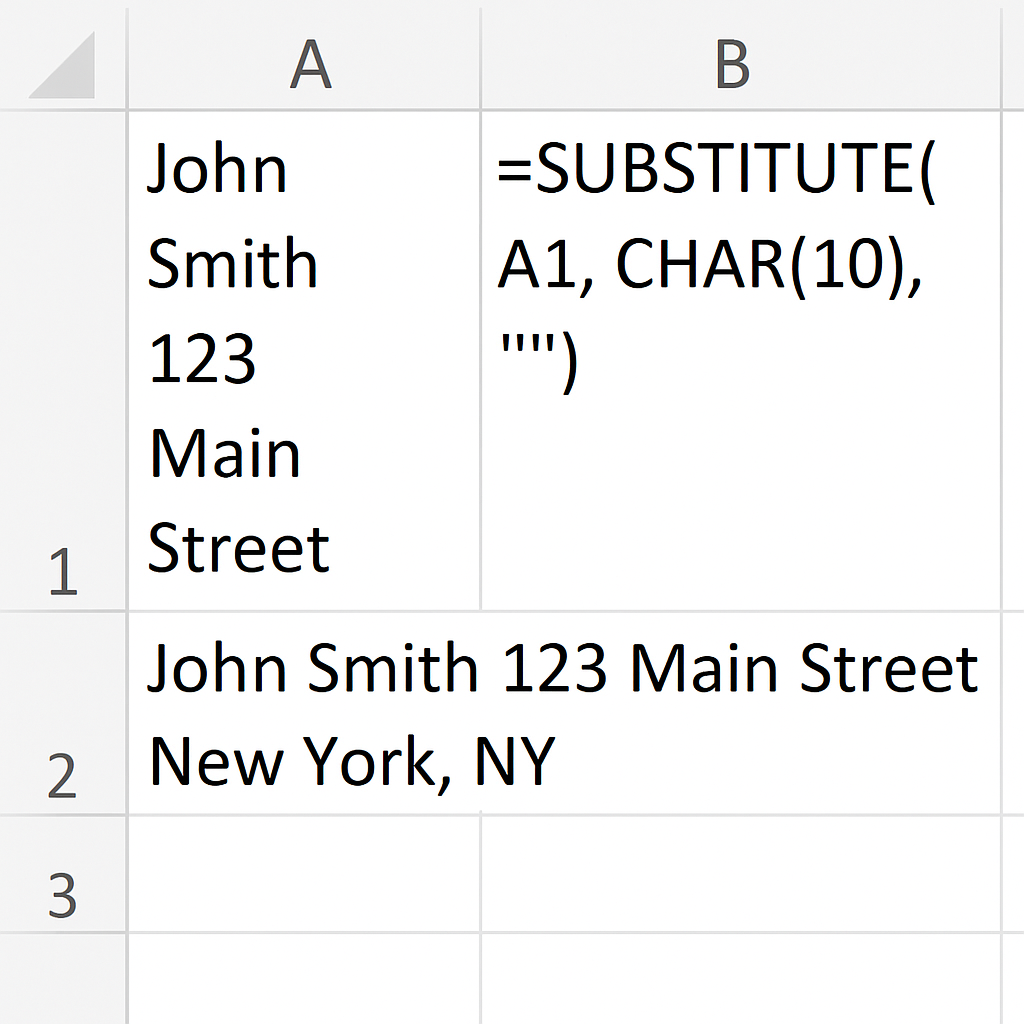
Method 1: Using the SUBSTITUTE Function
Formula:
=SUBSTITUTE(A1, CHAR(10), ” “)
This replaces all line breaks with a space, resulting in a single-line string.
Steps:
- In an adjacent column, enter the formula above.
- Drag down to apply to the rest of the rows.
- Copy and paste values back to original cells using Paste Special > Values.
Method 2: Using Find and Replace
Best for quick manual replacements across a range.
Steps:
- Select the range or column containing line breaks.
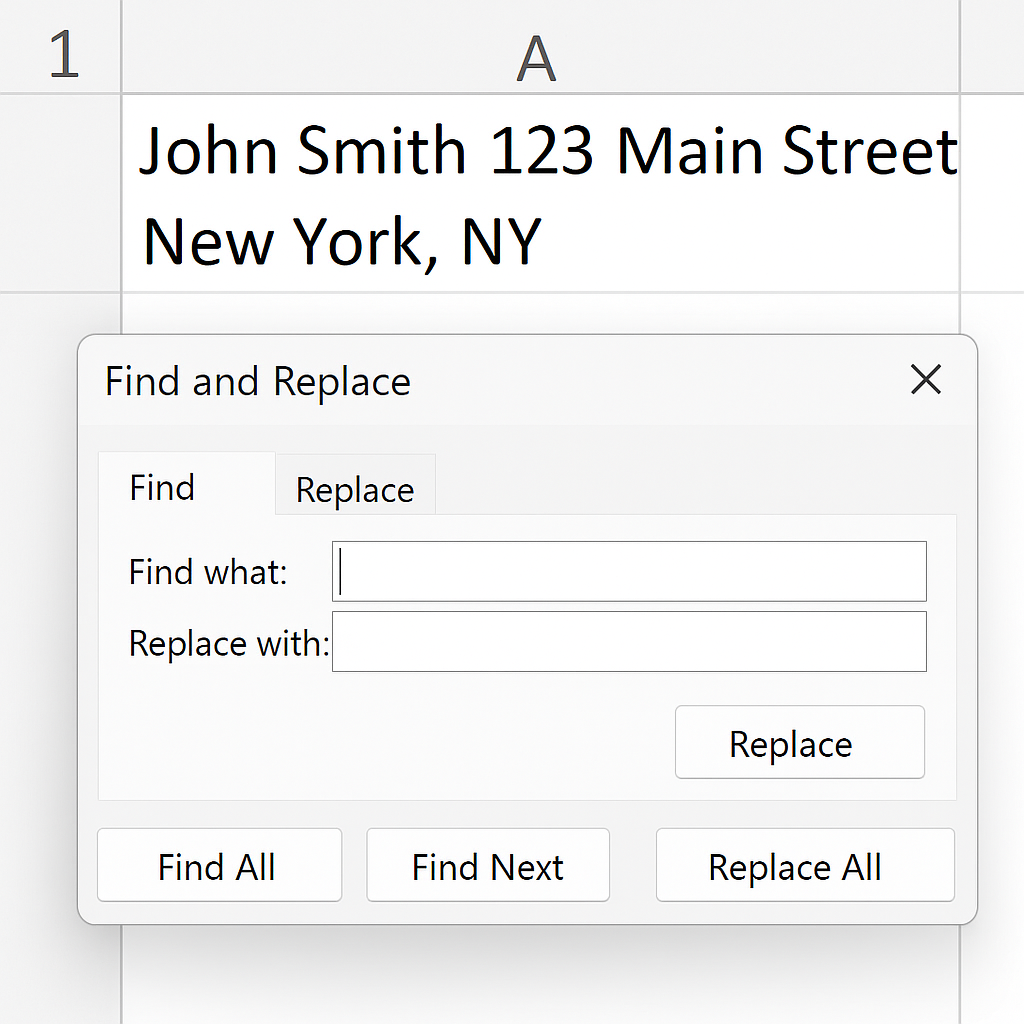
- Press Ctrl + H to open Find and Replace.
- In Find what: Press Ctrl + J (inserts line break character).
- In Replace with: Type a space or leave empty.
- Click Replace All.
Note: You won’t see the line break in the Find box—it’s an invisible character.
Method 3: Using Power Query (For Advanced Users)
Steps:
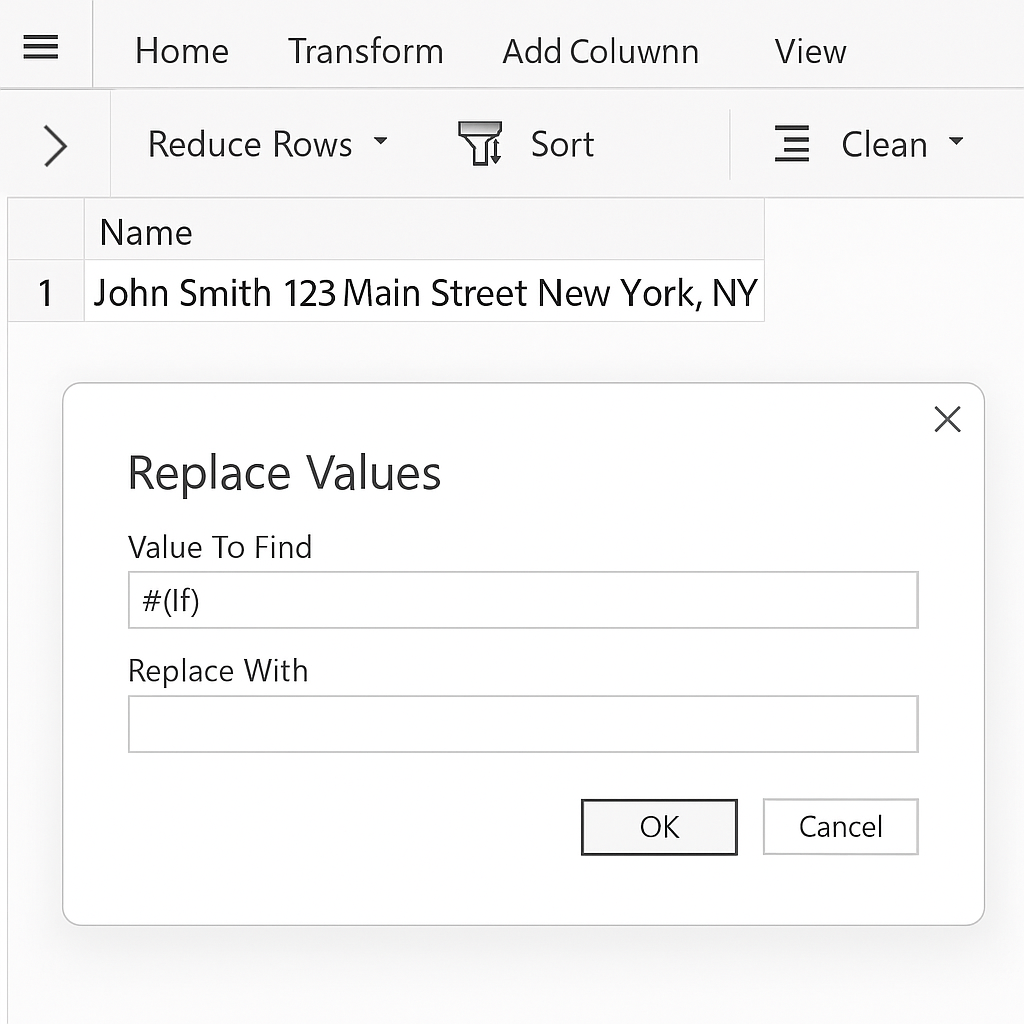
- Select your data → Go to Data > Get & Transform > From Table/Range.
- In Power Query, right-click the column → Select Replace Values.
- Replace #(lf) (line feed) with a space or nothing.
- Click Close & Load to bring cleaned data into Excel.
Method 4: VBA Macro for Batch Processing
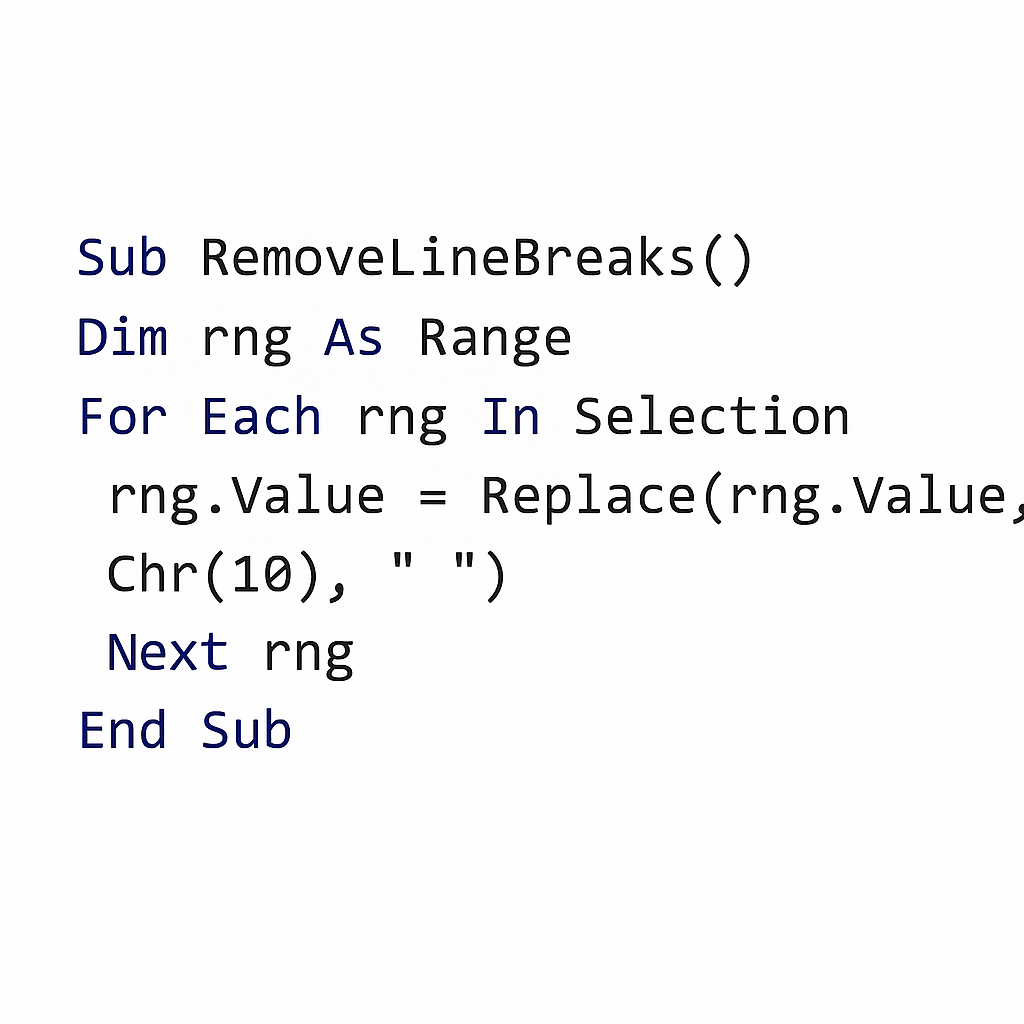
For large datasets or recurring tasks.
Sub RemoveLineBreaks() Dim rng As Range For Each rng In Selection rng.Value = Replace(rng.Value, Chr(10), ” “) Next rng End Sub
Steps:
- Press Alt + F11 to open the VBA editor.
- Insert a new module and paste the above code.
- Close editor → Select cells → Press Alt + F8 → Run macro.
Benefits of Removing Line Breaks in Excel
Improved Data Uniformity and Consistency
Removing line breaks ensures that each cell contains a consistent and predictable format. This is crucial when performing data analysis, VLOOKUPs, or importing data into databases.
Enhanced Filtering, Sorting, and Searchability
Excel’s features like filters, sorts, and searches struggle when line breaks mess up the content. Removing line breaks makes each cell fully visible and accessible.
Smoother Formula Application and Automation
Formulas like VLOOKUP, IF, MATCH, or even concatenation (&) can break if cells contain unexpected line breaks. Imagine using =IF(A1=”John Smith”, “Match”, “No Match”) and not getting a match—because “John Smith” has a hidden line break after the name. Cleaning the cell solves the problem instantly and prevents logic errors in your automation.
Cleaner Data Presentation
Line breaks often create messy-looking cells, especially when exporting to PDFs or printing. Removing them keeps your sheets professional and readable.
Increased Compatibility with Other Tools
When exporting Excel files to CSV, databases, or BI tools like Power BI, line breaks may result in broken rows or misaligned columns. Removing them ensures proper parsing and integration.
How to Remove Line Breaks in Excel (takes less than 10 Seconds)
FAQ’s About Removing Line Breaks in Excel
Why do line breaks happen in Excel?
They are usually added by pressing Alt + Enter or by copying from sources like websites, PDFs, or emails that have multi-line formatting.
Can I remove line breaks across an entire workbook?
Yes. You can use Find and Replace (Ctrl + H) for each sheet. Or, you can run a VBA macro to clean all sheets automatically.
Will removing line breaks affect my formulas?
It might if your formulas rely on specific formatting. Always back up your file before cleaning and test critical cells post-removal.
What character represents a line break?
In Excel, the line break is usually CHAR(10) (line feed). You can remove it using functions like SUBSTITUTE or REPLACE.
Can I replace line breaks with commas or slashes instead of spaces?
Absolutely. In the SUBSTITUTE formula, replace CHAR(10) with any character of your choice:
=SUBSTITUTE(A1, CHAR(10), “, “)
Conclusion
Removing line breaks in Excel helps clean data. This skill boosts your spreadsheet’s clarity, usability, and compatibility with other systems. No matter if you’re a business analyst, financial expert, or student, mastering this process keeps your data clean, consistent, and ready for analysis.