
Handling plain text files can be tricky, especially when working with structured data. Converting a .txt file to Excel can boost your work with sales reports, logs, or exported data. Excel offers strong features like filtering, formatting, and analysis. In this guide, you’ll discover all you need. We’ll cover what a .txt file is. Then, we’ll provide simple steps to turn it into a working Excel sheet.
What is a .Txt File?
A .txt file is a plain text file that contains unformatted text. It is one of the simplest file formats used to store and share data. .txt files lack rich text formatting, fonts, and layouts, unlike Word documents or Excel files.
Key Characteristics:
- Simple and lightweight
- Easily readable by most operating systems
- Often used for data exports, logs, or programming code
In many businesses, .txt files help share raw data. After that, Excel is often used to turn this data into clear reports.
How to Convert .Txt to Excel (Step-by-Step)
There are two main methods to convert a .txt file into Excel: using Excel’s Text Import Wizard or using Power Query. Here’s how to do both:
Method 1: Using Excel’s Built-In Import Feature
- Open Excel
- Go to File > Open
- Select your .txt file (you may need to choose “All Files” from the dropdown)
- Excel will automatically launch the Text Import Wizard
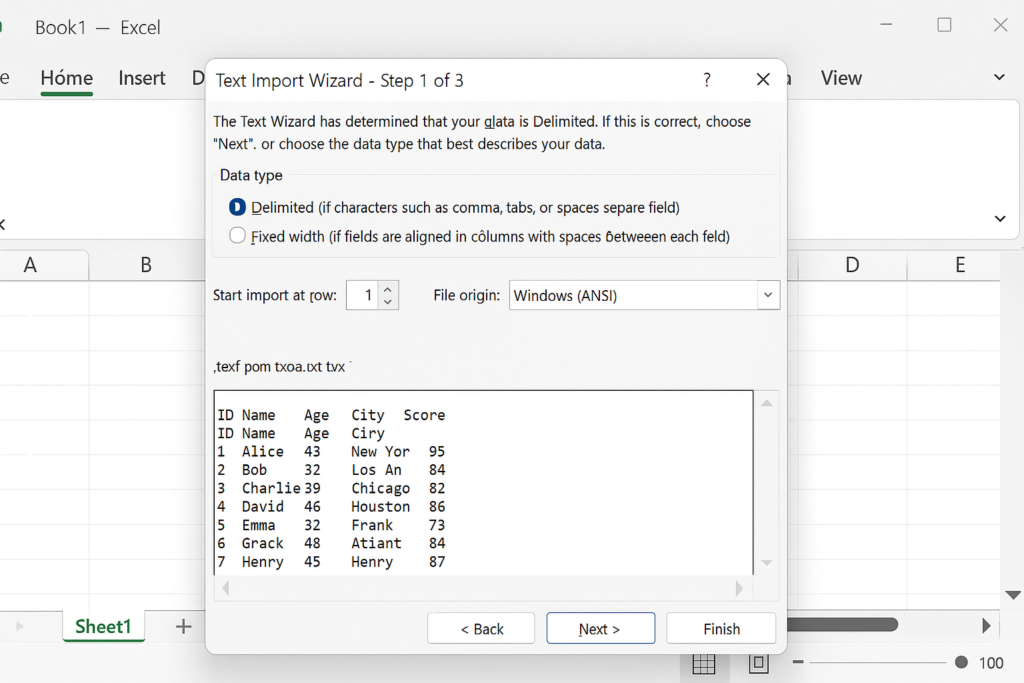
- Choose the data type Delimited (if your file uses commas, tabs, or spaces) and Fixed Width (if data is aligned in columns with spaces).
- Click Next, choose your delimiter (e.g., comma or tab)
- Preview and adjust column formats if needed
- Click Finish to import into a new Excel worksheet
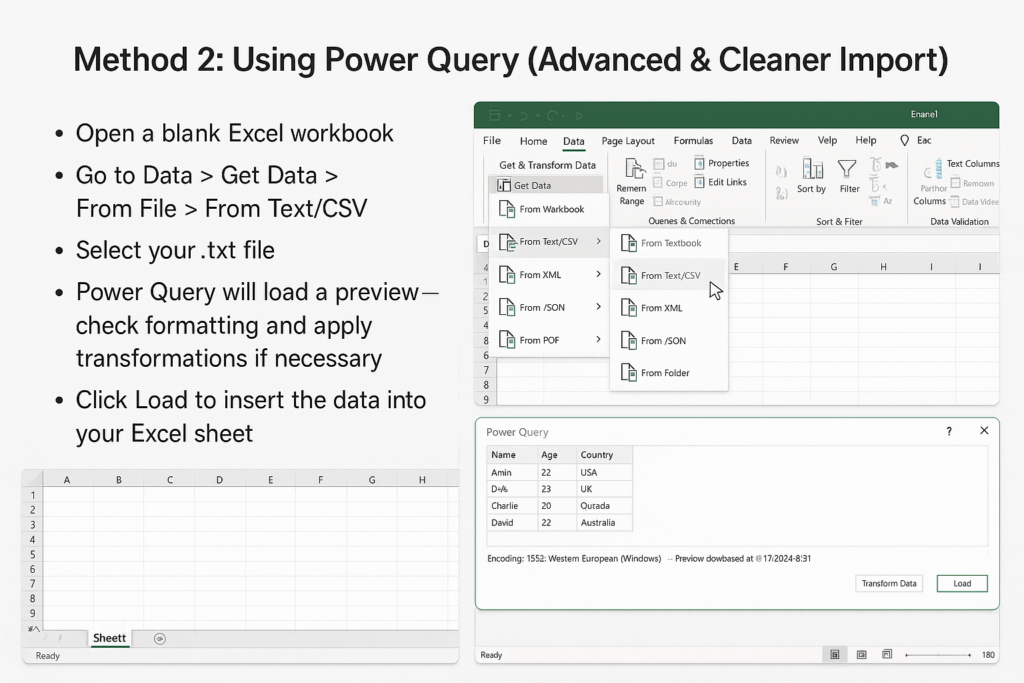
Method 2: Using Power Query (Advanced & Cleaner Import)
- Open a blank Excel workbook
- Go to Data > Get Data > From File > From Text/CSV
- Select your .txt file
- Power Query will load a preview—check formatting and apply transformations if necessary
- Click Load to insert the data into your Excel sheet
Power Query is ideal for recurring tasks or files with complex structures. You can even refresh the data without re-importing.
Real-Life Example
Let’s say you have a .txt file with sales data:
Date,Product,Quantity,Price
2025-01-01,Widget A,3,29.99
2025-01-02,Widget B,5,49.99
When imported into Excel as Delimited (Comma-separated):
| Date | Product | Quantity | Price |
| 2025-01-01 | Widget A | 3 | 29.99 |
| 2025-01-02 | Widget B | 5 | 49.99 |
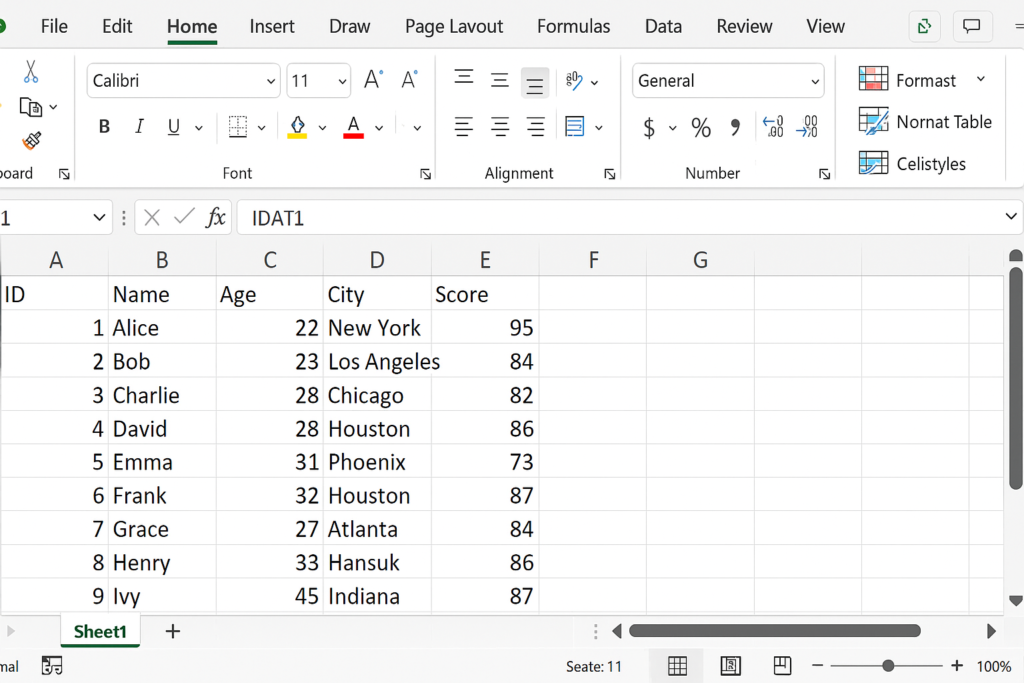
You can now apply formulas, filters, charts, and pivot tables for deeper analysis.

How to import .txt file to excel sheet in a nice format
Benefits of Converting .Txt to Excel
Data Organization & Readability
Plain text files often lack structure. Converting to Excel allows you to organize data into rows and columns, making it easier to scan, read, and understand.
Advanced Data Analysis
Excel provides powerful tools—pivot tables, charts, and formulas—that help transform raw .txt data into actionable insights.
Automation & Efficiency
Using Power Query or macros, repetitive text-to-Excel conversions can be automated, saving time and reducing human error.
Data Cleaning & Formatting
Excel allows you to clean your data—remove duplicates, apply number formats, use conditional formatting, etc.—all of which are not possible in .txt files.
Enhanced Collaboration
Excel is the industry standard for sharing structured data among teams, clients, and stakeholders. It also integrates well with Google Sheets, CRMs, and BI tools.
Security & Data Validation
Unlike .txt files, Excel supports password protection, cell-level validation, and encryption—ensuring data integrity and security.
FAQ’s
Can I open a .txt file directly in Excel?
Yes, Excel allows you to open and import .txt files using the Text Import Wizard.
Which delimiter should I choose when importing a .txt file?
Choose the delimiter (e.g., comma, tab, space) based on how the data is separated in your .txt file.
Can I convert a .txt file to Excel without losing formatting?
Yes, using proper delimiter settings ensures structured formatting during conversion.
Is Power Query better for converting .txt to Excel?
Yes, Power Query offers cleaner imports and automation for repetitive conversions.
Final Thoughts
Turning .txt files into Excel is more than a technical task. It’s a smart move that boosts data usability, accuracy, and efficiency. Whether you’re a data analyst, accountant, or business owner, mastering this conversion can make your workflow easier. It helps your data work harder for you.