
Working with spreadsheets in Excel often means dealing with incomplete data. Empty or blank cells can mess up results. They can disrupt formulas and cause errors in analysis or reporting. A simple and effective solution is to fill all empty cells with zero (0). This is especially useful for financial models, datasets, or statistical summaries. In this guide, you’ll discover what empty cells are. You’ll also see how to fill them with 0 using Excel’s features. This small step greatly improves data integrity.
What Are Empty Cells?
In Excel, an empty cell is one that contains no data, no formula, and no visible content. These are different from cells with a 0 value or a space character—they are truly blank.

When do cells become empty?
- After deleting content manually
- As a result of filtered data
- From imported datasets with missing values
- When formulas return “” (blank output)
Empty cells can negatively impact:
- Formulas like AVERAGE, SUM, COUNT
- Charts and pivot tables
- Data validation and conditional formatting
That’s why filling empty cells with 0 is often a necessary cleanup step in data preparation.
How to Fill Empty Cells with 0 in Excel?
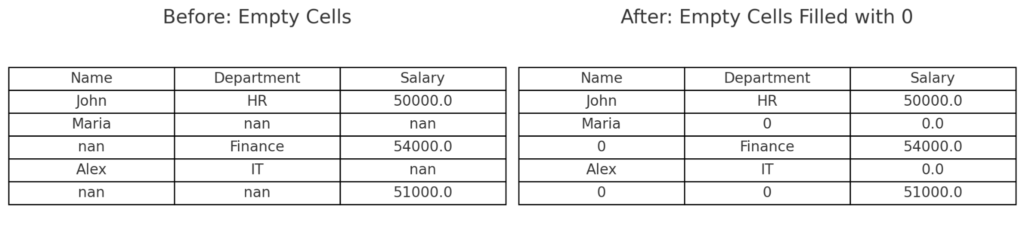
Method 1: Using Go To Special
- Select the range of your data (or entire sheet with Ctrl + A)
- Go to Home > Find & Select > Go To Special
- In the dialog box, choose Blanks
- With all blank cells selected, type 0
- Press Ctrl + Enter to fill all selected blanks with 0 at once
Method 2: Using IF Formula (Dynamic Approach)
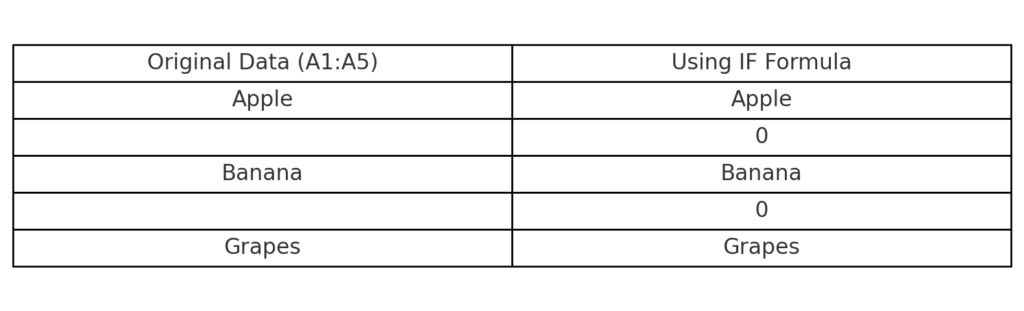
If you want to fill only empty cells while keeping formulas dynamic, use:
=IF(A1=””, 0, A1)
Apply this in a helper column to replace empty values while keeping others unchanged.
Method 3: Power Query (For Large Data Sets)
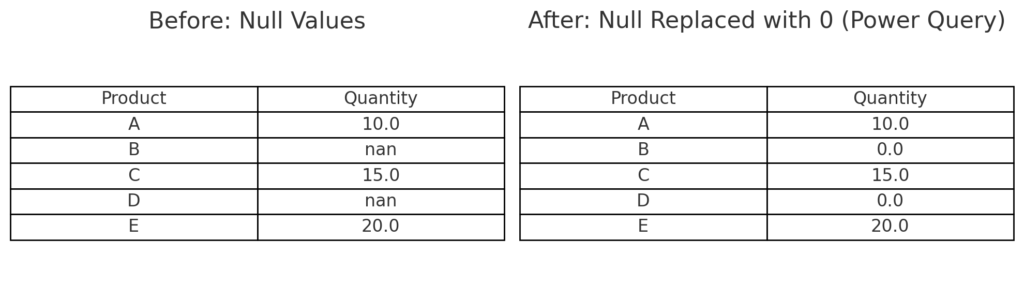
- Load your data into Power Query via Data > Get & Transform > From Table/Range
- Select the column
- Right-click > Replace Values
- Replace null with 0
- Load data back to Excel
Power Query works great for automating this step. It’s especially useful for large or regularly updated datasets.
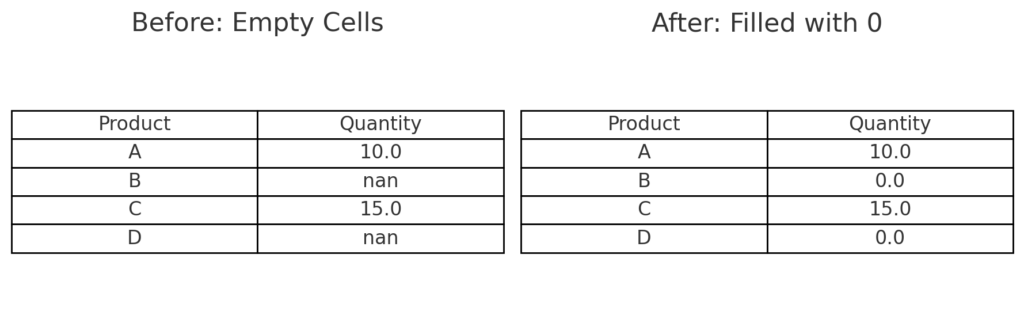
Example: Before and After Filling Empty Cells
Original Table:
| Product | Quantity |
| A | 10 |
| B | |
| C | 15 |
| D |
After Filling with 0:
| Product | Quantity |
| A | 10 |
| B | 0 |
| C | 15 |
| D | 0 |
This ensures that totals and calculations reflect actual values.
Benefits of Filling Empty Cells with 0 in Excel
Improves Accuracy in Calculations
Blank cells are ignored in most Excel functions like AVERAGE and COUNT, but 0 is considered a valid value. Filling with 0 gives accurate results. This is important for formulas and summary tables.
Prevents Errors in Reports and Dashboards
Blank cells can lead to mistakes in pivot tables, charts, and dashboards. They may cause visual issues or calculation errors. Replacing them with 0 keeps your reports clean, complete, and error-free.
Supports Data Cleaning and Standardization
When importing data from external systems, missing entries often appear as blanks. Replacing them with 0 is a best practice for preparing data for analysis or machine learning.
Ensures Consistency Across Functions
Functions like IF, VLOOKUP, SUMIFS, and conditional formatting may behave unpredictably with blanks. Using 0 makes logic and operations more predictable.
Saves Time in Data Audits
Using a standard fill value, like 0, helps spot and fix anomalies when auditing spreadsheets or handling large datasets.
FAQ’s – Filling Empty Cells with 0 in Excel
Will replacing blanks with 0 affect formulas?
If formulas use blank cells, changing them to 0 can affect results. This is true for averages and divisions. Always verify results post-replacement.
Can I undo the changes after filling blanks?
Yes, use Ctrl + Z to undo immediately or save a backup before applying changes.
Is there a way to only fill blanks in certain columns?
Yes, select only those columns before using “Go To Special” to target specific blanks.
What if I want to highlight blanks instead of filling them?
Use Conditional Formatting. Then select New Rule. Choose Format only cells that are blank to highlight them visually.
Conclusion
Filling empty cells with 0 in Excel might seem minor, but it boosts your data’s reliability and clarity. When you prepare reports, create dashboards, or analyze finances, this step helps catch every missing value. Excel simplifies this task with tools like Go To Special, formulas, and Power Query. You can use them all in just a few clicks.