

Subtotals are useful for summarizing large datasets in Excel. This is especially true for sales, inventory, or financial reports. They provide a fast way to group and analyze your data. Many users find it hard to copy just the subtotals. They often end up including all the detail rows by mistake. Fortunately, Excel provides efficient ways to extract and copy just the subtotal rows. This guide explains subtotals, how to copy them in Excel, and gives real-world examples. It also details their benefits and answers common questions.
What Are Subtotals in Excel?
Subtotals in Excel are summary rows. They show aggregated data like sums, averages, and counts for each group in a dataset. Subtotals are often used to:
- Add up sales per region
- Count items per category
- Find averages by department
Excel’s Subtotal feature adds summaries when you sort and group your data.
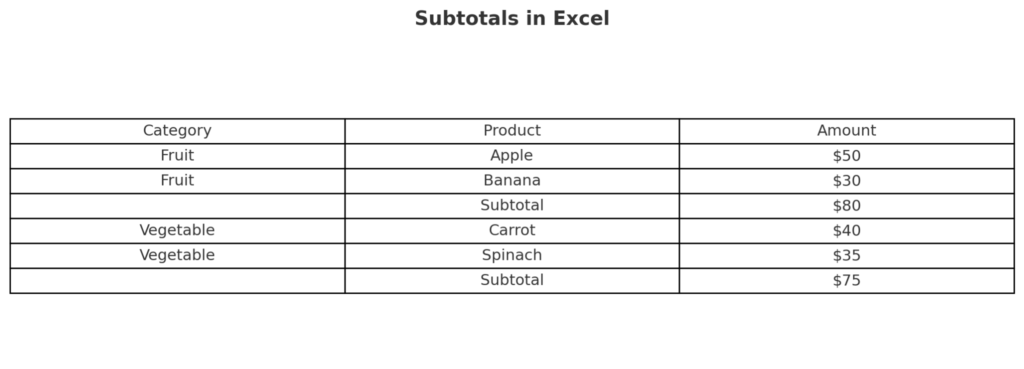
How to Apply Subtotals?
- Sort your data by the column you want to group.
- Go to the Data tab → Click Subtotal.
- Choose:
- Grouping column
- Function (Sum, Count, Average, etc.)
- Column to subtotal
Excel inserts subtotal rows with collapsible outlines.
How to Copy Subtotals in Excel?
By default, copying your subtotaled data also copies the underlying detail rows. Here’s how to copy only the visible subtotal rows:
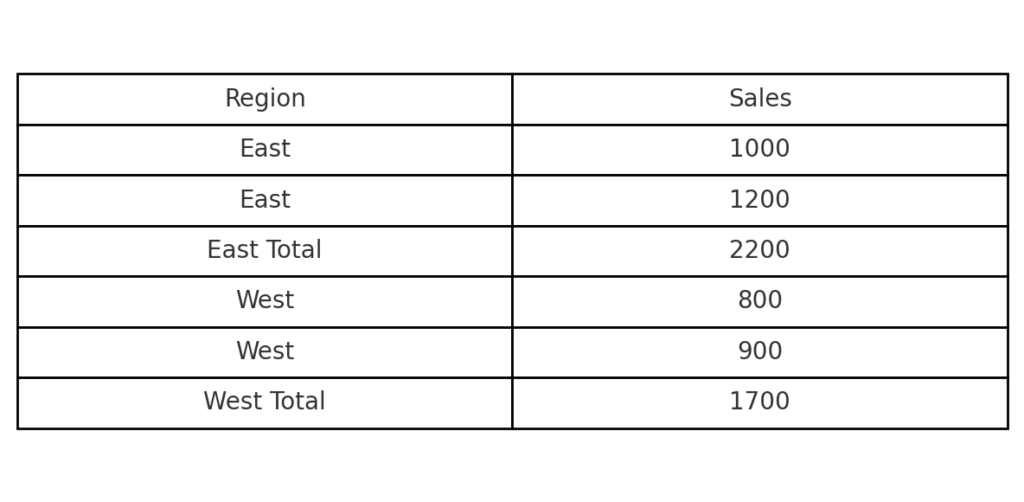
Step 1: Apply Subtotals to Your Data
Example:
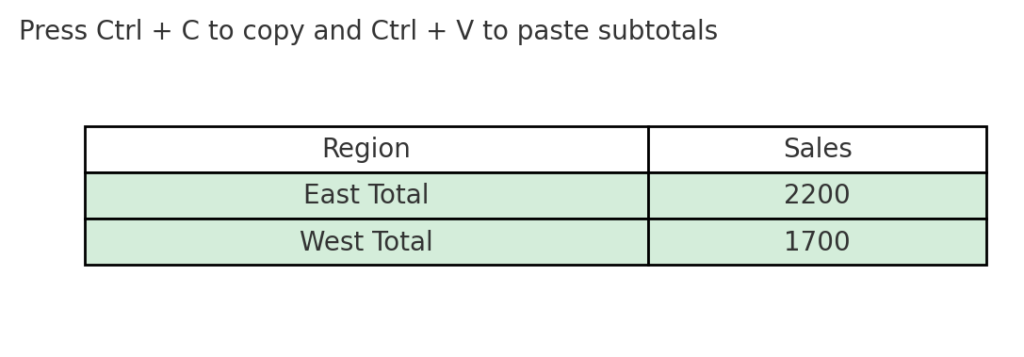
| Region | Sales |
| East | 1000 |
| East | 1200 |
| East Total | 2200 |
| West | 800 |
| West | 900 |
| West Total | 1700 |
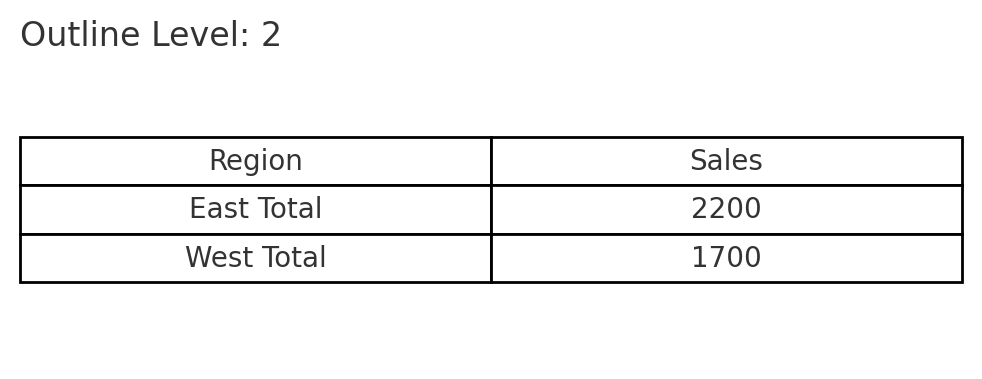
Step 2: Collapse the Outline to Show Subtotals Only
On the left margin, click the outline level “2”. This hides the detail rows and only shows the subtotal rows.
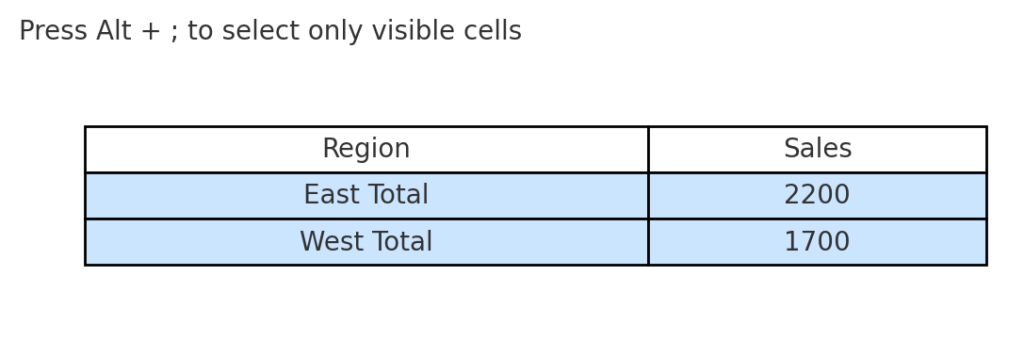
Step 3: Select the Visible Subtotals
- Highlight the visible cells using your mouse.
- Press Alt + ; (semicolon) to select only visible cells.
This prevents Excel from copying the hidden rows.
Step 4: Copy and Paste Subtotals
- Press Ctrl + C to copy the selected subtotal rows.
- Paste into a new worksheet or document using Ctrl + V.
Now you have only the subtotal summary rows—no detailed data.
Examples of Copying Subtotals in Excel
Example 1: Sales by Region
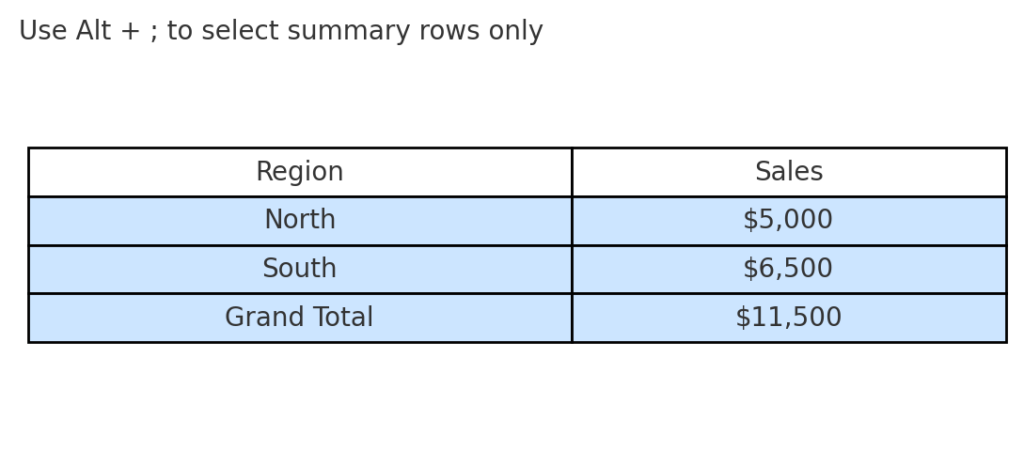
| Region | Sales |
| North | $5,000 |
| South | $6,500 |
| Grand Total | $11,500 |
You want to copy only the subtotal per region to report to a regional manager. Use Alt + ; after hiding the details to copy just the summary.
Example 2: Inventory by Category
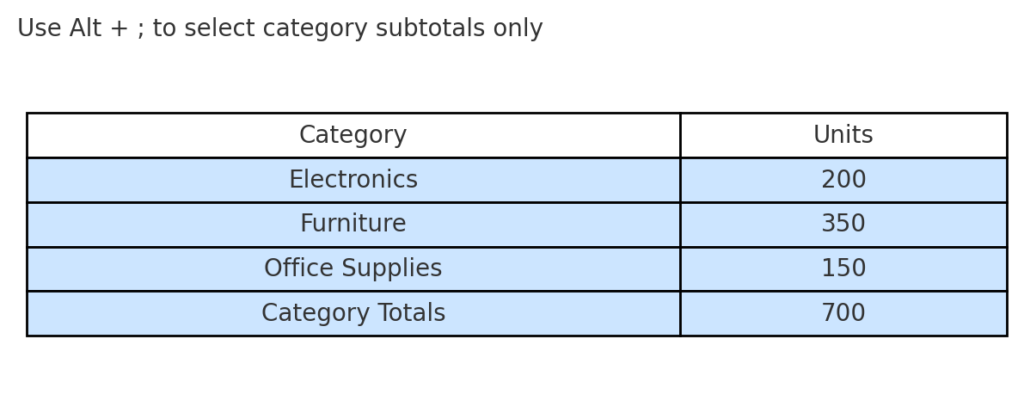
| Category | Units |
| Electronics | 200 |
| Furniture | 350 |
| Office Supplies | 150 |
| Category Totals | (700) |
Copy these subtotals to share with your procurement team without the SKU-level data.
Benefits of Copying Subtotals in Excel
Cleaner Reporting for Stakeholders
Subtotal rows are clearer and easier to read than detailed raw data when summarizing for executives or clients. You avoid clutter and focus on the key takeaways.
Improves Data Privacy and Control
Copying just the subtotals keeps sensitive details safe. This is crucial for financial and client data.
Saves Time in Data Extraction
Manually deleting detail rows after copying wastes time. Using Alt + ; to copy visible subtotals eliminates the need for cleanup.
Ideal for High-Level Dashboards and Presentations
Subtotals give instant insights into grouped totals. Export them into reports or dashboards without overwhelming viewers with granular entries.
Supports Multi-Department Collaboration
Different departments often need summaries, not raw data. Sharing subtotal summaries helps finance, marketing, and HR make quick decisions. It reduces confusion.
How To Calculate Quartiles, Deciles, and Percentiles In Excel
Frequently Asked Questions (FAQ’s)
Why do hidden rows get copied in Excel?
By default, Excel copies all selected cells—even if they’re hidden. Using Alt + ; ensures only visible rows are copied.
Can I automate subtotal copying in Excel with VBA?
Yes. You can use a macro that:
- Collapses the outline
- Selects visible cells
- Copies and pastes them automatically
Will this method work if filters are applied?
Yes. If you use AutoFilter, Alt + ; still works to copy only the visible (filtered) rows.
What happens to formulas in subtotal rows when copied?
Subtotal formulas (like =SUBTOTAL(9,…)) are copied as they appear. You can convert them to values using Paste Special > Values.
Can I export just the subtotals to PDF or another file?
Yes. Collapse the outline to show just the subtotals. Then, go to File > Export > PDF, or copy and paste into a new sheet before exporting.
Conclusion
Copying subtotals in Excel is a simple but useful skill. It can really enhance how you present and share summarized data. This technique helps you get only the important insights for executive reports, dashboards, or collaborative sheets. You won’t need to show the details underneath. Use features like Alt + ; and Excel’s subtotal tools. They help you control what you copy and share.