

Keeping data in Excel organized can be tough. Duplicates can sneak into your spreadsheet and create a mess. These duplicates can lead to inaccurate analysis, bloated files, and reporting errors. Removing duplicates is crucial for data integrity. Cleaning a customer database, analyzing survey results, or merging datasets is key. This guide shows you how to remove duplicates in Excel.
What Are Duplicates in Excel?
Duplicates in Excel are values or entries that show up more than once. They can exist in single columns, whole rows, or across different fields. They typically occur due to:
- Manual data entry errors
- Importing from multiple sources
- Copy-pasting without validation
Duplicates can take the form of:
- Duplicate cells (e.g., the same email or phone number appearing multiple times)
- Duplicate rows (e.g., identical order or contact records)
- Partial duplicates (some fields match, others differ)
Unresolved duplicates can cause wrong conclusions, repeated messages, or compliance problems.
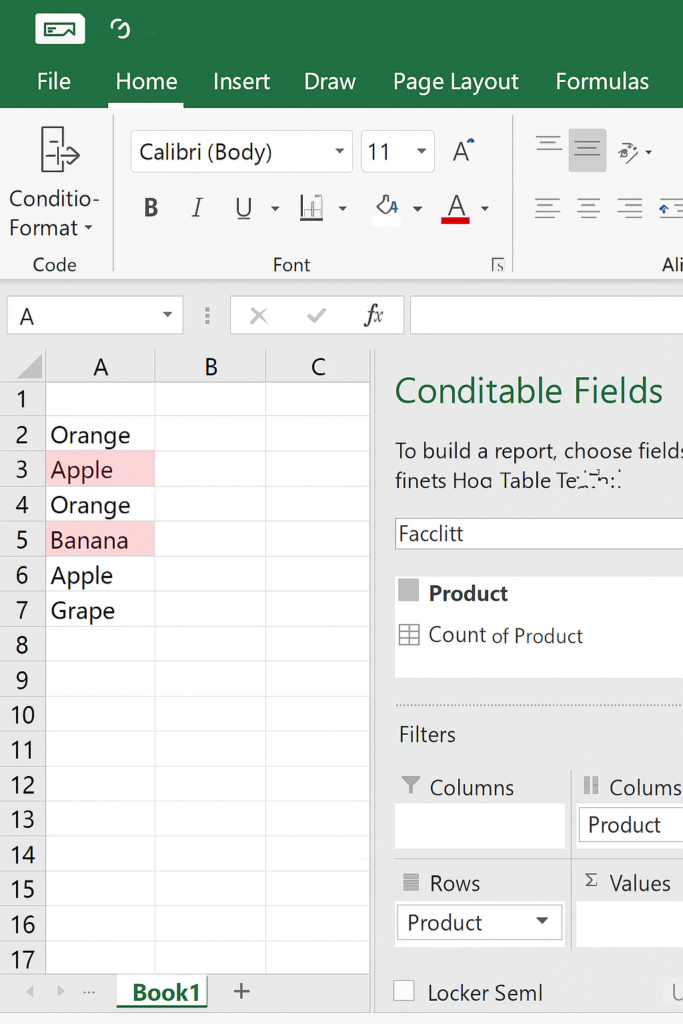
How Do I Remove Duplicates in Excel?
Excel provides several built-in tools and formulas to remove duplicates with ease. Below are the most effective methods:
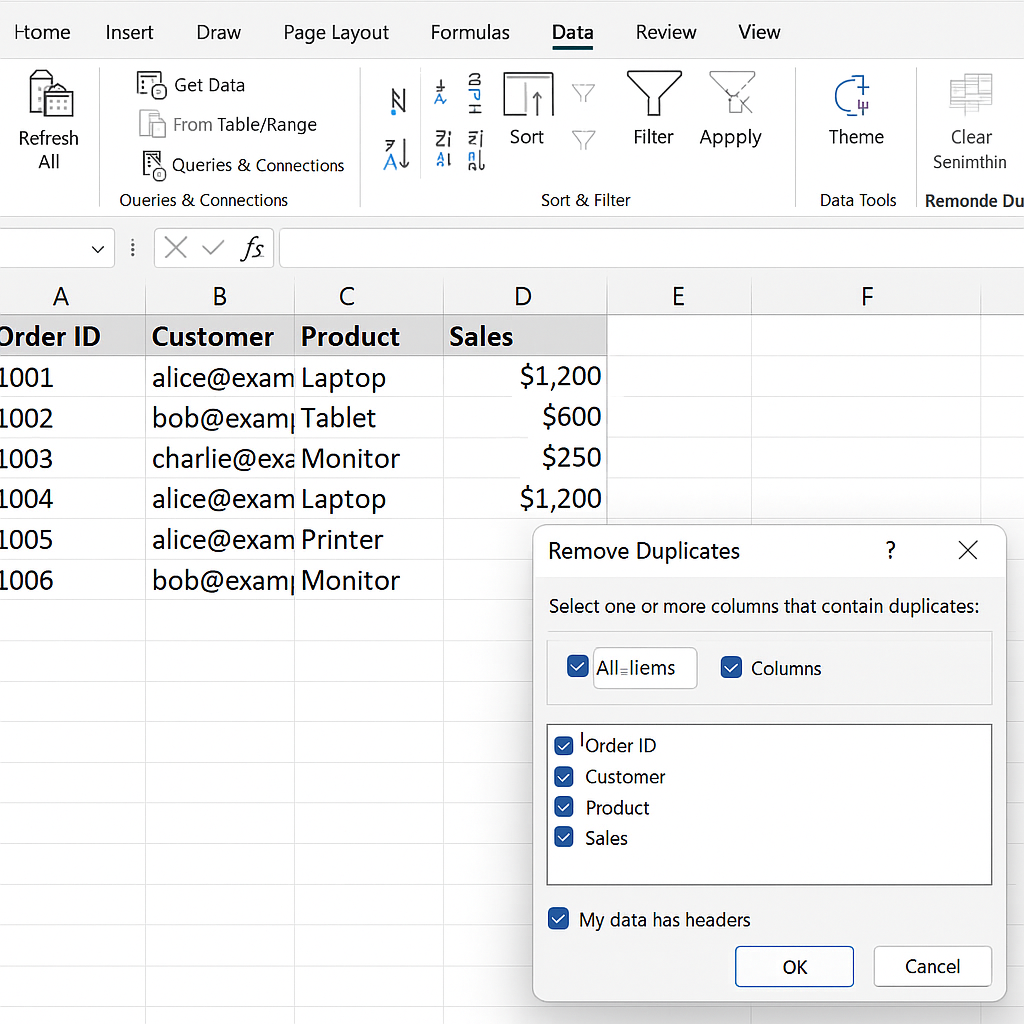
Using the Remove Duplicates Tool
Best for: Quickly removing duplicate rows based on selected columns.
Steps:
- Select the range or table.
- Go to the Data tab on the ribbon.
- Click Remove Duplicates.
- Choose the columns to consider (e.g., Email, Order ID).
- Click OK. Excel will remove duplicates and show a summary.
Pro Tip: Always back up your data before removing duplicates. This way, you won’t lose anything important.
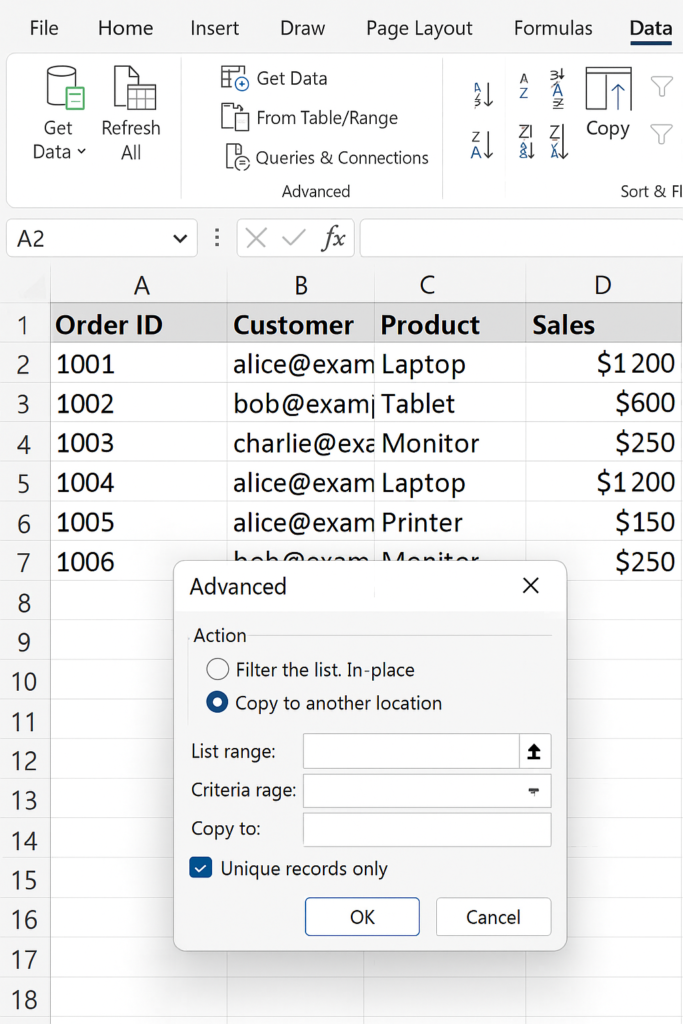
Using Advanced Filters
Best for: Creating a filtered list without deleting the original data.
Steps:
- Go to Data > Advanced.
- In the dialog box, choose “Copy to another location”.
- Set your range and check “Unique records only”.
- Click OK.
This creates a clean, duplicate-free list in a new range.
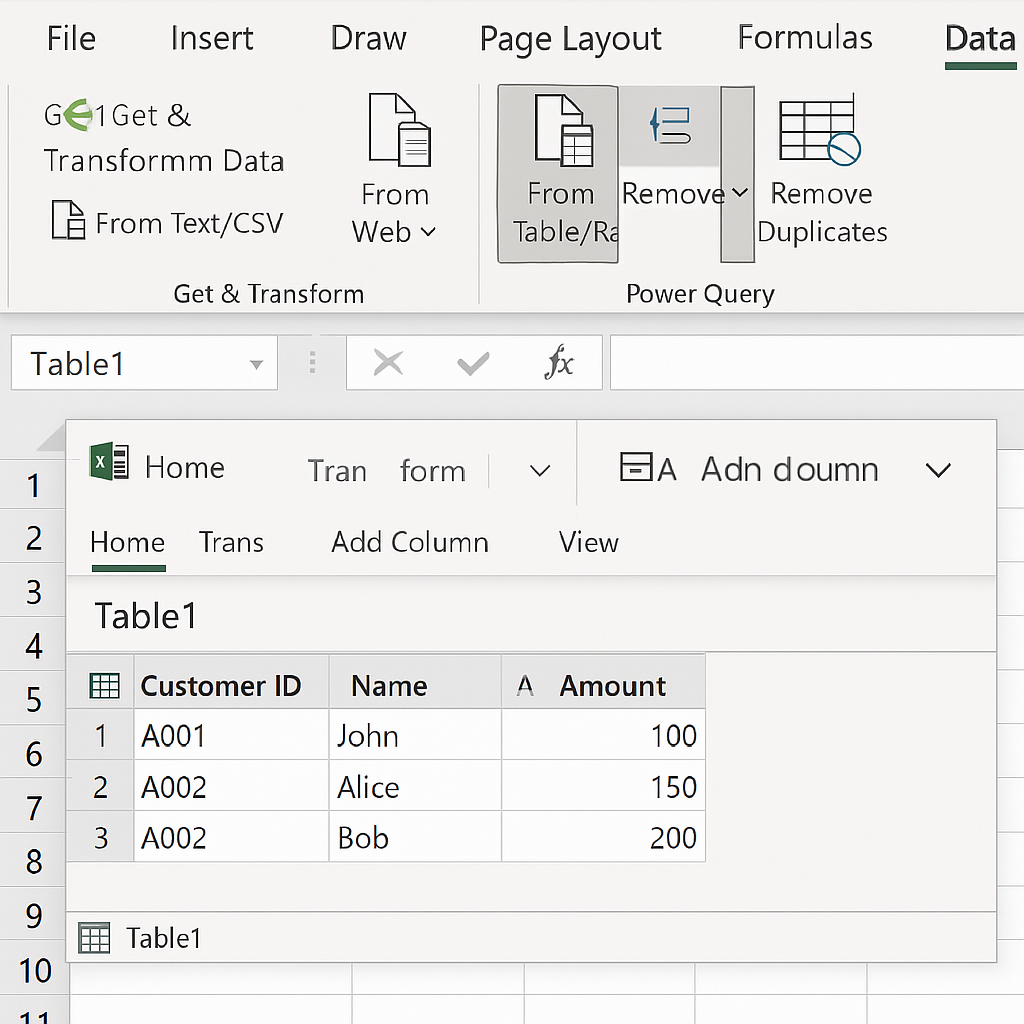
Using Power Query
Best for: Cleaning large datasets with automation and precision.
Steps:
- Select your data and go to Data > Get & Transform Data > From Table/Range.
- In Power Query, select the columns and click Remove Duplicates.
- Click Close & Load to return a clean dataset to Excel.
Power Query is ideal for recurring tasks and complex data transformations
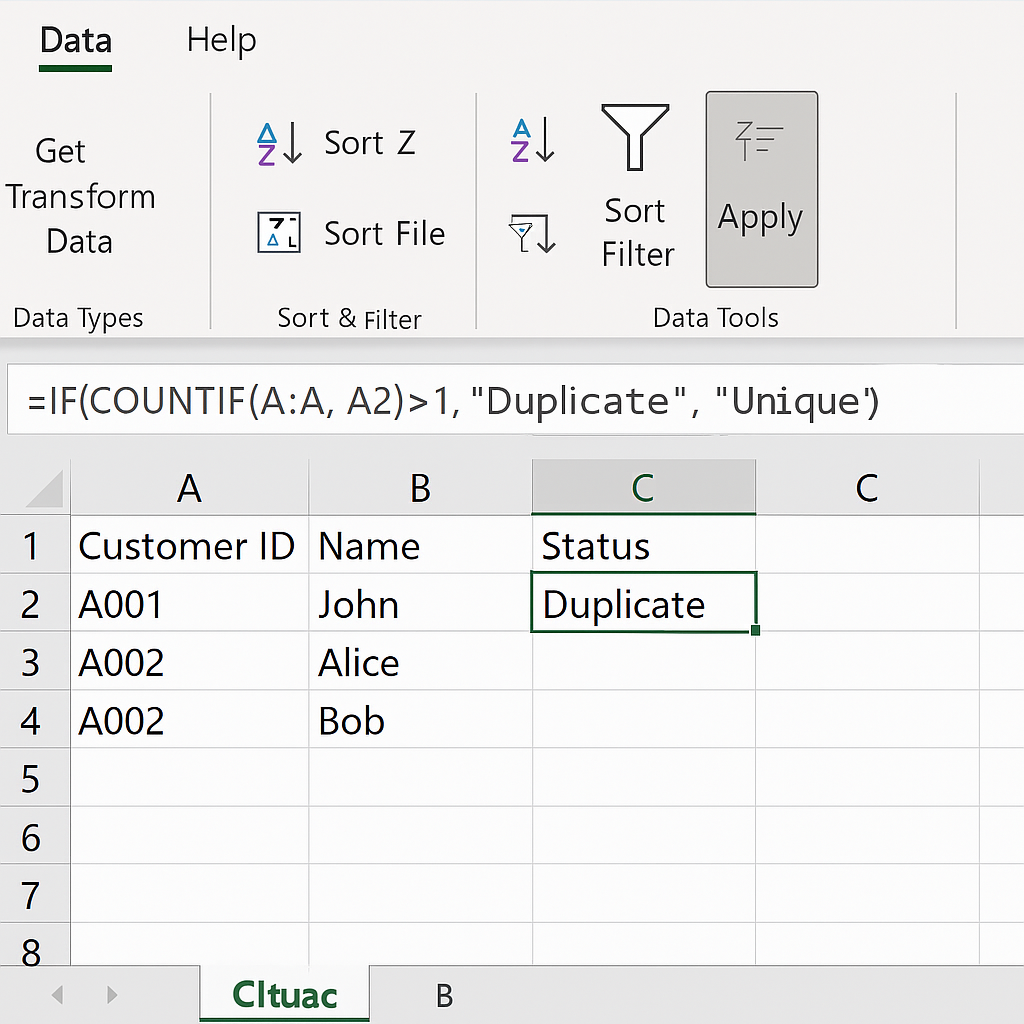
Using Formulas (Manual Review)
Best for: Flagging duplicates for manual deletion.
Formula:
=IF(COUNTIF(A:A, A2)>1, “Duplicate”, “Unique”)
Apply this formula to check if a value in column A repeats. You can then filter and delete duplicates as needed.
Examples
Example 1: Remove Duplicate Emails
| Name | |
| Sarah | sarah@email.com |
| John | john@email.com |
| Sarah | sarah@email.com |
Solution: Use the Remove Duplicates tool, selecting the “Email” column. This will retain only one entry per unique email address.
Example 2: Clean a Sales Record
| Order ID | Product | Price |
| 1005 | Shoes | $50 |
| 1006 | Shirt | $25 |
| 1005 | Shoes | $50 |
Solution: Select all columns and remove duplicates based on “Order ID”. Only the first 1005 entries remain.
Benefits of Removing Duplicates in Excel (In Detail)
Ensures Data Accuracy
Duplicates can distort calculations like totals, averages, and KPIs. Removing them ensures you base decisions on clean, trustworthy data.
Improves File Performance
Large Excel files with thousands of duplicates can be sluggish. Cleaned-up spreadsheets are lighter and faster, especially when used in shared environments.
Reduces Reporting Errors
Accurate dashboards and pivot tables depend on unique, non-redundant records. Cleaning duplicates prevents double-counting or skewed trends.
Prevents Communication Mistakes
Duplicate customer records can lead to one person getting several emails or SMS messages. This wastes resources and harms trust.
Supports Regulatory Compliance
Clean data helps follow data protection laws like GDPR. These laws need accurate, minimal, and updated information.
Improves Import/Export Compatibility
Systems like CRMs, ERPs, and databases often reject duplicate records. Removing them ensures error-free imports and data syncing.
Three EASY Ways to Find and Remove Duplicates in Excel
Frequently Asked Questions (FAQ’s)
Does Excel keep the first or last occurrence of a duplicate?
Excel always keeps the first occurrence when using the Remove Duplicates tool. All subsequent duplicates are deleted.
Can I remove duplicates across multiple columns?
Yes. In the Remove Duplicates dialog, select several columns. This checks for duplicates only if all selected values match.
Will removing duplicates delete my original data?
Yes, unless you use Advanced Filters or Power Query to output results elsewhere. Always save a backup before using the Remove Duplicates tool.
How do I find and remove duplicates in Excel without losing data?
Use formulas like COUNTIF to find duplicates. Then, filter and check them manually before deleting.
Can I automate duplicate removal in Excel?
Yes. Power Query and Excel Macros help automate this process. This is useful for large datasets that update often.
Conclusion
Removing duplicates in Excel does more than clean your sheet. It helps create accurate, efficient, and trustworthy data. No matter if you have customer lists, product databases, or financial reports, it’s key to cut out redundancy. This guide has walked you through beginner to advanced techniques. Use these methods to boost data quality. They will simplify your workflow and help you make better decisions with clean data.
Need more Excel help? Save this guide and explore our tutorials on VLOOKUP, XLOOKUP, and conditional formatting.