
Commissions are vital for motivating sales teams. They help manage vendor relationships and track incentive pay. If your business pays commissions, you need a reliable and flexible way to calculate them. That’s where Excel comes in. In this guide, we’ll discuss commissions. You’ll learn how to calculate them in Excel. We’ll also share real-life examples, key benefits, and answer some common FAQs.
What are Commissions?
Commissions are payments given to people, like salespeople or affiliates. They earn these based on how well they perform or the amount of sales they make. Commissions can be structured in various ways:
- Fixed percentage commission
- Tiered or sliding scale commission
- Bonus-based or threshold-triggered commission
Tracking and calculating commissions correctly ensures:
- Transparent compensation
- Accurate payroll
- Better sales forecasting
How to Calculate Commission in Excel (Step-by-Step)
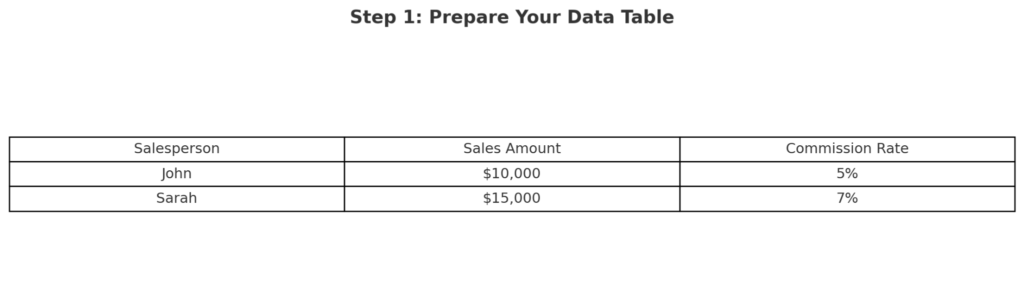
Step 1: Prepare Your Data Table
Your basic dataset should include the following columns:
| Salesperson | Sales Amount | Commission Rate |
| John | $10,000 | 5% |
| Sarah | $15,000 | 7% |
Step 2: Input a Formula to Calculate Commission
In a new column labeled Commission Earned, use this formula:
=Sales Amount * Commission Rate
Example in Excel (cell D2):
=B2*C2
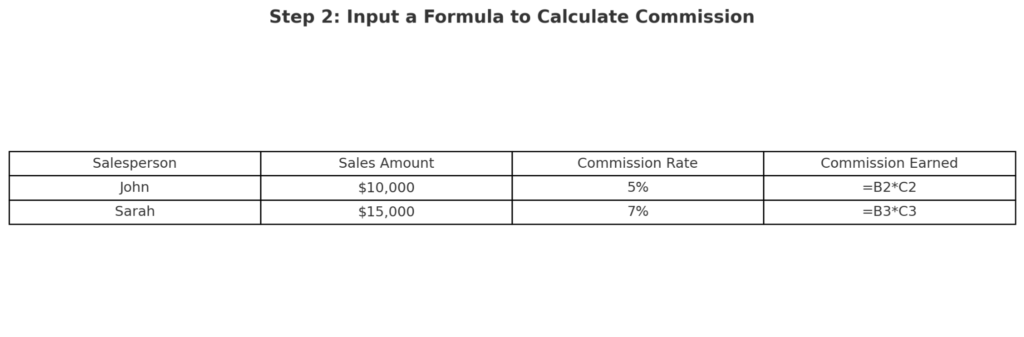
Now your table looks like this:
| Salesperson | Sales Amount | Commission Rate | Commission Earned |
| John | $10,000 | 5% | $500 |
| Sarah | $15,000 | 7% | $1,050 |
Tip: Format the Commission Rate column as a percentage for correct results.
Step 3: Use IF Statements for Tiered Commissions (Optional)
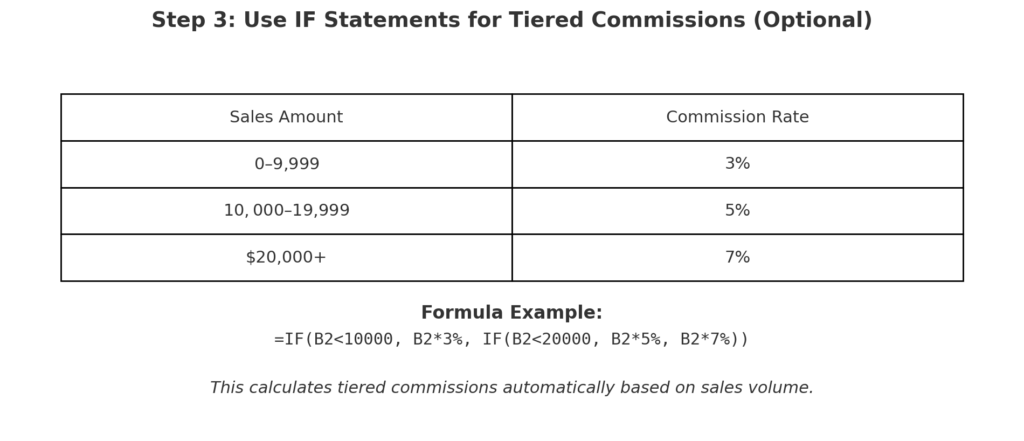
If your commission structure varies based on sales volume:
| Sales Amount | Commission |
| $0–$9,999 | 3% |
| $10,000–$19,999 | 5% |
| $20,000+ | 7% |
Sales AmountCommission$0–$9,9993%$10,000–$19,9995%$20,000+7%
Use a formula like:
=IF(B2<10000, B2*3%, IF(B2<20000, B2*5%, B2*7%))
This calculates tiered commissions automatically.
Step 4: Create a Summary or Dashboard
Use Excel features like:
- SUM for total commissions
- PivotTables to view commissions by region or product
- Conditional Formatting to highlight top earners
This turns raw commission data into actionable insights.
Examples of Commission Calculations in Excel
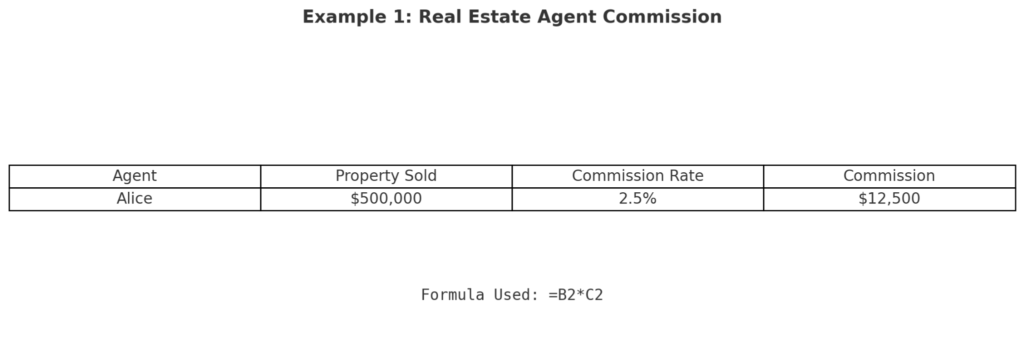
Example 1: Real Estate Agent Commission
| Agent | Property Sold | Commission Rate | Commission |
| Alice | $500,000 | 2.5% | $12,500 |
Formula Used:
=B2*C2
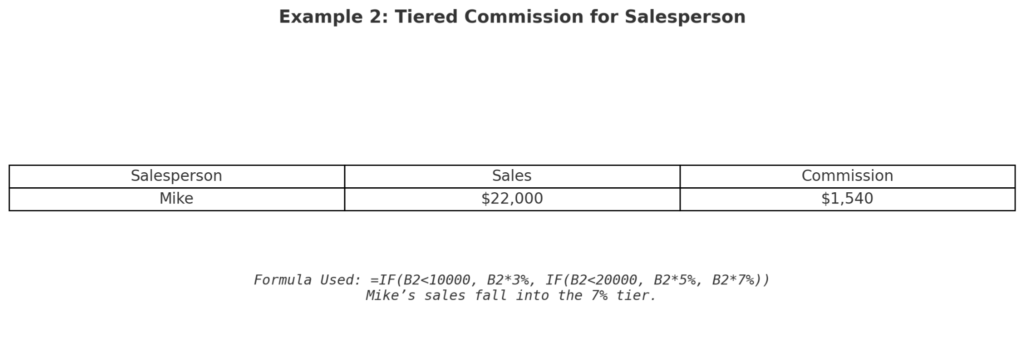
Example 2: Tiered Commission for Salesperson
| Salesperson | Sales | Commission |
| Mike | $22,000 | $1,540 |
Formula Used:
=IF(B2<10000, B2*3%, IF(B2<20000, B2*5%, B2*7%))
Mike’s sales fall into the 7% tier.
Benefits of Calculating Commission in Excel
Accuracy in Payroll and Incentives
Excel formulas eliminate human error and miscalculations. By automating commission calculations:
- Payroll is processed smoothly
- Salespeople receive fair compensation
- Trust and transparency are enhanced
Customizable for Any Commission Model
Whether you use:
- Flat percentages
- Tiered structures
- Bonus-based systems
Excel adapts to every structure using nested formulas, IF statements, or LOOKUP functions.
Real-Time Scenario Analysis
You can use Excel’s What-If Analysis and Data Tables to:
- Predict payouts
- Test different commission structures
- Forecast future costs based on performance
This empowers better compensation planning.
Easy to Integrate with CRM and Sales Data
Excel can:
- Import CSV files from CRMs like HubSpot, Salesforce, or Zoho
- Combine data from different departments
- Automatically calculate commissions with linked sheets
This streamlines workflows and reduces manual entries.
Improves Sales Performance Tracking
With Excel charts and dashboards, you can:
- Visualize top performers
- Highlight trends over time
- Align rewards with results
This fuels a performance-driven culture.
How to calculate sales commissions using Excel Formula
FAQ’s: Calculating Commission in Excel
What if commission rates change monthly?
Create a new column for monthly rates. Use VLOOKUP or INDEX-MATCH to update them automatically.
Can Excel handle bonus + commission formulas?
Yes. You can combine bonuses and commissions like this:
=B2*5% + IF(B2>20000, 500, 0)
This adds a $500 bonus if sales exceed $20,000.
How do I round commissions to nearest dollar?
Use:
=ROUND(B2*C2, 0)
This rounds the result to a whole number.
Can I track commission by product or region?
Yes. Use PivotTables or SUMIFS to analyze by product lines, regions, or time periods.
How to prevent formula errors with missing data?
Wrap your formula with IFERROR():
=IFERROR(B2*C2, “Missing Data”)
This avoids #VALUE! errors when data is incomplete.
Conclusion
Calculating commission in Excel is important for businesses that reward performance. Excel’s flexibility and formula power let you create a commission tracker. It can be simple or advanced, based on your compensation structure. Get reliable, useful knowledge. This improves your financial accuracy, motivates your team, and increases data transparency.