
Today, managing personal and business finances relies heavily on data. Digital banking is now common. Accessing and analyzing your financial transactions in Excel is essential. This helps with budgeting, tax prep, expense tracking, and financial planning. As a Chase Bank customer, you can download your bank statements in Excel. This helps you understand your spending habits and financial health better. Chase usually gives statements in PDF and CSV formats. However, many users don’t know that they can easily open CSV files in Excel. This lets them use helpful features like pivot tables, custom formulas, and visual dashboards.
What Are Chase Statements?
Chase Bank statements show your banking activity every month or quarter. They are provided by JPMorgan Chase. These statements outline:

- Deposits and withdrawals
- Purchases and payments
- Account balances
- Fees and interest
- Transaction history
Each statement gives a clear look at your financial habits. It also acts as a formal record to track your finances, audits, loan applications, or tax prep.
How to Download Chase Statements in Excel?
You can easily download your Chase statements as an Excel file. You can also convert them from PDF or CSV to Excel. Here’s a step-by-step guide:
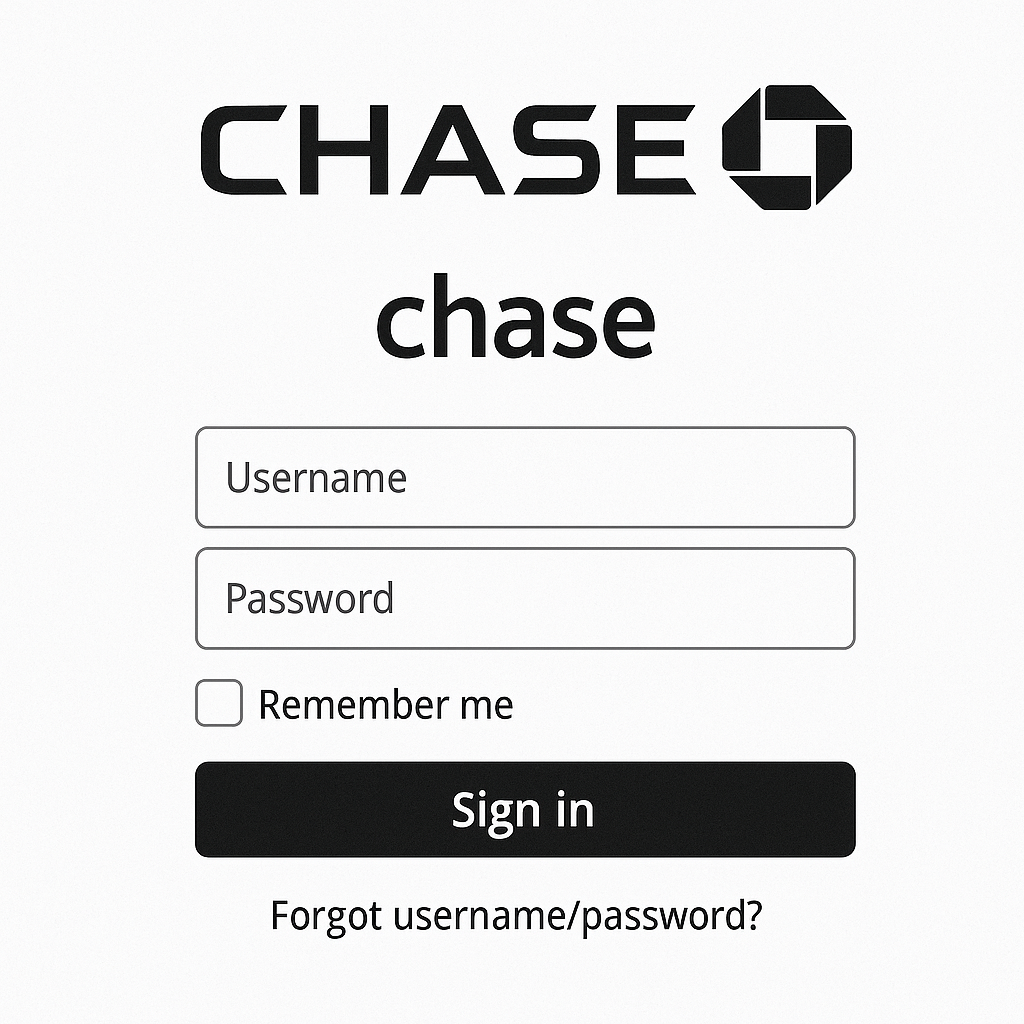
Step 1: Log in to Your Chase Online Account
- Go to chase
- Enter your username and password
- Complete any required two-factor authentication
Step 2: Access Your Account
From the Dashboard, click on the bank account or credit card you want. Then, download the statements.
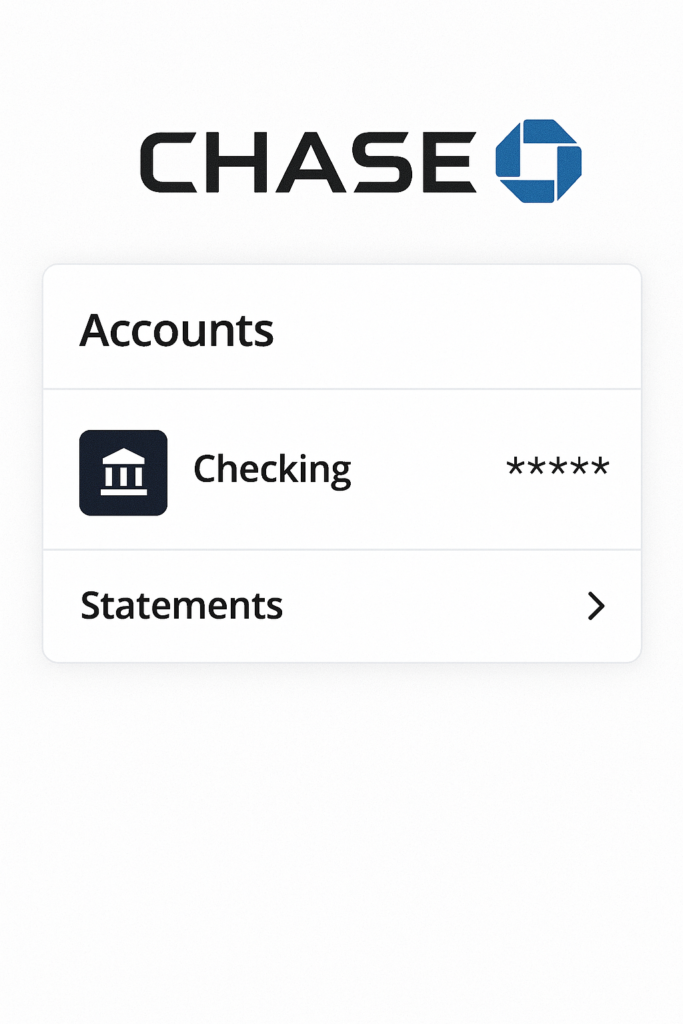
Step 3: Go to ‘Statements & Documents’
- Click on ‘Statements’ or ‘More > Statements & Documents’
- Choose the year and month you want to download
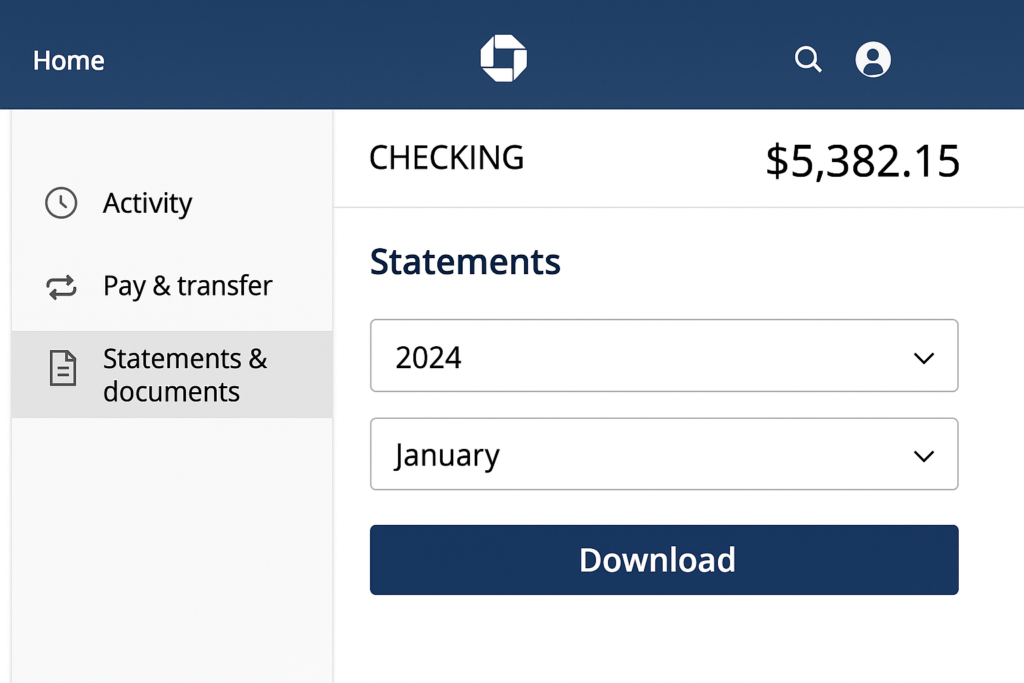
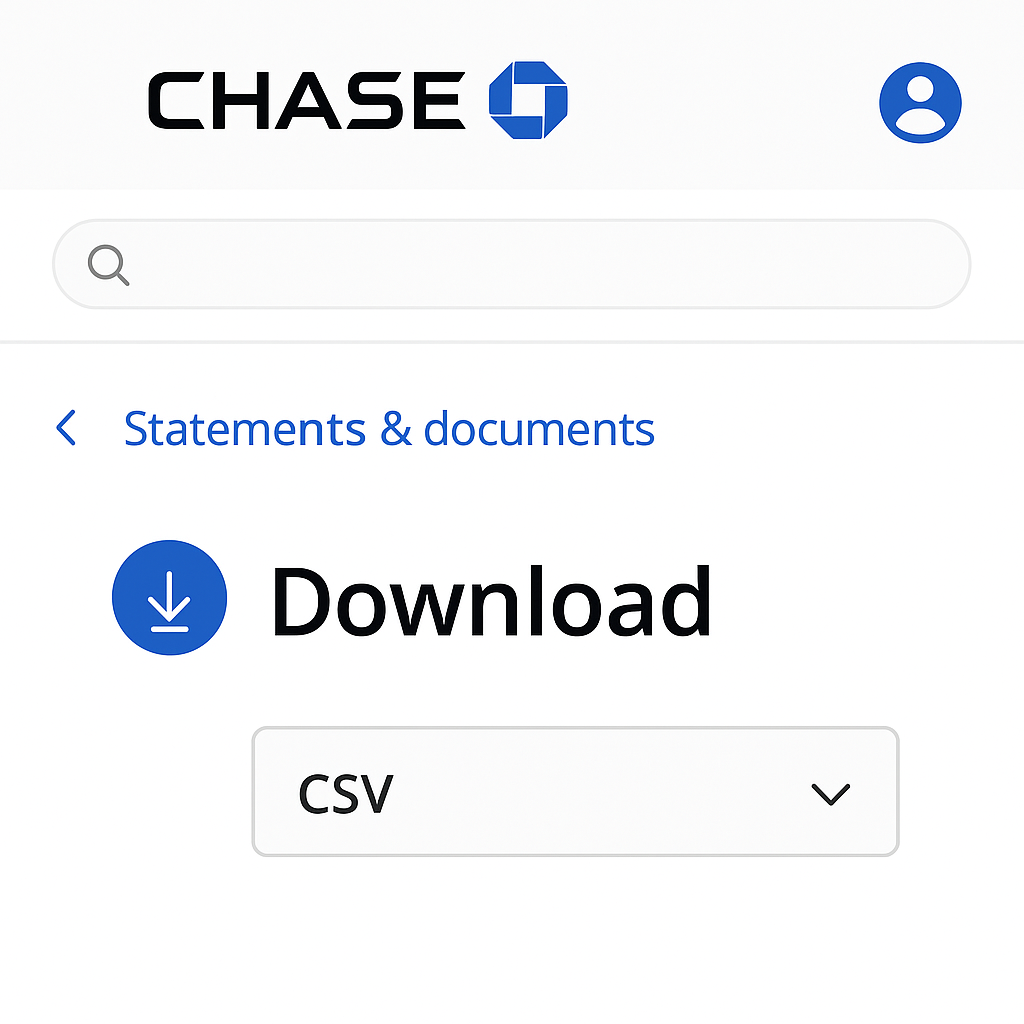
Step 4: Download as CSV
- Chase doesn’t offer Excel (.xlsx) format directly. However, you can download your statement as a CSV (Comma Separated Values) file.
- Click Download > CSV
Pro Tip: CSV files can be opened in Excel with full formatting. Simply double-click or open with Excel to use sorting, filters, and formulas.
Step 5: Open CSV File in Excel
- Launch Microsoft Excel
- Go to File > Open > Browse and locate your downloaded CSV file
- Excel will automatically display the transactions in structured columns
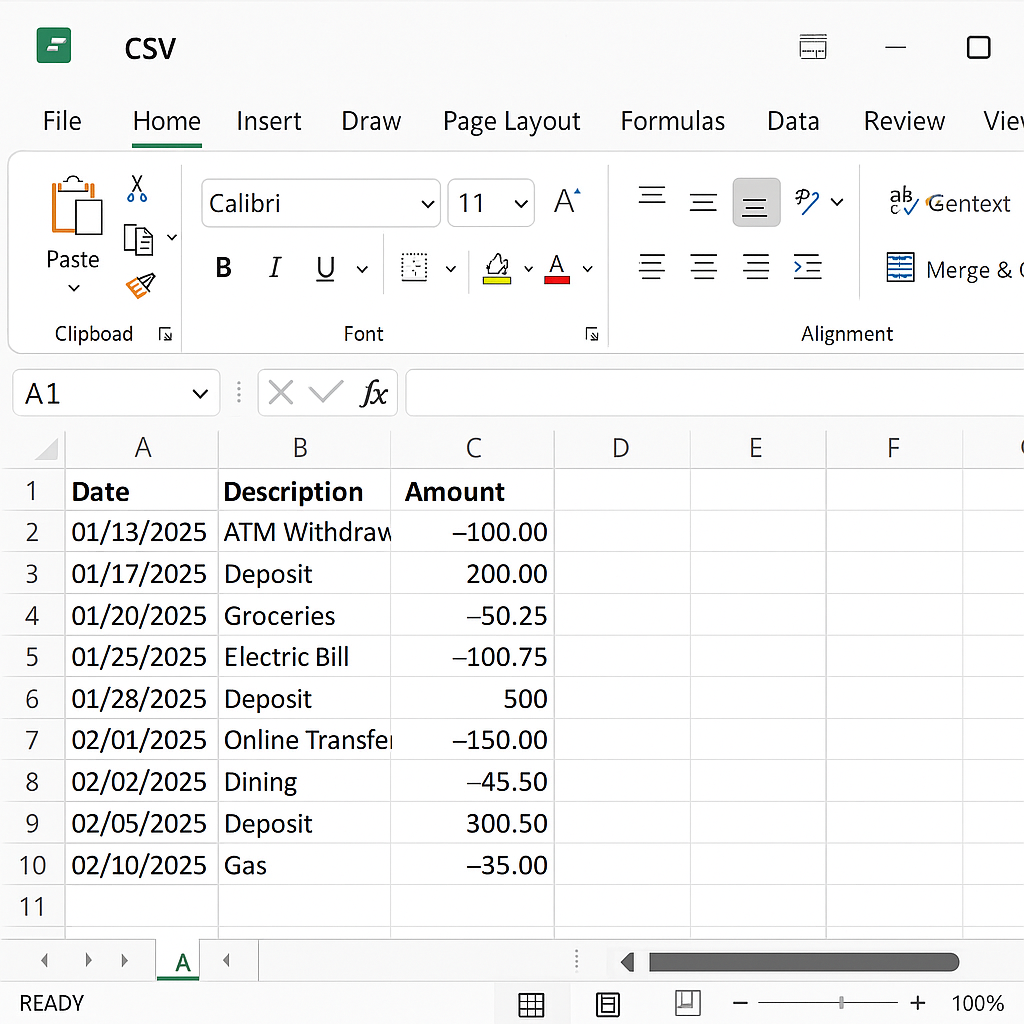
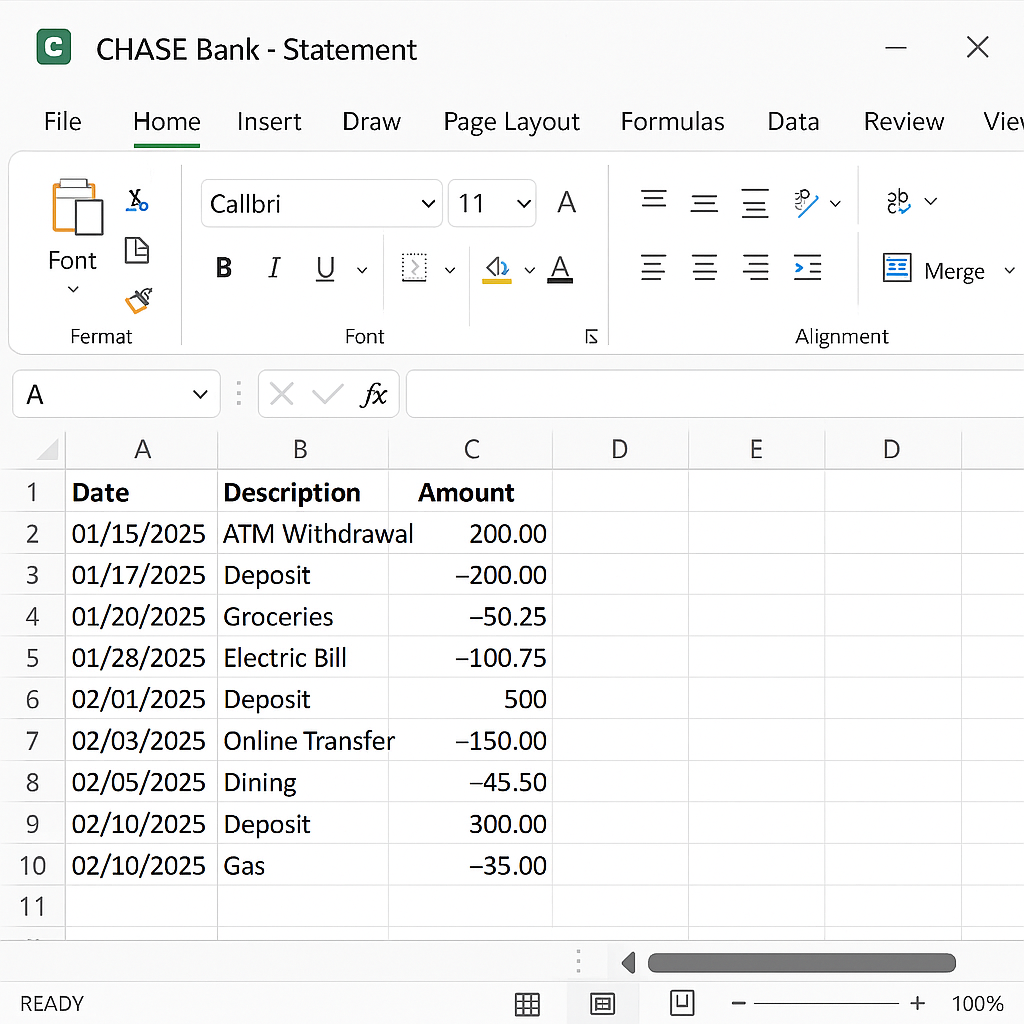
Example: Chase Statement in Excel Format
Once opened in Excel, your Chase CSV file might look like this:
This format is ideal for budgeting tools, Excel formulas, and personal finance tracking.
Benefits of Downloading Chase Statements in Excel
Better Financial Tracking
Excel helps you sort transactions. You can use formulas and pivot tables. This way, you can analyze your income and spending over time.
Tax Preparation
Quickly report your Chase transactions for tax season. You can filter by date, category, or amount. This makes it easier to separate deductible expenses and business transactions.
Expense Management
Sort and filter by vendor like Amazon or Uber, by category such as Food or Travel, or by date. This helps you see spending habits and cut down on unnecessary costs.
Custom Budgeting
Use your Chase Excel data to build custom budgets in Excel. Add charts, create monthly caps, and track actual vs. planned spending.
Loan or Mortgage Applications
Keeping detailed Excel records of your bank activity helps during loan applications. They offer quick views of your financial stability.
Data Portability
CSV/Excel formats are universally accepted and easily imported into:
- Google Sheets
- Accounting software (like QuickBooks or Xero)
- Budgeting apps (like Mint or YNAB)
Historical Comparison
Download several monthly statements in Excel. Then, you can create year-over-year comparisons. This helps you track growth, meet financial goals, or spot recurring charges.
FAQ’s
Can I download Chase statements directly in Excel format?
No, Chase does not offer a direct download option in .xlsx format. However, you can download your statements as CSV files, which can be easily opened and edited in Microsoft Excel with full functionality such as sorting, filtering, and formula use.
Where can I find the CSV download option in Chase Online?
Log in to your Chase account, go to the specific account (checking, savings, or credit card), then click on ‘Statements & Documents’.
Why should I use Excel instead of just viewing my statement online?
Excel allows you to organize, analyze, and customize your financial data in ways that are not possible with Chase’s online portal or static PDFs.
Is it safe to download and store Chase statements in Excel?
Yes, but you should always take precautions. Store your Excel files on a secure, password-protected device, and avoid uploading sensitive data to cloud services without proper encryption.
Final Thoughts
Downloading Chase bank statements in Excel lets users take charge of their finances. Excel helps freelancers, small business owners, and anyone managing personal expenses. Its flexibility and analytical tools give you an advantage. You can make better financial decisions with ease. By using this step-by-step method, you’re not just organizing data. You’re also taking charge of your financial wellness.