
Struggling with errors or strange calculations in your Excel sheet? You might be dealing with a circular reference. These are hidden but strong issues. They can disrupt your formulas and throw off models. This is especially true in financial analysis, data reporting, or budget planning. This guide shows you how to find, understand, and remove circular references in Excel. We’ll use the latest methods.
What is a Circular Reference in Excel?
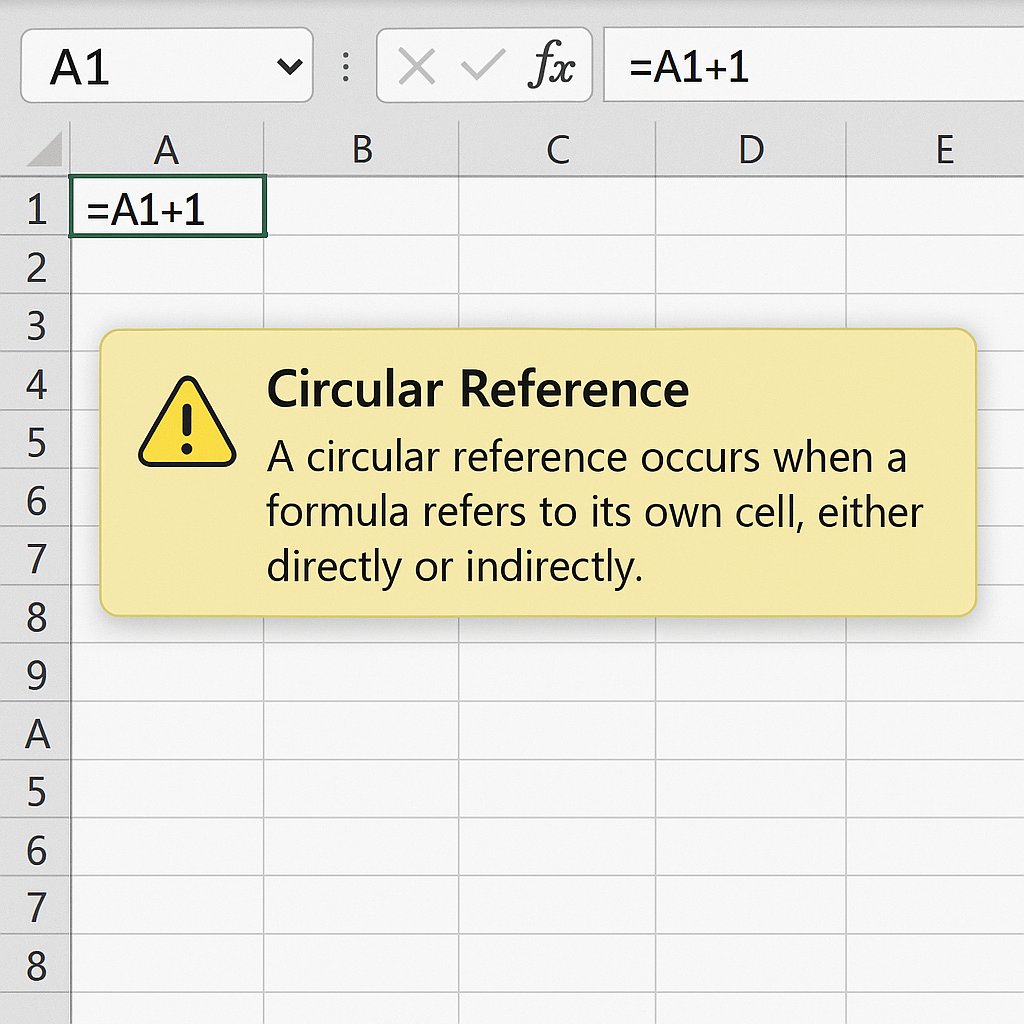
A circular reference happens when a formula points back to its own cell, either directly or indirectly. In simple terms, Excel gets caught in a loop, trying to calculate a value that depends on itself.
Example: If cell A1 contains =A1 + 1, Excel can’t solve it, because the formula tries to use its own output as input.
Why Is It a Problem?
- It can slow down your file
- Produce incorrect or unstable results
- Often goes unnoticed in complex sheets unless Excel flags it
How to Find Circular References in Excel?
Circular references are formulas that loop back to themselves, either directly or indirectly. Excel can flag them, but in large spreadsheets, they can be tricky to locate. Use the following steps to find and fix them efficiently:
Step 1: Check for Circular Reference Warning
When you enter a formula with a circular reference, Excel usually warns you right away:
⚠️“There are one or more circular references where a formula refers to its own cell either directly or indirectly.”
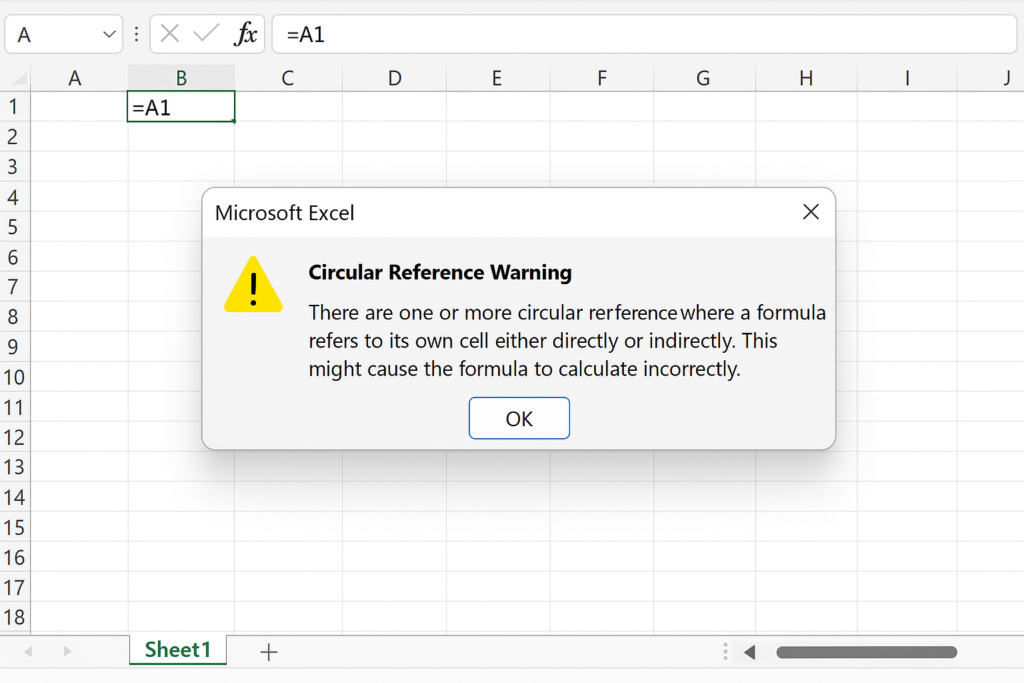
This message often includes the cell address, so make a note of it.
Step 2: Use Excel’s Built-In Circular Reference Tool
You can locate all circular references manually from Excel’s menus.
How:
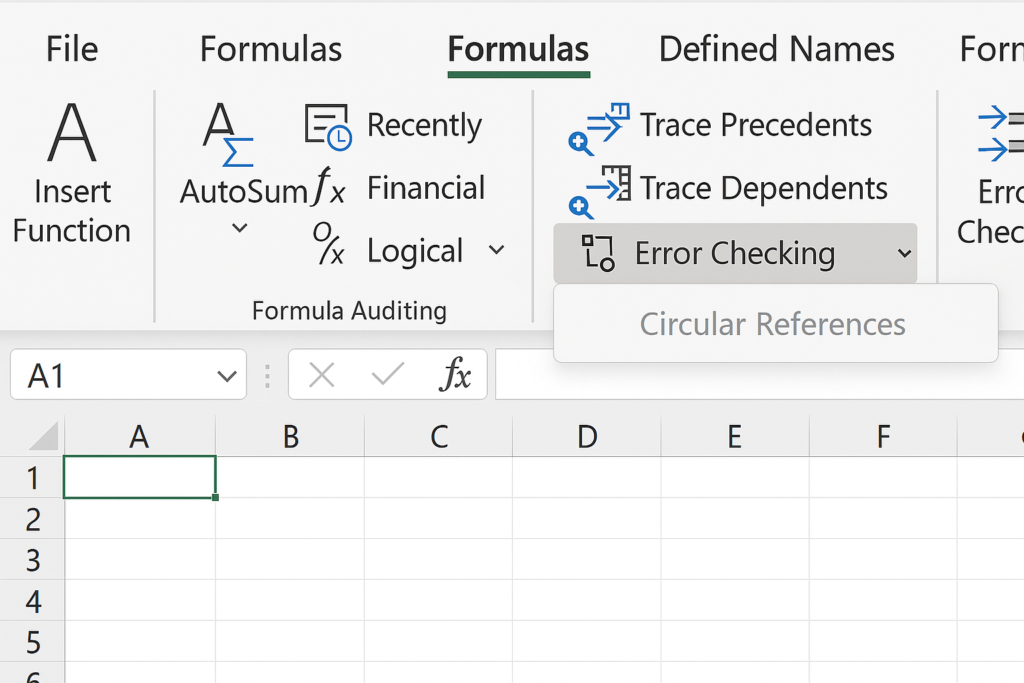
- Go to the Formulas tab on the top ribbon.
- In the Formula Auditing group, click on Error Checking.
- Hover your cursor over Circular References in the dropdown.
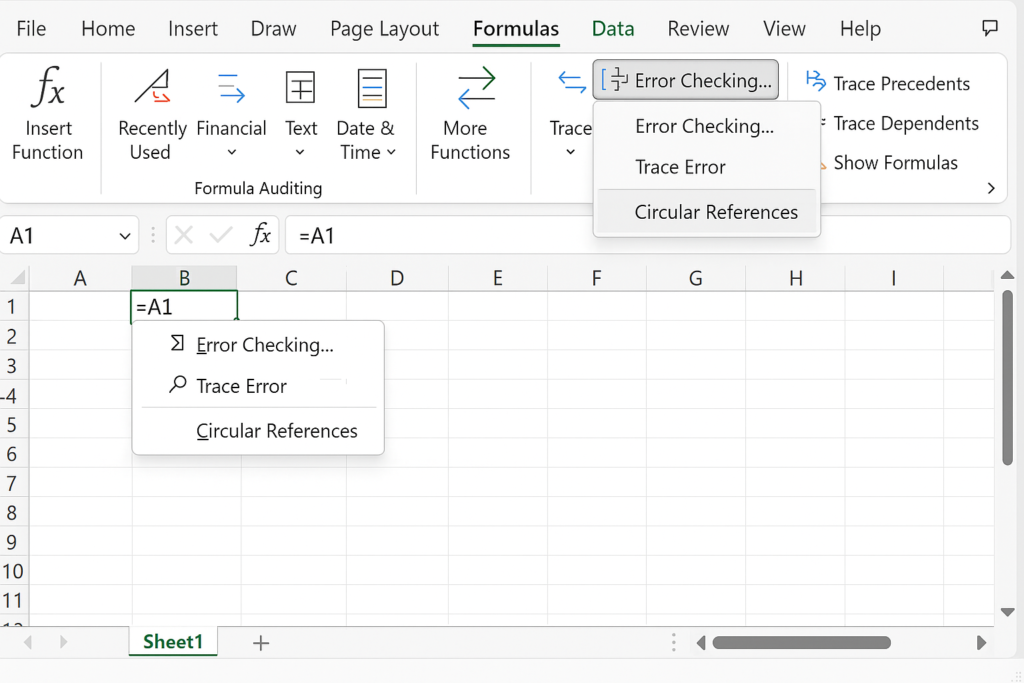
Excel will list each cell that contains a circular reference.
Tip: If there are multiple circular references, Excel shows one at a time. Click each to jump to that cell.
Step 3: Trace Precedents and Dependents (Optional but Helpful)
Use this method when you want to see how cells are linked to understand the circular loop.
How:
- Select the suspected cell (e.g., the one Excel identified earlier).
- Go to Formulas > Formula Auditing.
- Click Trace Precedents (shows cells feeding into the formula).
- Click Trace Dependents (shows cells that depend on this one).
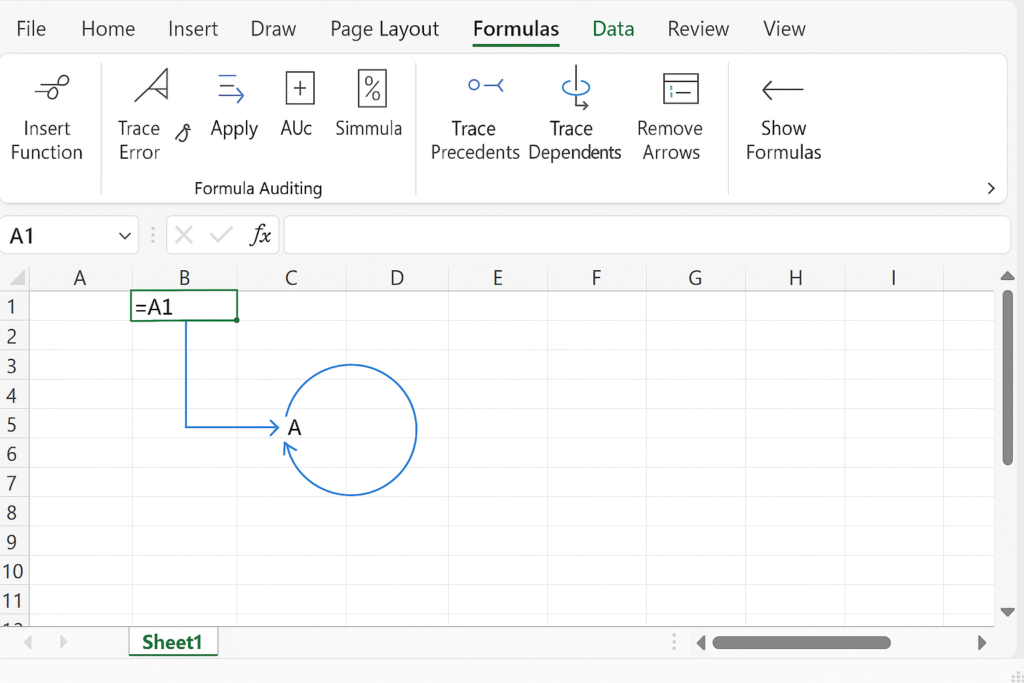
This helps you visualize where the loop is happening.
Step 4: Enable Iterative Calculations
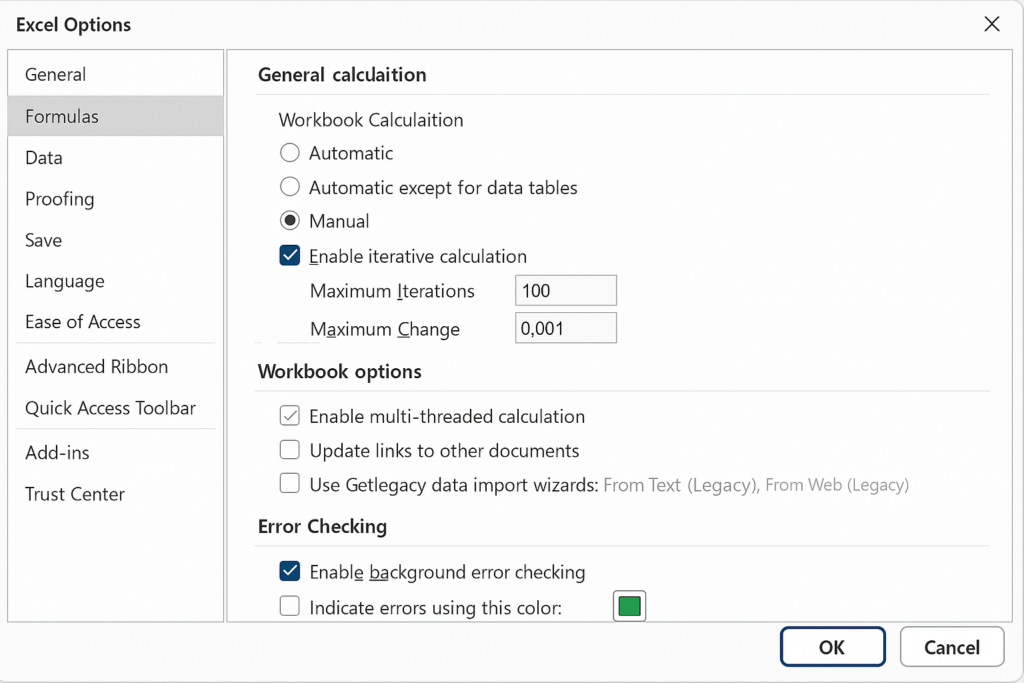
If you’re using circular logic (e.g., for forecasting models), enable iterative calculations:
How:
- Click on File > Options.
- Go to Formulas.
- Under Calculation options, check Enable iterative calculation.
- Set: Maximum Iterations (default: 100) and Maximum Change (default: 0.001)
Excel can fix circular references with repeated calculations, but use it carefully.
Step 5: Fix or Remove the Circular Reference
Once you’ve found the problematic cell(s), decide how to fix it:
Ways to fix:
- Edit the formula so it doesn’t refer to itself.
- Use a helper cell to split the logic across multiple cells.
- Recalculate manually if needed (press F9).
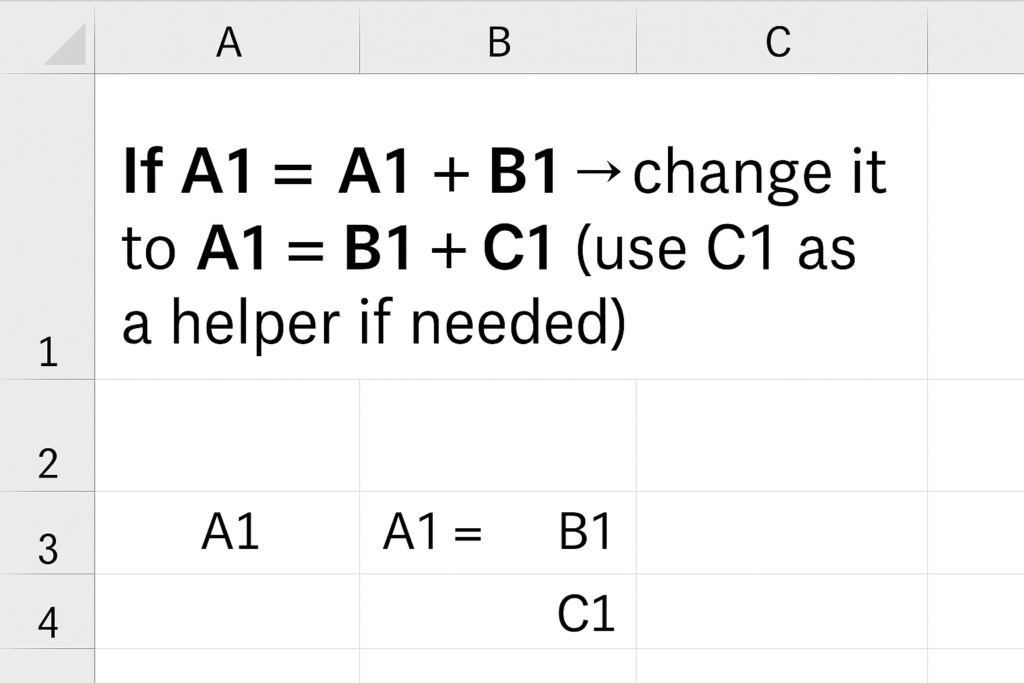
Example Fix:
If A1 = A1 + B1 → change it to A1 = B1 + C1 (use C1 as a helper if needed)
Step 6: Recheck for Circular References
After making your edits:
- Go back to Formulas > Error Checking > Circular References.
- If it’s grayed out or empty ➜ You’ve successfully removed all circular references.
Types of Circular References
Understanding the type helps in fixing the issue faster:
| Type | Description | Example |
| Direct | The formula refers to its own cell | A1 = A1 + 1 |
| Indirect | The loop involves multiple cells | A1 = B1 + 1 and B1 = A1 + 1 |
| Intentional (Iterative) | Sometimes used in financial models | Loan amortization with iterative settings |
Note: Intentional circular references need special settings (like enabling iteration limits under Excel options).
How to Remove a Circular Reference in Excel?
Fixing circular references depends on their type:
Step-by-Step Fix:
- Identify the cells causing the issue (using the methods above)
- Edit the formula so it no longer refers back to itself (directly or indirectly)
- For complex loops, break the chain between cells and use helper cells
- If you’re using intentional iterations: Go to File > Options > Formulas. Check Enable iterative calculation. Set Maximum iterations and Maximum change
Always review your model after fixing to ensure the results still make logical sense.
⚠️How to Find Circular References in Excel | Circular Reference Warning – How to Fix
Frequently Asked Questions (FAQ’s)
Can I allow circular references in Excel?
Yes, but you must enable iterative calculations in Excel settings. Use this only if you know what you’re doing.
Why does Excel allow circular references at all?
In advanced scenarios, like forecasting, circular formulas are used to mimic iterative processes.
How do I know if there are multiple circular references?
Use the Error Checking > Circular References dropdown to view all instances one by one.
Will Excel always warn me about circular references?
Usually, yes. Warnings may not show up in large files or if iterative calculation is already on.
Do circular references slow down Excel?
Yes, especially if your sheet is large or the circular logic is complex—it can lead to long load times or freezing.
Conclusion
Circular references in Excel can be tricky, especially if you don’t know what to look for. But with the right steps and tools, you can find and fix them effectively. Knowing how to manage loops is key. It helps you troubleshoot errors and build complex models. This understanding makes your work more accurate, reliable, and efficient.