
In today’s teamwork-focused workplaces, it’s vital to keep sensitive data in Excel files safe. Sometimes, you need to share reports, financial statements, or templates. You want others to see the content but not change it. Microsoft Excel has built-in features. You can password-protect a file. This lets others see it in read-only mode. This guide shows you how to do it step-by-step. It includes examples, benefits, and answers to common questions.
What is Password Protecting an Excel File?
Password protection in Excel secures your workbook with a password. This way, only authorized users can edit, view, or open the file.
There are typically three types of Excel file protection:
- Password to Open – Prevents unauthorized access entirely.
- Password to Modify – Allows anyone to open the file but restricts editing unless the correct password is entered.
- Mark as Read-Only – Users are encouraged to open the file in read-only mode unless they have a password.
This method lets users open and view files but stops editing unless they have permission. It’s great for managers, analysts, HR professionals, and business owners who want to share content carefully.
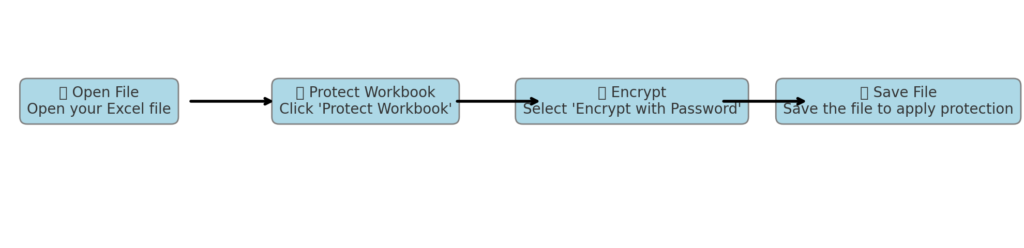
How to Password Protect an Excel File but Allow Read-Only?
Follow these simple steps to set up read-only password protection in Excel:
Step 1: Open Your Excel Workbook
Make sure your data is finalized and saved.
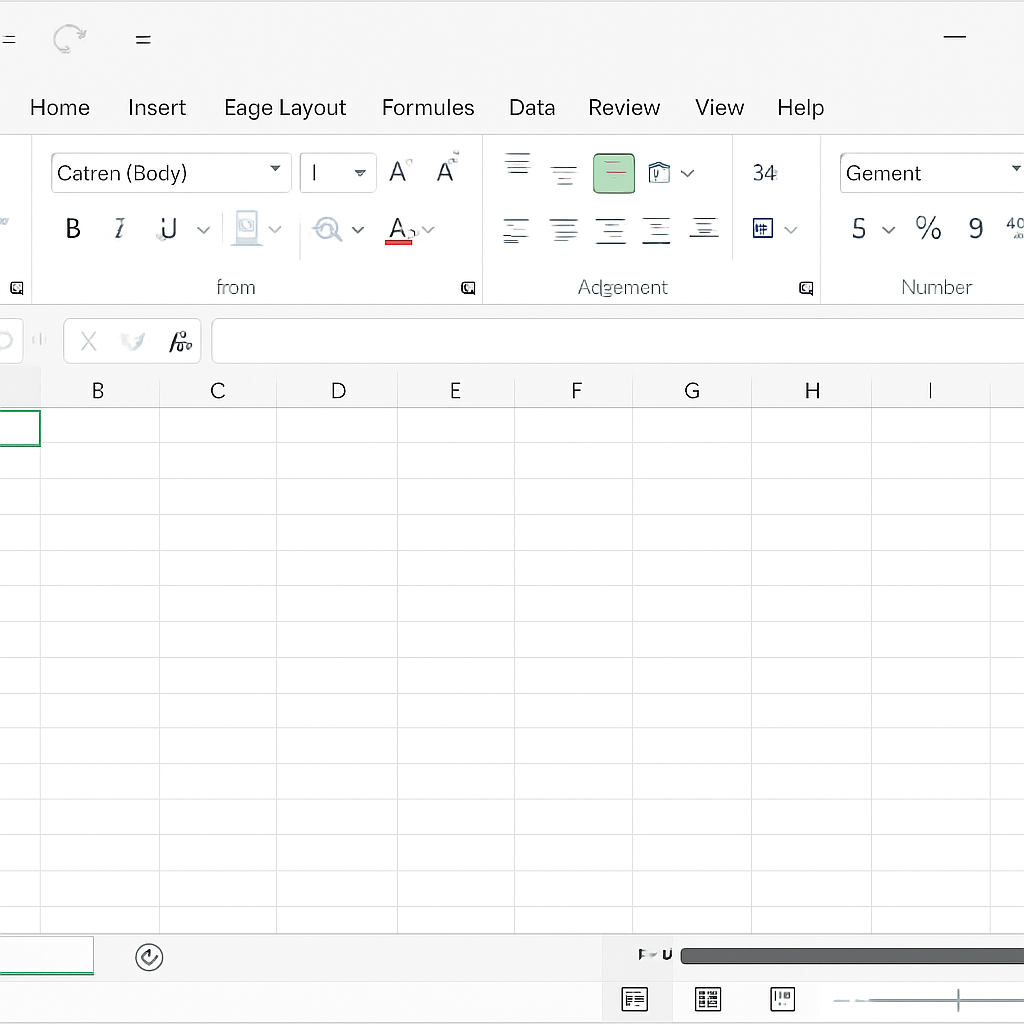
Step 2: Go to “File” > “Save As”
- Click File > Save As.
- Choose the folder location where you want to save the protected file.
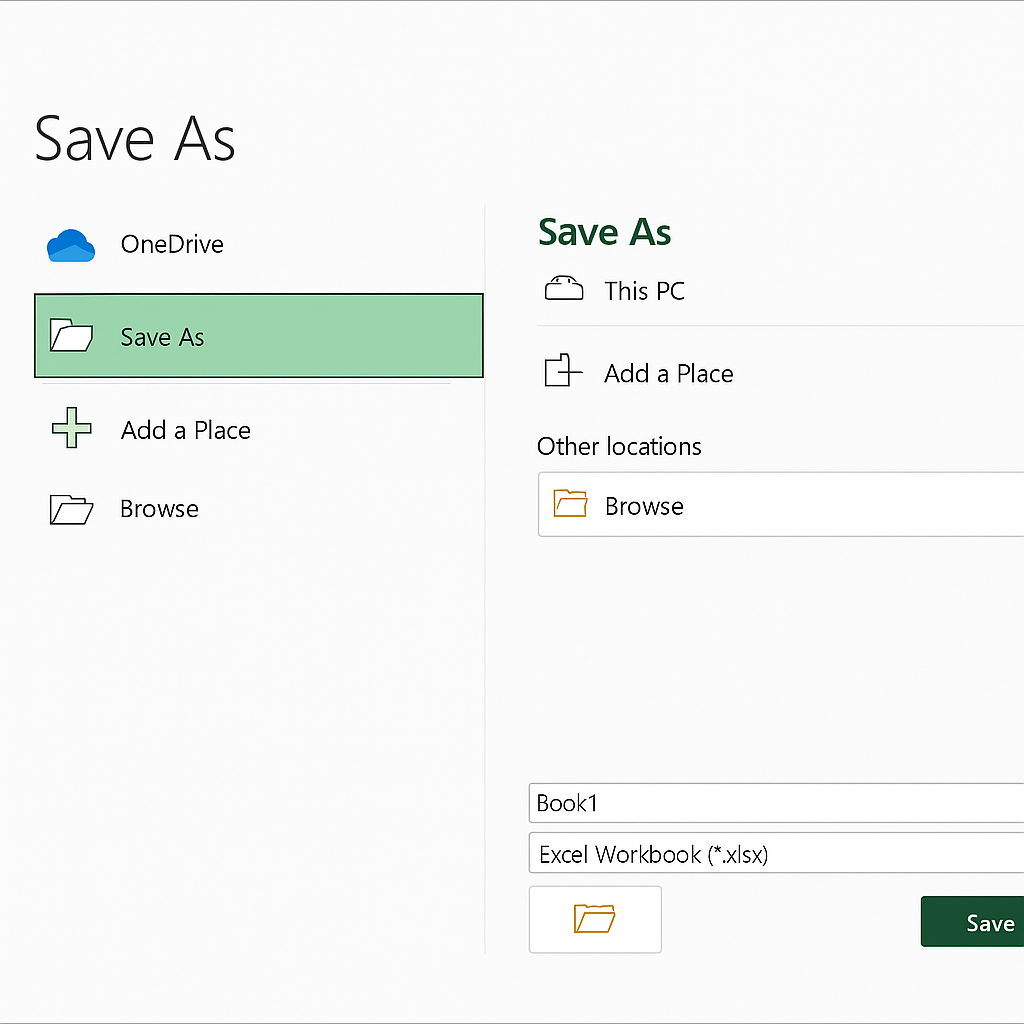
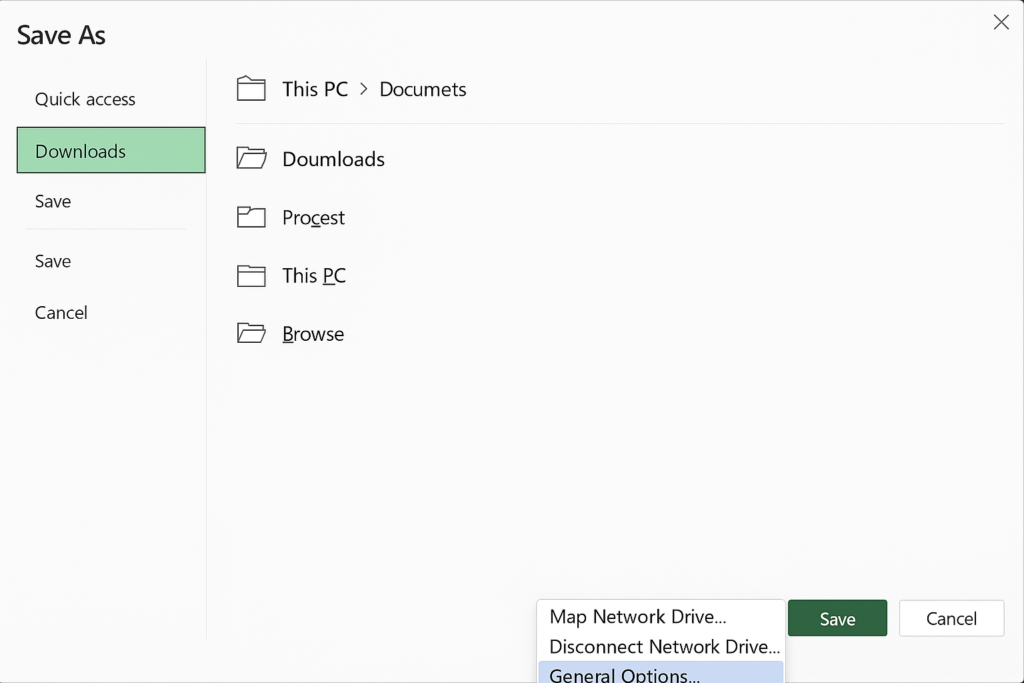
Step 3: Access Tools > General Options
- In the Save As dialog box, click the “Tools” drop-down (bottom right).
- Select “General Options…”.
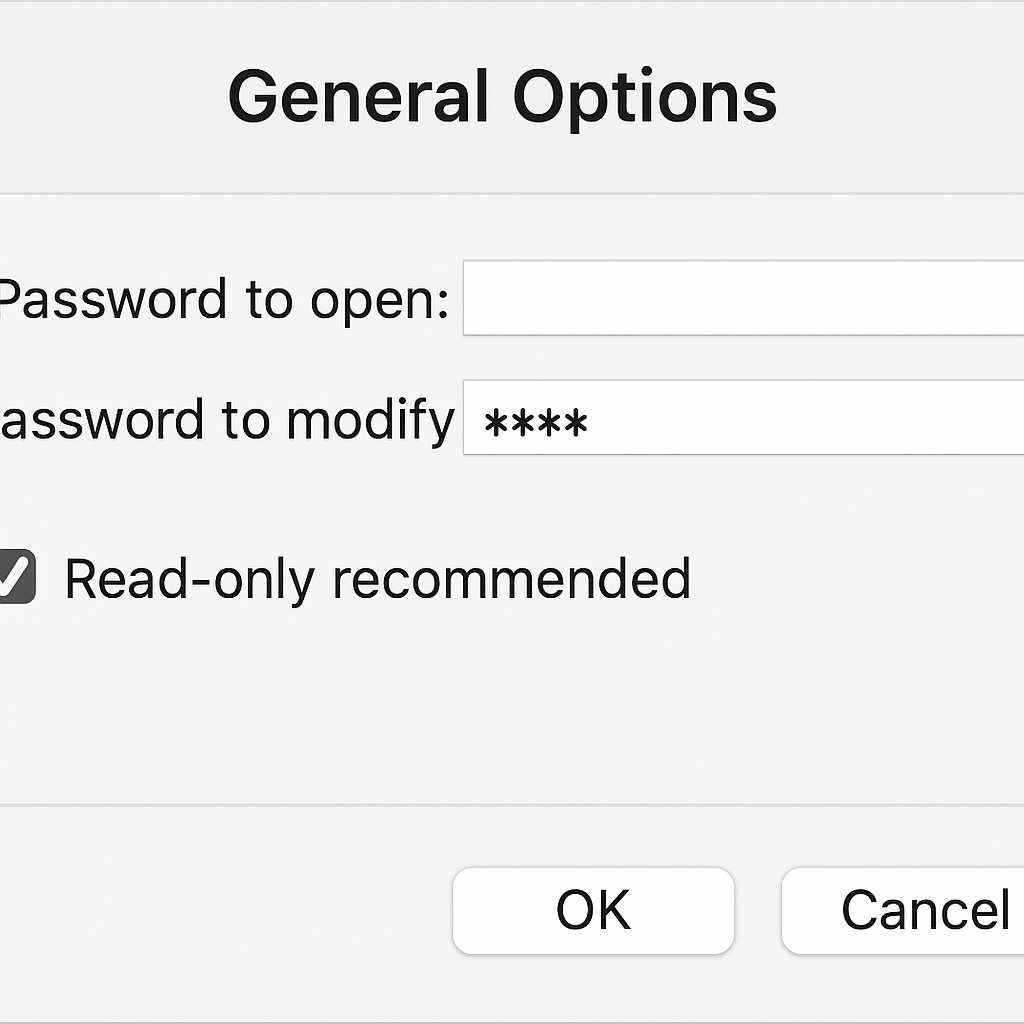
Step 4: Set Password to Modify
- In the popup window:
- Leave “Password to open” blank.
- Enter a password in “Password to modify” field.
- Check the box for “Read-only recommended”.
- Click OK.
Step 5: Save the File
- You will be asked to confirm the password.
- Save the file. Now, when someone opens the file, they will be prompted to open it as read-only or enter a password to make changes.
Users can view all contents but can’t save changes unless they enter the correct password.
Examples
| Scenario | Action Taken | Outcome |
| HR sends a salary sheet | Password to modify + Read-only enabled | Employees can view but not edit |
| Accountant shares report with CFO | “Read-only recommended” + Password to modify | CFO can choose to edit or not |
| Shared client proposal | No open password, only modify password used | Clients can review freely |
Benefits of Password Protecting Excel Files as Read-Only
Prevents Unauthorized Changes
This setup makes sure viewers can’t change the data, either by accident or on purpose. This keeps the file’s integrity and reliability intact.
Perfect for Sharing Sensitive Reports
Distributing financial statements, proposals, or contracts? Read-only protection allows you to share securely. You won’t risk overwriting or changing the original content.
Encourages Collaboration Without Risk
Team members can read the document during collaboration sessions. They won’t worry about anyone changing formulas or data.
Saves a Clean Version for Records
Your file stays a clean source of truth since users can’t overwrite it. This makes it perfect for audits, recordkeeping, or legal reference.
Easily Reversible
You can easily change or remove the password later. This gives you flexibility if user access needs change.
Useful for Training & Templates
Distribute read-only Excel templates to staff or clients. They can learn or test data entry without modifying the master version.
FAQ’s on Excel Read-Only Password Protection
Can users still copy content from a read-only Excel file?
Yes. Read-only prevents edits but does not block users from copying or viewing the contents.
Is there a way to stop users from copying or printing?
Not directly with Excel alone. To restrict those actions, use file-level permissions or secure PDF converters.
How do I remove the password later?
Go to File > Save As > Tools > General Options and delete the password fields. Save the file again.
What if users ignore the read-only prompt?
If users click “No” when asked to open in read-only, they still need the modify password to make changes and save the file.
Is this method compatible across all Excel versions?
Yes, this works in Excel 2010 through Excel 365. However, some UI elements may vary slightly across versions.
How To: Password Protect Excel & Word Docs allowing Read Only access Microsoft Office
Conclusion
Password protecting an Excel file lets you share it safely. You can allow read-only access, keeping your information secure and easy to manage. This method lets you control who can see and edit your files. It works well for sensitive company data, legal documents, and client deliverables.