

Randomizing a list is useful in many workflows. You might need it for assigning tasks, organizing survey responses, picking a winner, or shuffling data. Excel is flexible and great for processing data. It lets you shuffle any list easily. You don’t need coding, plugins, or complicated software.
What is “Randomize a List”?
To randomize a list means to shuffle or reorder its items in a non-sequential and unbiased way. Unlike sorting alphabetically or numerically, randomization produces a different, unpredictable order each time.
This technique is useful for:
- Running random prize draws
- Creating randomized test versions
- Assigning random groups or duties
- Testing data scenarios without bias
Randomizing ensures fairness, variety, and statistical neutrality, especially in data sampling or analysis.
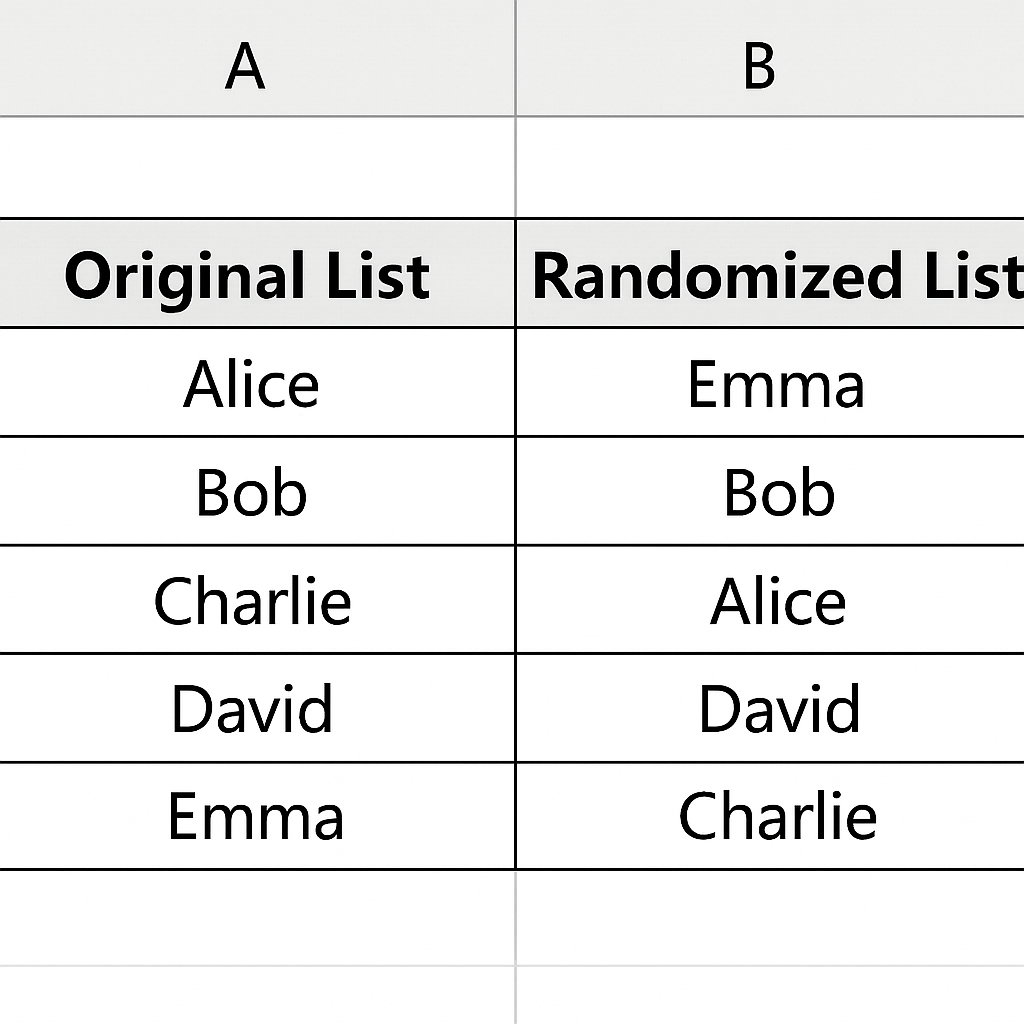
How to Randomize a List in Excel (Step-by-Step)
Here’s how you can shuffle or randomize a list using Excel’s built-in tools:
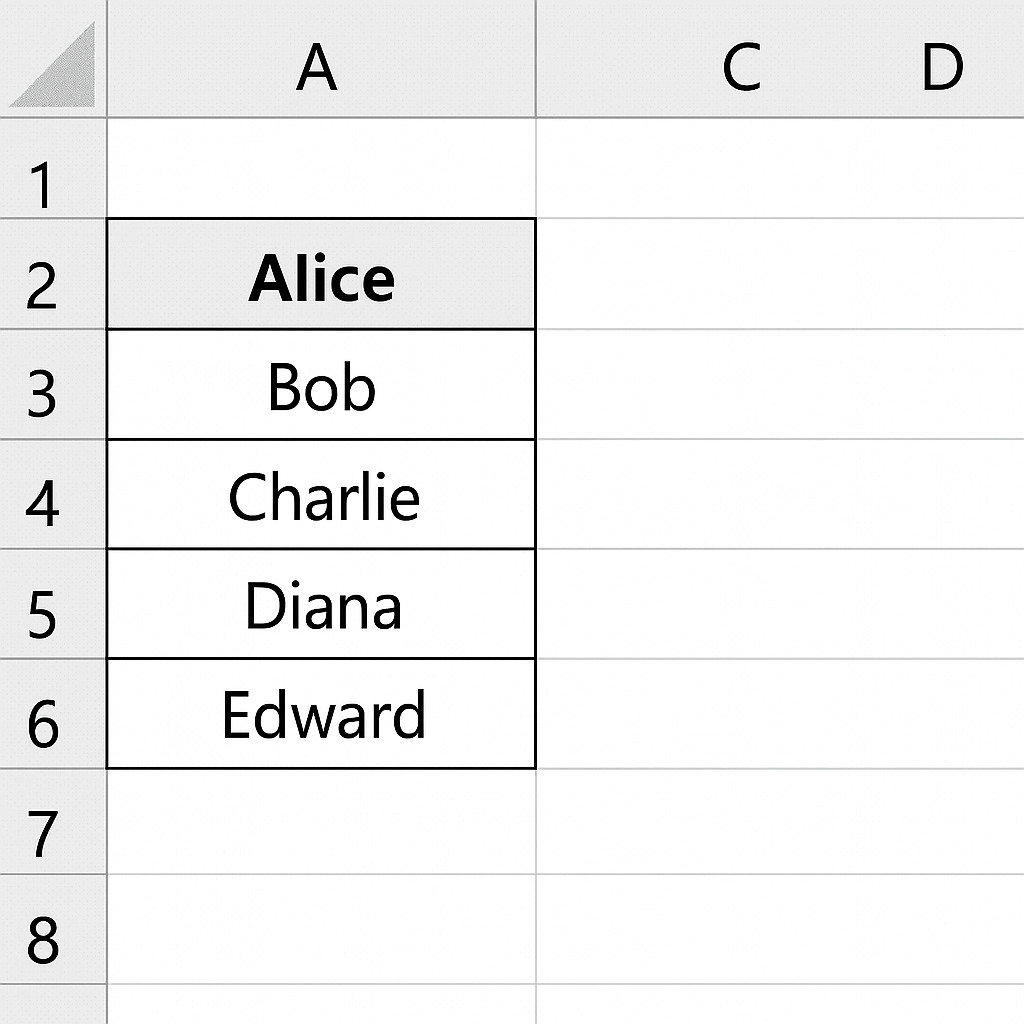
Step 1: Prepare Your List
Enter the items you want to randomize in a single column (e.g., Column A).
Example:
| A |
| Alice |
| Bob |
| Charlie |
| Diana |
| Edward |
Step 2: Insert the RAND() Function
In the adjacent column (e.g., Column B), type the following formula:
=RAND()
This generates a random number between 0 and 1 for each item.
| A | B |
| Alice | 0.5382 |
| Bob | 0.1284 |
| Charlie | 0.7289 |
| Diana | 0.3391 |
| Edward | 0.9537 |
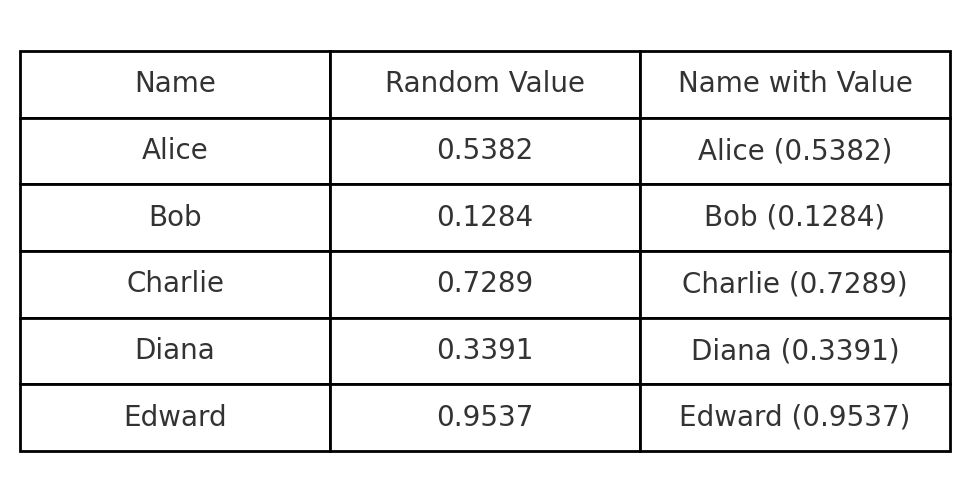
The RAND function recalculates on every change, so values may shift until frozen.
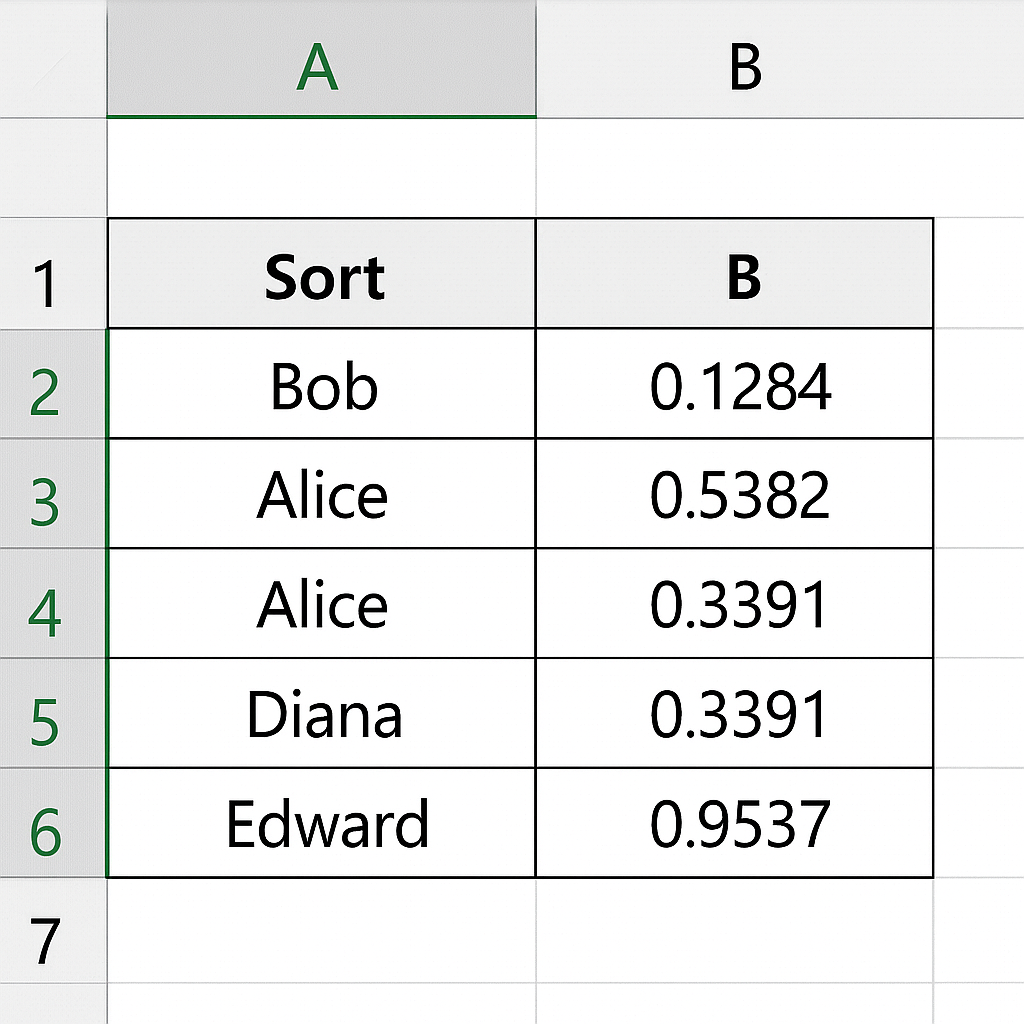
Step 3: Sort by the Random Column
- Select both columns.
- Go to the Data tab > Click Sort.
- Choose to Sort by Column B (Random Numbers).
- Select Smallest to Largest (or vice versa).
- Click OK.
Your list is now randomized!
Step 4: Optional – Freeze the Random Order
To prevent further recalculations:
- Copy the randomized column.
- Paste as Values to lock in the shuffled result.
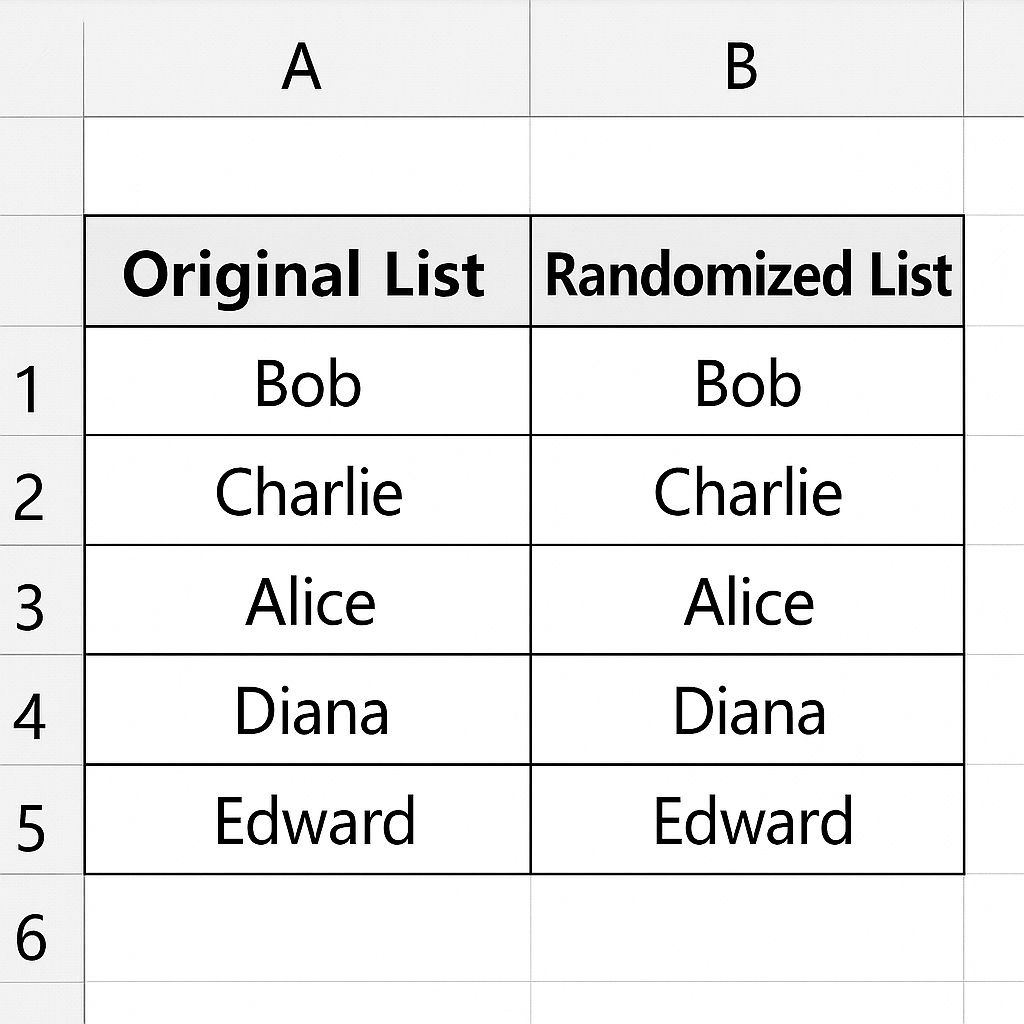
Examples of Randomizing a List in Excel
Example 1: Random Winner Selector
You have 100 email entries in Column A. Add =RAND() in Column B, sort, and pick the top 3 for a fair giveaway.
Example 2: Shuffle Survey Questions
Randomize a set of survey questions to reduce bias among participants.
Example 3: Training Group Assignment
Randomize employees into groups by shuffling names, then splitting the list into equal parts.
Example 4: Testing Random Sampling
If you’re analyzing a dataset and want a neutral 10% sample, randomize the full list, then take the first 10%.
Benefits of Randomizing a List in Excel
Ensures Fairness and Unbiased Selection
Randomizing helps make sure that no entry gets an unfair advantage when choosing winners, groups, or samples. Excel’s RAND function introduces real-time randomness.
Why it matters: Promotes transparency in contests, HR tasks, and data processing.
Saves Time with Built-in Functionality
You can shuffle data easily in Excel. Just use the built-in RAND function and sorting tools. No extra software or coding skills are needed.
Why it matters: It’s efficient for businesses, educators, and analysts working with deadlines.
Improves Sampling for Research and Analysis
Randomizing lists helps avoid selection bias. This is important for getting valid results in surveys and experiments.
Why it matters: It boosts research credibility and promotes ethical data handling.
Supports Creative Decision-Making
Need a fresh order for presentations, question sets, or creative outputs? Randomizing avoids repetition and helps explore new combinations.
Why it matters: Encourages innovation and breaks predictable routines.
Ideal for Educational and Professional Uses
Teachers can use it to shuffle test questions or randomly call on students. Businesses can fairly assign tasks or duties.
Why it matters: Boosts engagement and fairness across settings.
How to Randomize a List In Excel
FAQ’s: Randomizing a List in Excel
Does the RAND() function generate unique numbers?
Not always. While RAND() generates decimals between 0 and 1, duplicates are rare but possible. For uniqueness, consider using =RAND() + ROW()/10000 as a workaround.
How can I re-randomize the list?
Simply make any edit in the workbook or press F9 to refresh all formulas.
Can I use RAND with other Excel functions?
Yes! RAND pairs nicely with functions like INDEX, RANK, and IF. This helps create advanced random systems.
Is RAND the same as RANDBETWEEN?
No. RAND() generates decimals between 0 and 1. RANDBETWEEN(bottom, top) gives you whole numbers within a set range. It’s great for generating random numbers but not for sorting.
Can I randomize a list in Excel Online?
Yes! Excel Online supports RAND and sorting. Performance can vary with large datasets.
Conclusion
Randomizing a list in Excel is easy and useful. It helps people like marketers, educators, business analysts, and event planners manage data more effectively. You can quickly shuffle your data using Excel. Just a few clicks will do it. Use functions like RAND() and Sort for a fair and efficient shuffle.