
Save your Excel file as a landscape PDF when sharing reports, dashboards, or tables. This way, it looks professional and is easy to read. Many users find it hard to fit their Excel content on a printed or PDF page. But the solution is simple. Once you know the formatting tools in Excel, it becomes easier. This guide covers what PDF and landscape orientation are. You’ll also learn how to save an Excel sheet as a landscape PDF. Finally, we’ll share best practices with examples. This content is structured to be highly useful, trustworthy, and optimized.
What is a PDF?
PDF stands for Portable Document Format. Adobe created it to keep the layout, fonts, and images of a document the same on any device or platform. It’s commonly used to share reports, invoices, official documents, and presentations. You don’t have to worry about formatting issues.

Key Features:
- Universally accessible
- Layout and formatting remain fixed
- Ideal for printing and archiving
What is a Landscape PDF?
A landscape PDF is a document with a horizontal layout. In this format, the width is greater than the height.
Difference between Portrait and Landscape:
- Portrait: Vertical layout (standard for most documents)
- Landscape: Horizontal layout (better for wide tables or spreadsheets)
In Excel, landscape orientation is essential when:
- Data spreads across multiple columns
- You want to fit large tables on a single PDF page
- You’re preparing dashboards, reports, or Gantt charts
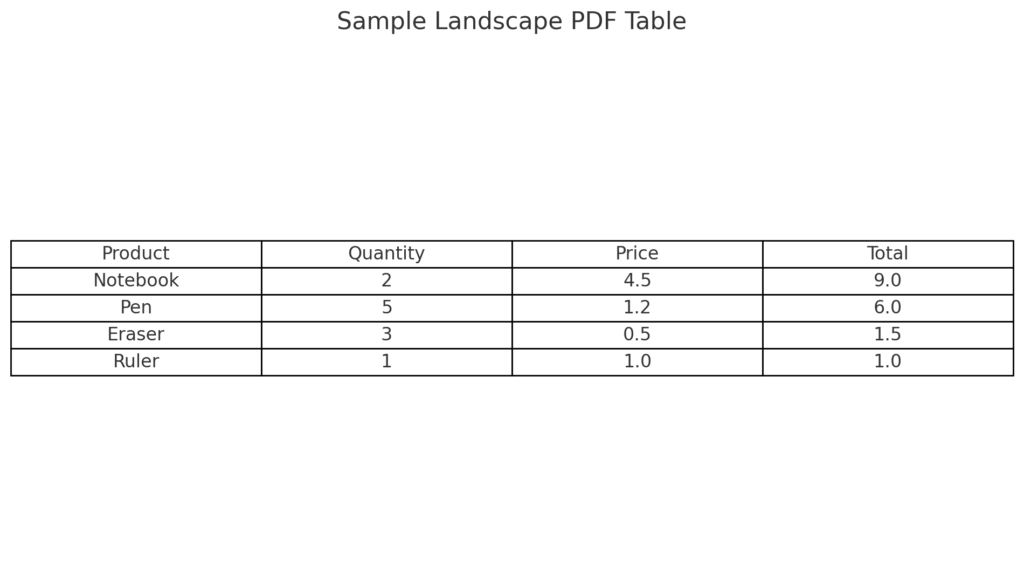
How to Save Landscape PDF in Excel (Step-by-Step)
Here’s how to format your Excel worksheet and save it as a landscape PDF:
Step 1: Set the Page Orientation to Landscape
- Open your Excel file
- Go to the Page Layout tab
- Click on Orientation
- Select Landscape
This step makes sure the print area is wider than it is tall. This is best for spreadsheets with lots of columns.
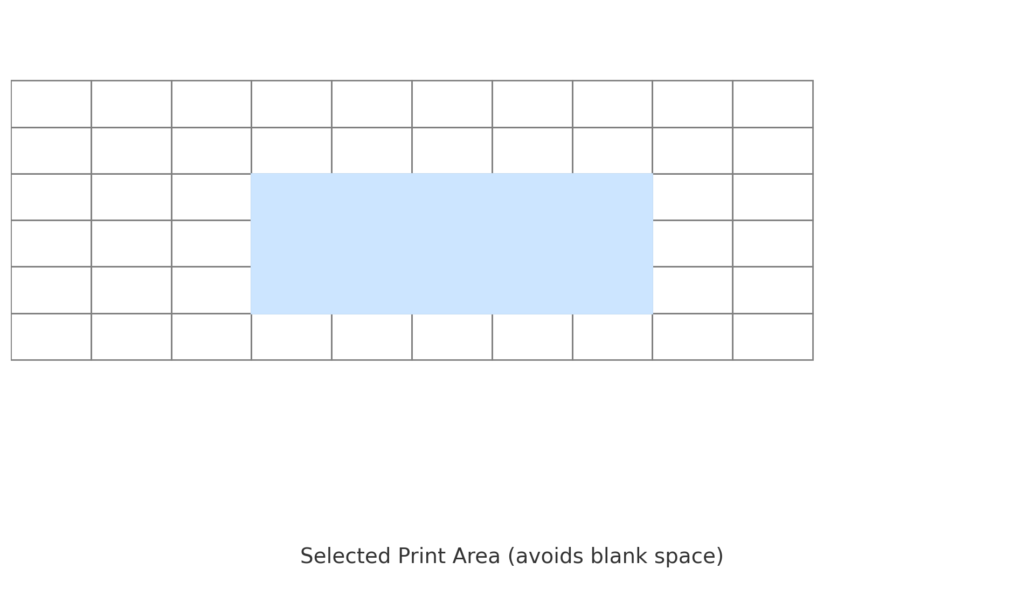
Step 2: Adjust the Print Area (Optional but Recommended)
- Highlight the cells you want to include in the PDF
- Click Page Layout > Print Area > Set Print Area
This keeps unwanted blank spaces out of your PDF.
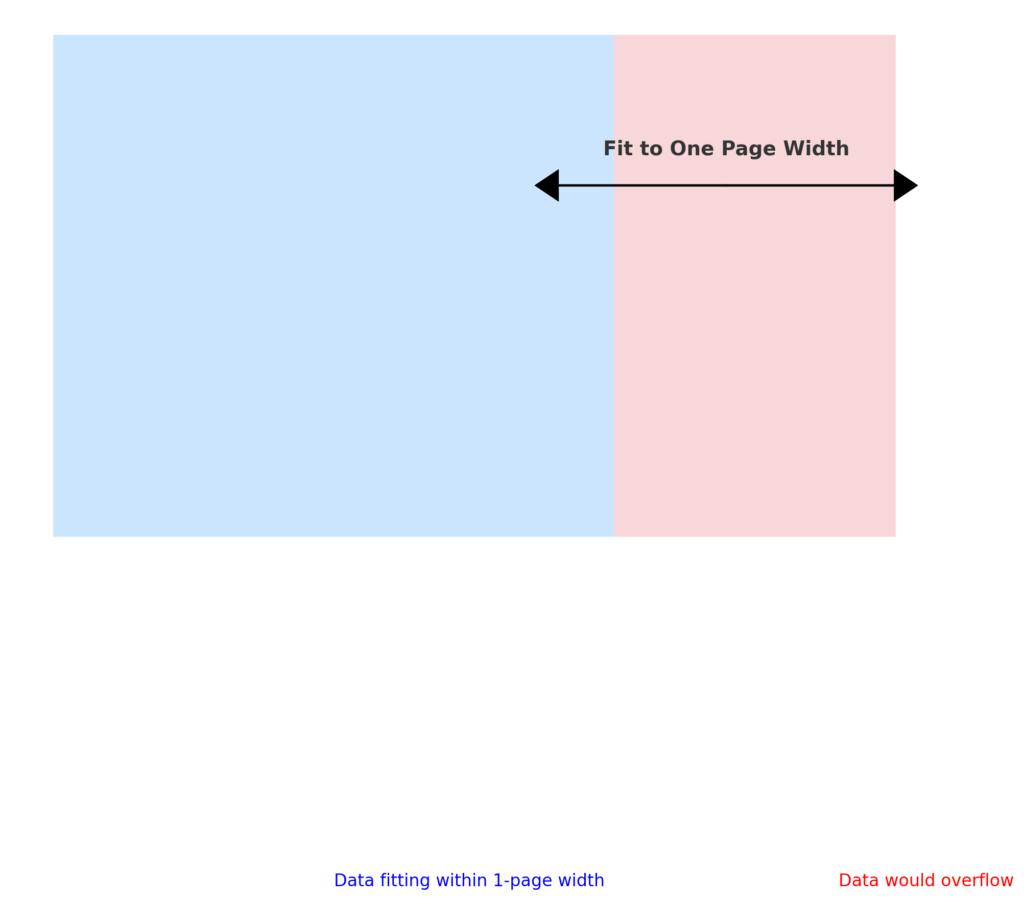
Step 3: Fit Data to One Page Width
- Go to Page Layout > Scale to Fit
- Set Width to 1 page
- Set Height to Automatic
This prevents your data from spilling onto additional pages horizontally.
Step 4: Save or Export as PDF
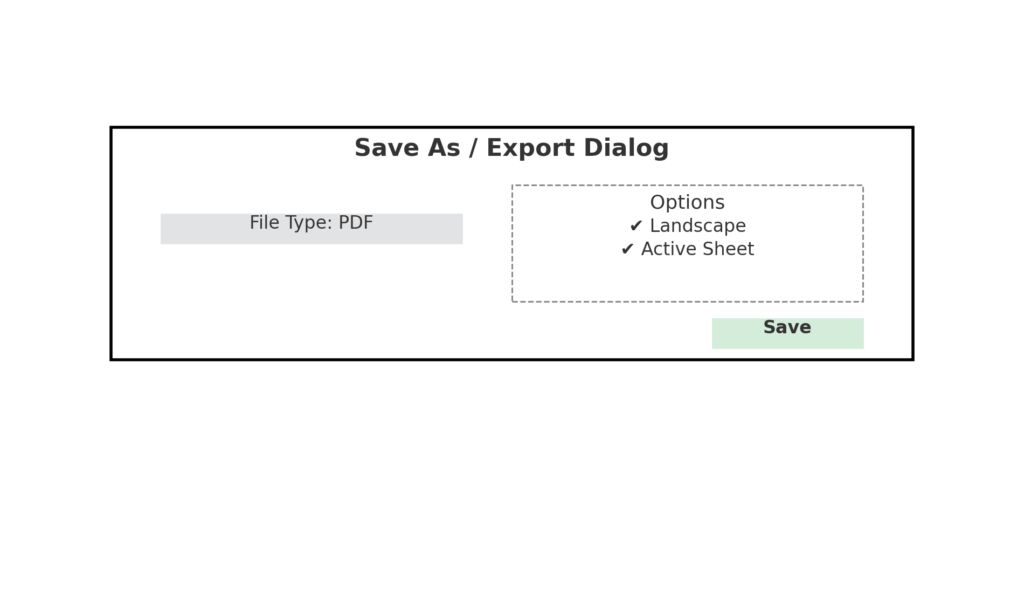
- Click File > Save As or File > Export
- Choose PDF as the file type
- In the options, ensure: Selected sheets are chosen. Landscape orientation is applied
- Click Options (optional): Choose Entire workbook or Active sheets
- Click Save: Your Excel content is now saved as a landscape-oriented PDF.
Examples of Saving Landscape PDFs in Excel
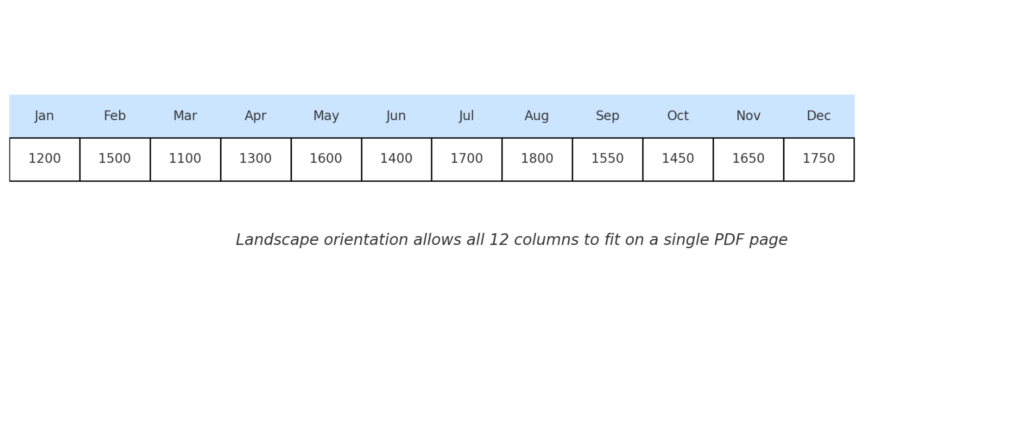
Example 1: Financial Report with 12 Columns
You have a monthly report with 12 columns (Jan–Dec) that would be hard to read in portrait mode. By setting the orientation to landscape, each column fits neatly on one page in the PDF.
Example 2: Product Inventory Table
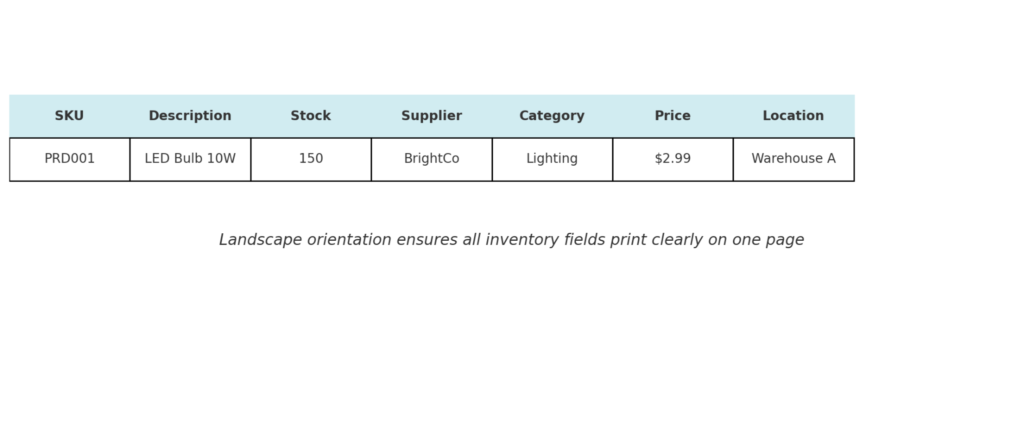
A product catalog needs horizontal space. It includes fields such as:
- SKU
- Description
- Stock Level
- Supplier
- Category
- Price
- Warehouse Location
Landscape PDF ensures professional printing. It prevents data from being cut off or spilling over pages.
Benefits of Saving Landscape PDF in Excel
Improves Readability of Wide Tables
Portrait PDFs often cut off columns or require multiple pages. Landscape format shows wide datasets on one page. This cuts down confusion and improves layout.
Professional Presentation
When shared with stakeholders, reports in landscape PDF format:
- Appear well-organized
- Maintain consistent formatting
- Avoid cut-off data or misaligned tables
This enhances credibility and professionalism.
Better for Printing and Archiving
Landscape PDFs:
- Reduce paper use by fitting more on a page
- Provide cleaner printouts with minimal scaling
- Work better for dashboards or Gantt charts
This makes landscape orientation a go-to for operational and financial documents.
Preserves Excel Formatting
When done properly, landscape PDF exports retain:
- Fonts and borders
- Conditional formatting
- Column widths
This ensures your spreadsheet looks exactly as intended when shared or printed.
Universal Compatibility
PDFs are universally accessible on:
- Desktop and mobile
- Windows and macOS
- Browsers and email clients
This means your landscape Excel data is readable by anyone, anywhere.
How to Save Excel as PDF in Landscape
FAQ’s: Saving Landscape PDFs from Excel
Can I save only part of my Excel sheet as a landscape PDF?
Yes. Highlight the desired cells, set the Print Area, and then export to PDF. Only that section will be saved.
My PDF is still in portrait mode. What went wrong?
Make sure:
- You set orientation to Landscape under Page Layout
- You selected the correct print settings when exporting
- You previewed the layout in Print Preview before saving
Can I make the landscape PDF one page wide?
Yes. Use: Page Layout > Scale to Fit > Width = 1 page, and Height = Automatic This fits all columns on one PDF page.
Does landscape orientation apply to all sheets in a workbook?
Set the landscape option for each sheet, or select Entire Workbook in the PDF export settings.
Can I password-protect a landscape PDF from Excel?
Excel does not offer built-in PDF encryption. However, you can use Adobe Acrobat or online tools to password-protect the PDF after saving it.
Conclusion
Knowing how to save a landscape PDF in Excel is a simple but powerful skill. Landscape PDFs make your reports, inventory sheets, and dashboards look clean and organized. They keep your data professional. This guide will boost your Excel skills and help you create polished documents. You’ll feel more confident in any professional setting.