

When using filtered or hidden data in Excel, it’s important to select only the visible cells. This helps keep your data accurate during copy-paste, formatting, or analysis. If you’ve ever copied filtered rows only to paste hidden rows too, you’re not alone. This common mistake can cause errors in reporting. It may lead to skewed calculations and confusing data presentations. Excel makes it easy to select only the visible cells. This saves time and reduces errors. In this guide, we’ll explain visible cells. We’ll show how to select them with keyboard shortcuts and tools. You’ll see real examples and learn key benefits.
What Are Visible Cells in Excel?
Visible cells in Excel are those not hidden by filters, grouping, or manual hiding. When you filter a spreadsheet or collapse grouped rows, Excel hides some rows or columns. If you copy and paste data without changes, Excel might include hidden cells. To avoid this, make sure to select only the visible ones.
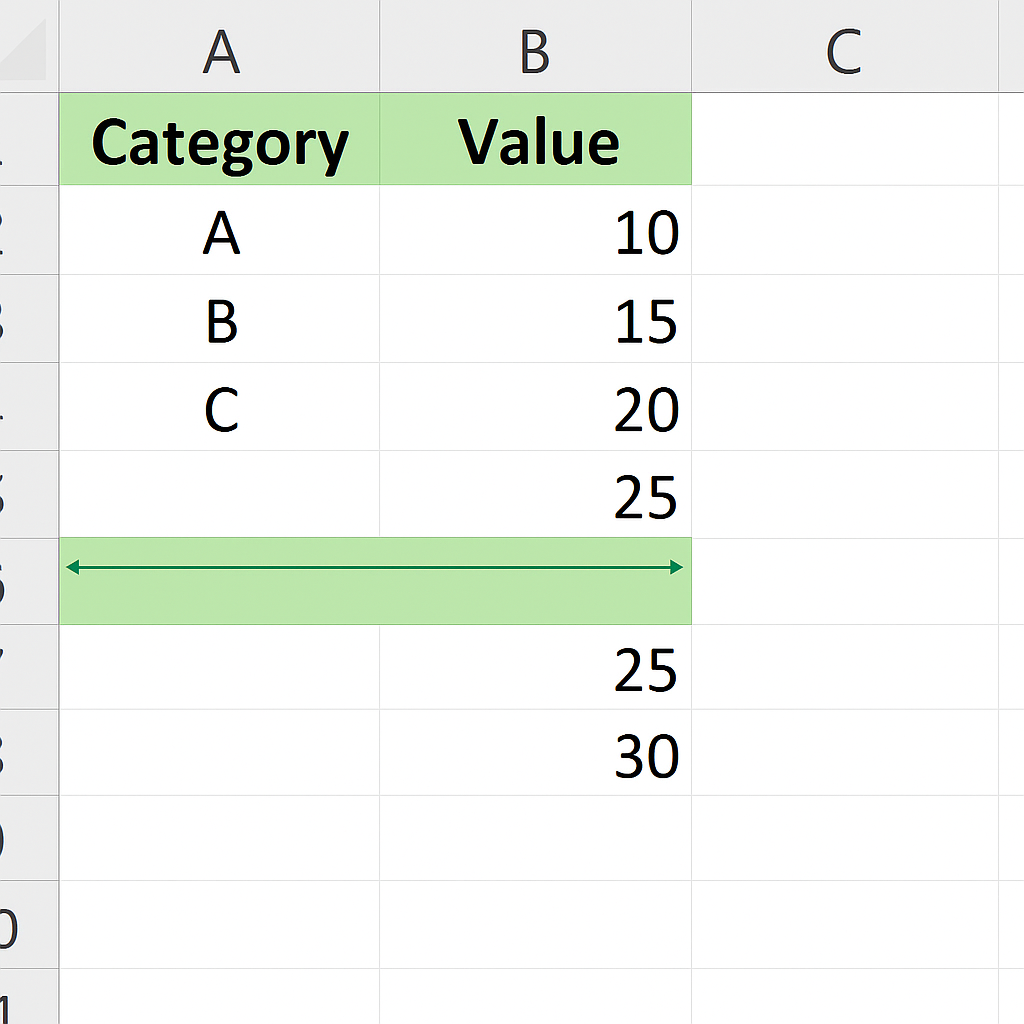
When do cells become “invisible”?
- When using filters to show only certain rows
- When manually hiding rows or columns
- When applying grouping/outlining to collapse sections of data
To select only visible cells when copying helps keep your data clean and accurate. It also prevents hidden content from sneaking in.
How to Select Visible Cells in Excel?
You can select only the visible cells in Excel in two main ways: with the Go To Special tool or by using a keyboard shortcut.
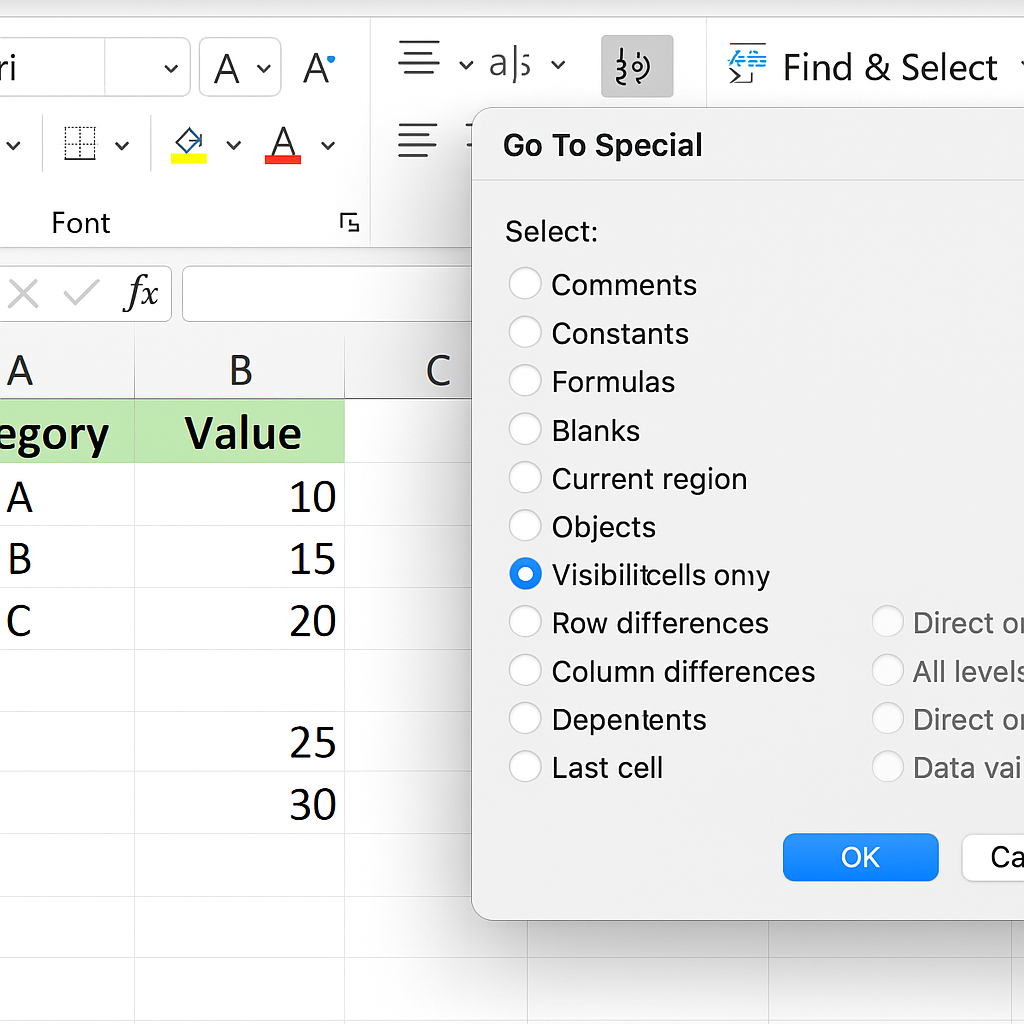
Method 1: Using Go To Special
- Select the range of cells you want to work with
- On the ribbon, go to Home > Find & Select > Go To Special
- Choose Visible cells only
- Click OK
Now only the visible (unfiltered and unhidden) cells are selected.
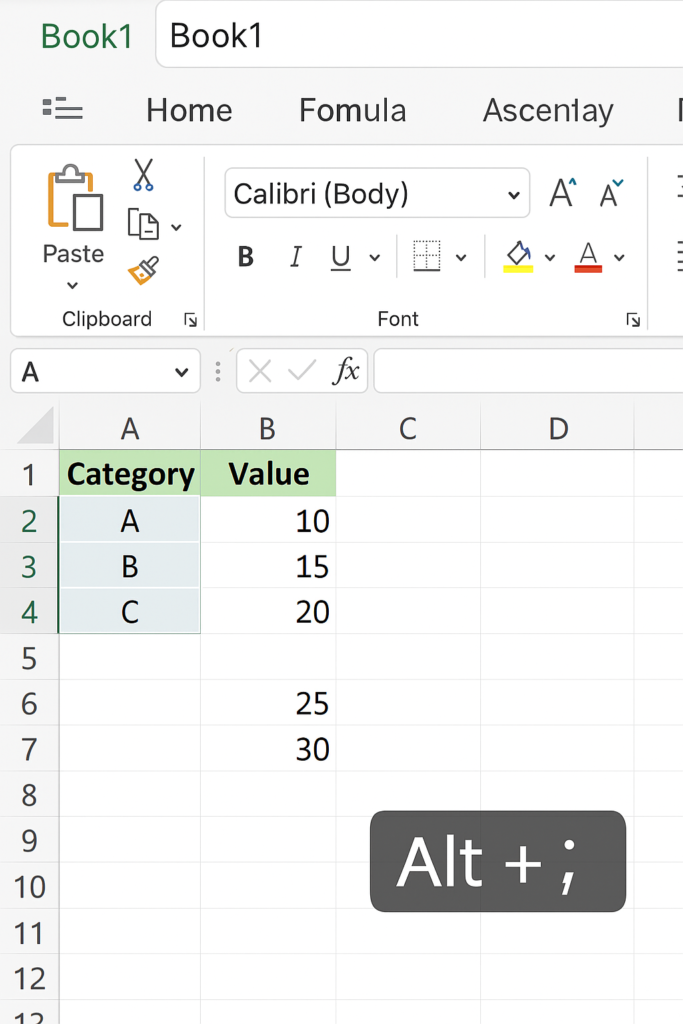
Method 2: Keyboard Shortcut (Fastest Way)
Press the following keys:
Alt + ; (semicolon)
This shortcut instantly selects only the visible cells in your current selection.
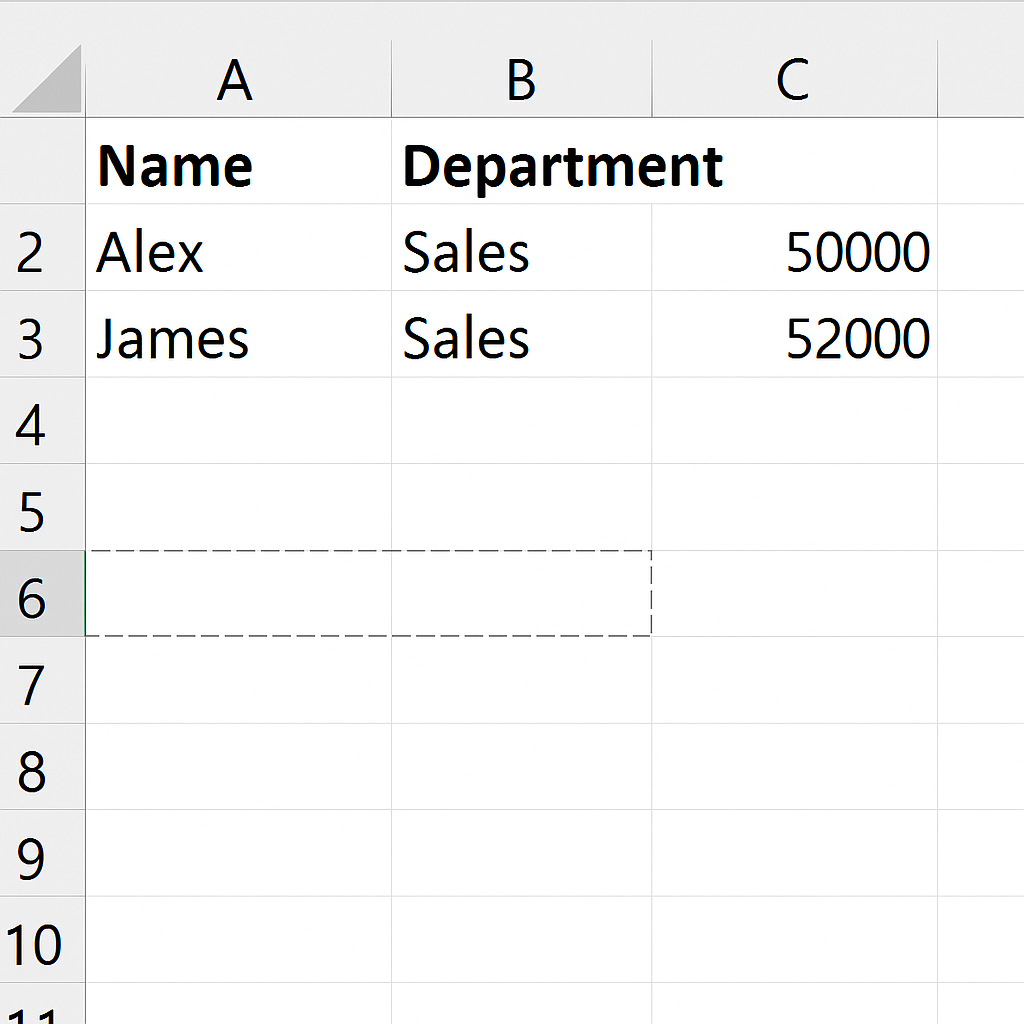
Example: Selecting Visible Cells in a Filtered Table
Imagine you’re working with the following dataset:
| Name | Department | Salary |
| Alex | Sales | 50000 |
| Maria | HR | 48000 |
| James | Sales | 52000 |
| Tina | IT | 53000 |
You apply a filter to show only the “Sales” department. Now only Alex and James are visible.
If you select all rows and copy, Excel may include Maria and Tina unless you select only the visible cells. Press Alt + ; to copy only the visible rows (Alex and James). This helps avoid errors in reports or emails.
Benefits of Selecting Visible Cells in Excel
Error-Free Copy and Paste
Copying data from filtered tables can cause big reporting mistakes if you include hidden rows. When you choose only visible cells, you copy just the data you see. This way, nothing extra or missing gets transferred.
Efficient Data Formatting
Using bold, background color, or borders on filtered rows can cause styling problems. Formatting all selected rows, even hidden ones, can lead to an inconsistent appearance. Selecting visible cells avoids accidental formatting of hidden rows or columns.
Improved Data Presentation
When making spreadsheets for a presentation or print, focus on visible rows. This improves clarity and gives a professional look. It also prevents outdated or irrelevant data from showing.
Better Collaboration and Data Sharing
In team settings, sharing spreadsheets with hidden or extra content can confuse others. It might also reveal sensitive information. Using the visible cells selection ensures clean, focused data for sharing and collaboration.
Increased Productivity with Shortcuts
Using the Alt + ; shortcut can save you a lot of time. It helps you quickly check or select data without doing it manually. This shortcut saves time for Excel users who work with filtered or grouped data every day.
How to Select Only the Visible Cells in Excel (SHORTCUT)
FAQ’s – Selecting Visible Cells in Excel
What happens if I copy without selecting visible cells?
Excel copies all cells, even those hidden by filters. This can cause incorrect data to be pasted.
Can I use visible cells selection for columns too?
Yes, the method works for both hidden rows and columns, whether hidden manually or via filters.
Does this method work on Excel for Mac?
Yes, although the shortcut differs: on Mac, use Command + Shift + Z or access Go To Special through the menu.
Can I apply formulas only to visible cells?
Formulas will still calculate all rows. To change this, use functions like SUBTOTAL or AGGREGATE. These functions ignore hidden rows by default.
Conclusion
Learning to select only visible cells in Excel can improve your workflow. It helps cut down on errors and boosts the accuracy of your data analysis. This function lets you copy filtered reports, share key data points, or format visible records. You’ll work with exactly what you see—and nothing more.