
Today, submitting assignments online is the standard in digital classrooms. Canvas LMS helps students easily connect with their instructors. If you made your assignment in Microsoft Excel, like a stats or budget spreadsheet, you may wonder how to submit it on Canvas. This guide takes you through each step. It explains the benefits and answers common questions. This way, your submission will be successful and stress-free.
What is an Excel File?
An Excel file is a type of spreadsheet document created using Microsoft Excel. It usually contains:
- Data organized in rows and columns
- Formulas and functions
- Charts, tables, and graphs
- File extension like .xlsx or .xls
Excel is popular in education, finance, science, and business. It helps people manage, calculate, and visualize structured data.
What is Canvas?
Canvas is a Learning Management System (LMS). Schools, colleges, and universities use it to manage online coursework. It allows students to:
- View assignments and deadlines
- Submit files and take quizzes
- Communicate with instructors
- Track grades and feedback
Canvas allows many file uploads, including Microsoft Excel files. This makes it easy for students to submit spreadsheets for grading.
How to Submit an Excel File on Canvas?
Follow these step-by-step instructions to submit your Excel file correctly on Canvas:
Step 1: Finalize Your Excel File
- Save your assignment in .xlsx format.
- Double-check your data, formulas, and any included charts or notes.
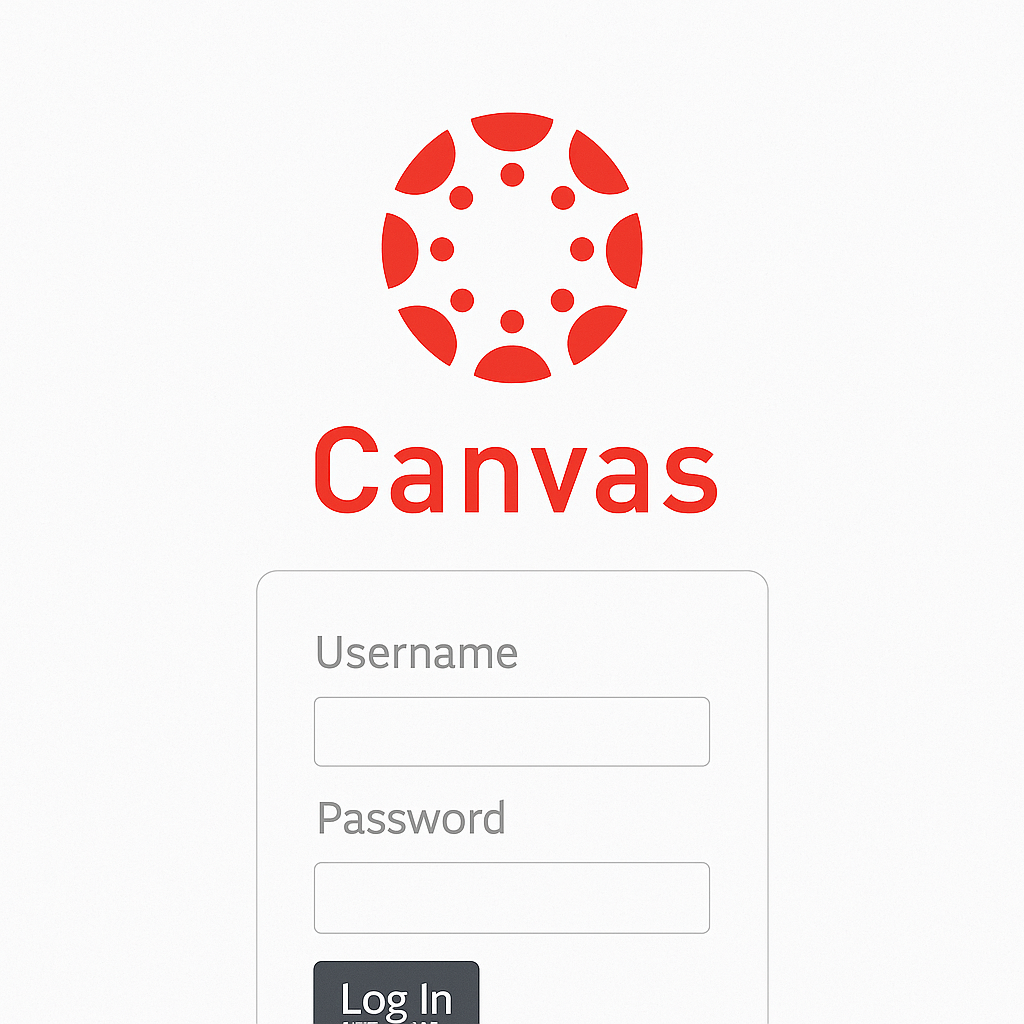
Step 2: Log into Canvas
- Go to your school’s Canvas login portal.
- Enter your username and password.
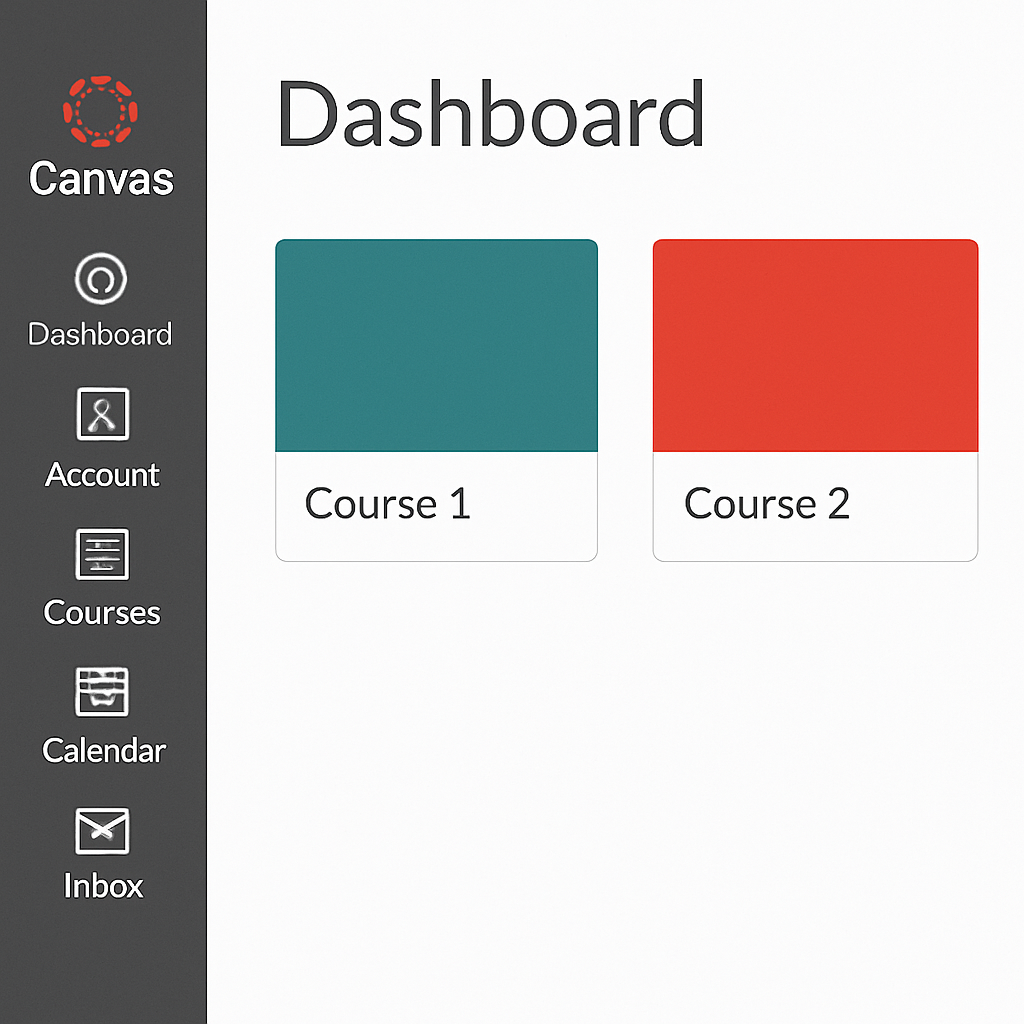
Step 3: Go to the Relevant Course
- Click on the Dashboard.
- Select the course where your assignment is due.
Step 4: Open the Assignment Page
- Click Assignments in the course navigation menu.
- Select the assignment you want to submit.
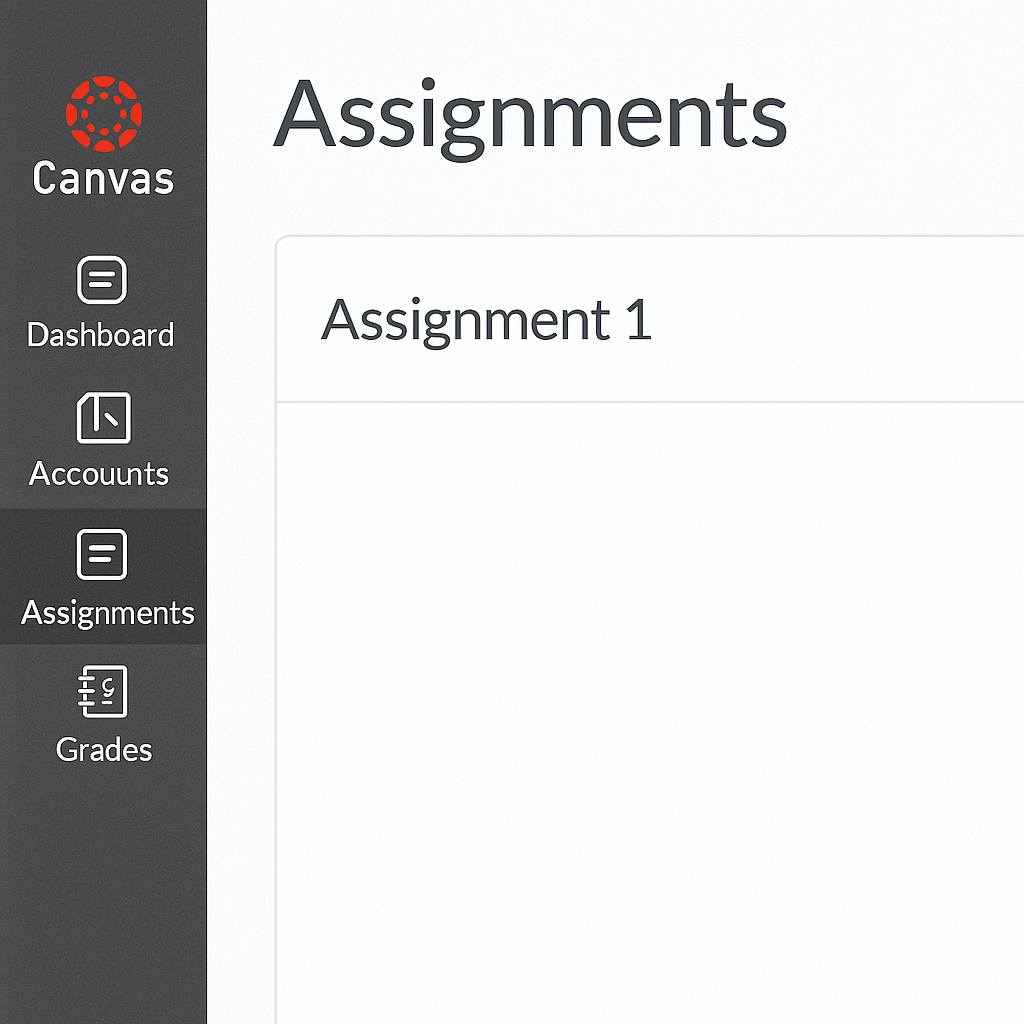
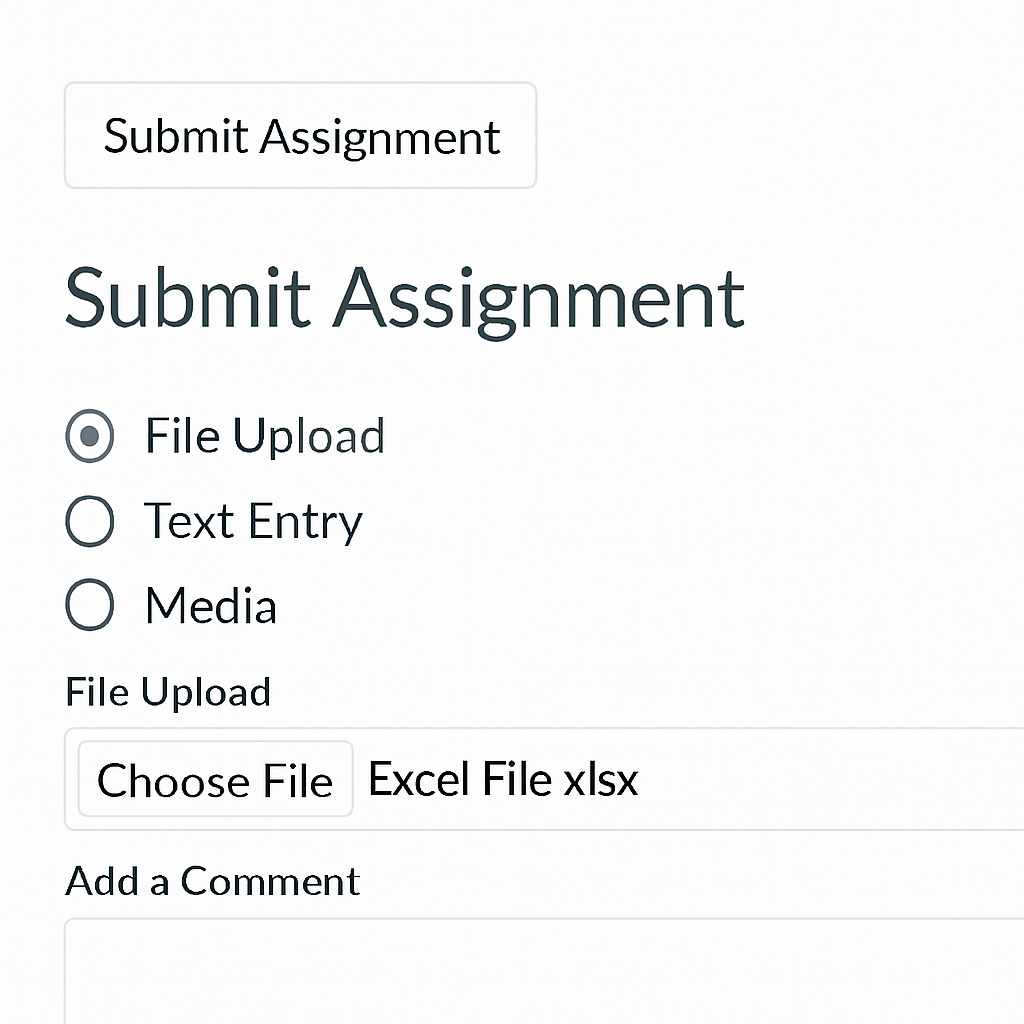
Step 5: Upload the Excel File
- Click the Submit Assignment button.
- Choose the File Upload option.
- Click Choose File or Browse, then select your Excel file from your device.
- Optional: Add a comment for your instructor.
Step 6: Submit and Confirm
- Click Submit Assignment.
- Wait for the confirmation screen or check the submission status.
- You may also receive a confirmation email if enabled.
Tip: Do not close the tab or refresh the page until you see the “Submission Successful” message.
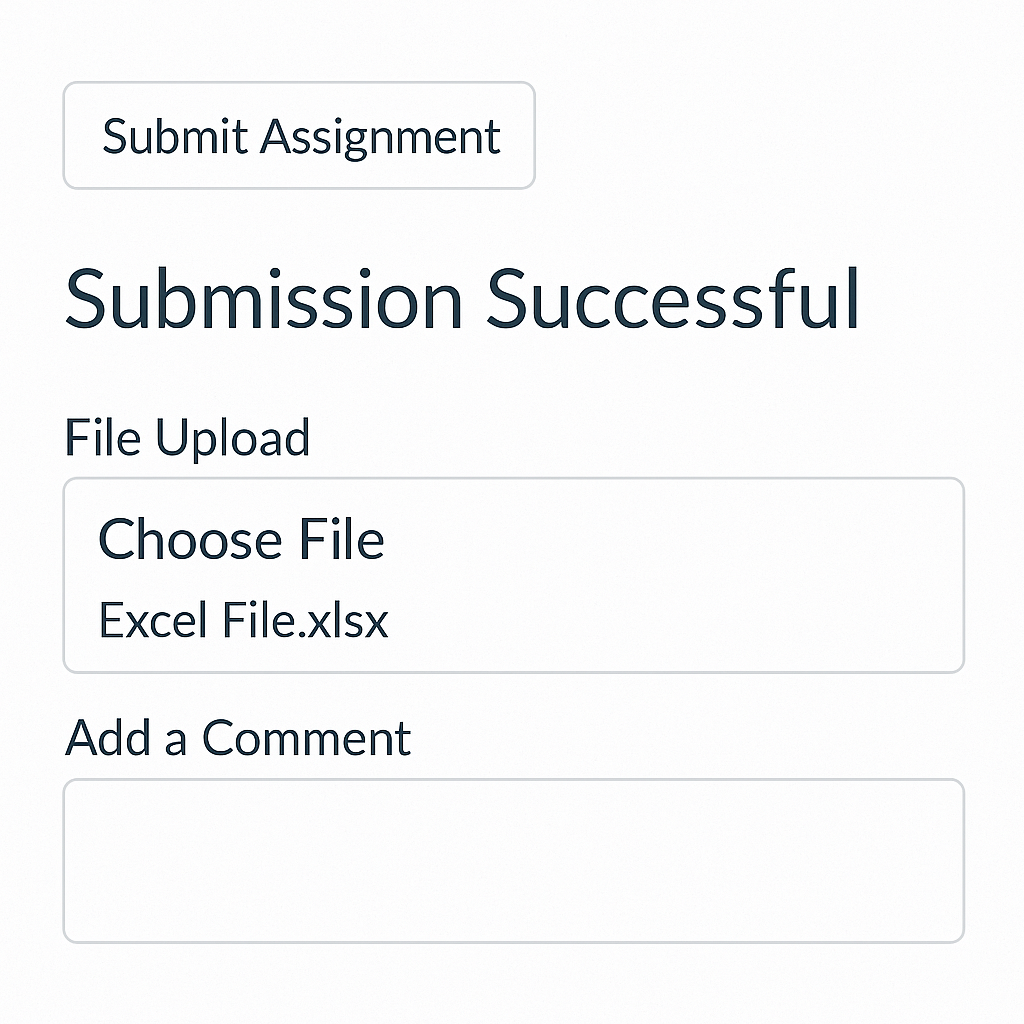
Examples of Excel Submissions on Canvas
Benefits of Submitting Excel Files on Canvas
Ideal for Data-Driven Assignments
Excel is the best tool for organizing numbers. It helps apply formulas and visualize information. This makes it great for math, finance, and science classes.
Maintains Original Formatting
Uploading the actual Excel file is better than copying and pasting into a text box. It keeps your formulas, charts, and formatting intact. This way, the instructor sees exactly what you made.
Quick and Easy Submission Process
Canvas has a user-friendly interface. You can upload and confirm your submission with just a few clicks. This helps reduce stress as deadlines approach.
Centralized Feedback and Grading
Instructors can review, comment, and grade your Excel file in Canvas. This way, you see feedback and grades all in one spot. It makes communication easier.
Supports Multiple File Types
Canvas allows submissions of Excel alongside Word, PDFs, and media files. If your project includes data and a report, you can submit both together for a complete package.
Submitting an excel file into Canvas
FAQ’s on Submitting Excel Files on Canvas
What file types can I submit?
Canvas supports various files. These include .xlsx, .xls, .csv, and other spreadsheet formats. It also accepts Word, PDF, and image files.
Can I resubmit a corrected file?
Yes—if the assignment allows multiple submissions. You can re-upload the updated Excel file before the deadline.
My file is too large—what should I do?
To compress the file, remove unnecessary sheets or large images. You can also save it as a .xlsb file. If still too large, contact your instructor.
Do I need to rename the file?
Name your file clearly, like JohnDoe_Assignment3.xlsx. This way, your instructor can find it easily.
Can I upload from Google Sheets?
Yes. Download your Google Sheet as an Excel file (.xlsx) and then upload it via Canvas.
Conclusion
Knowing how to submit an Excel file on Canvas is a key digital skill in today’s academic world. No matter if you’re sharing a spreadsheet for a stats class, submitting financial projections, or uploading lab results, this process makes sure your work gets seen, graded, and stored efficiently. Follow these simple steps to avoid common submission mistakes. This will help you present your work professionally.