

Charts are important in Excel. They help you see trends, compare data, and make smart choices. But sometimes, your chart might go missing. It could be hidden by accident, lost while formatting, or tucked away in a hidden sheet. Don’t worry! Excel provides multiple ways to unhide charts, and this guide will walk you through each one.
What is a Chart in Excel?
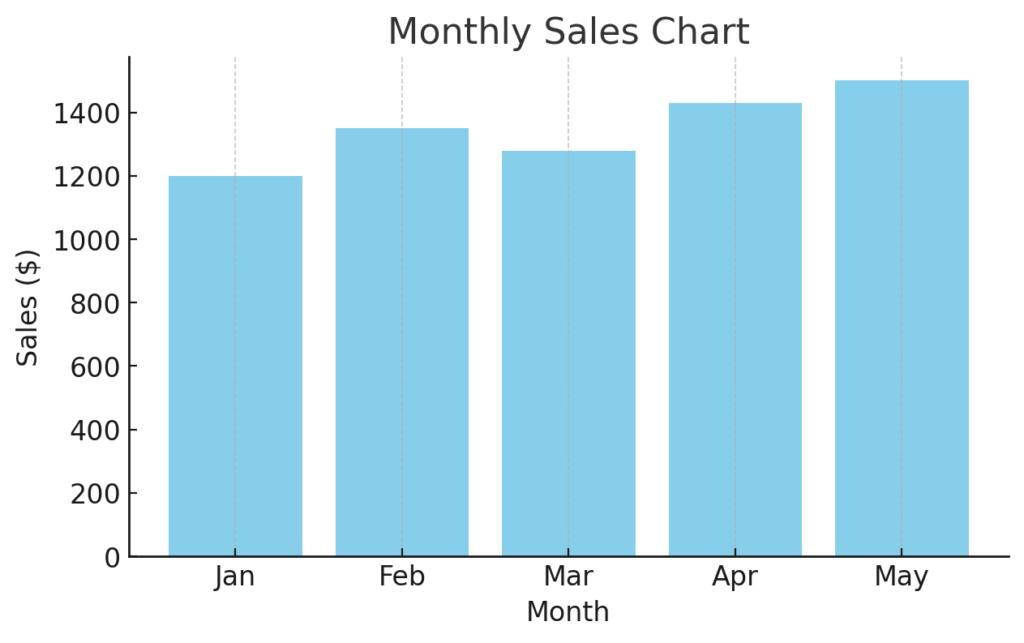
A chart in Excel shows data visually. It helps users grasp trends, make comparisons, and see relationships more easily. Excel offers various chart types including:
- Column and Bar Charts
- Line Charts
- Pie Charts
- Area Charts
- Scatter Plots
- Combo Charts
Why Use Charts?
- Simplify large datasets
- Highlight trends over time
- Make reports more engaging and informative
- Support faster decision-making with visual insights
Charts turn raw numbers into clear visuals. They help communicate insights effectively, especially in presentations, dashboards, and reports.
How to Unhide a Chart in Excel?
If your chart has disappeared, there are a few potential reasons—and several ways to restore it. Below are proven methods to unhide your chart in Excel.
Method 1: Check for Hidden Sheets
Charts are often placed on separate worksheets. If a sheet is hidden, the chart won’t appear.
Steps:
- Right-click on any visible sheet tab.
- Click “Unhide”.
- Select the sheet with your chart.
- Click OK.
Your chart should now be visible.
Method 2: Use Go To Special (Object Search)
Sometimes, a chart may still be in the worksheet but placed behind another object or resized to a tiny area.
Steps:
- Press F5 or go to Home > Find & Select > Go To Special.
- Choose Objects and click OK.
- All objects (including hidden or misplaced charts) will be selected.
- Use arrow keys to cycle through selected objects until your chart appears.
- Resize or drag it back into view.
Method 3: Reveal Hidden Rows or Columns
Charts linked to hidden rows or columns might appear missing or broken.
Steps:
- Select the full worksheet (click the triangle at the top-left).
- Right-click any row/column header and click “Unhide”.
- If your chart was inside hidden rows/columns, it should now be visible.
Method 4: Restore from Selection Pane
Charts may be hidden using Excel’s selection pane.
Steps:
- Go to Home > Find & Select > Selection Pane.
- Look for your chart in the list.
- If it’s marked as hidden (eye icon crossed out), click the eye icon to unhide it.
Method 5: Undo Recent Actions
If the chart disappeared due to a recent edit:
- Press Ctrl + Z multiple times to undo.
- If that doesn’t work, check File > Info > Manage Workbook > Recover Unsaved Workbooks.
Examples: Unhiding a Chart in Excel
Example 1: Hidden Sheet
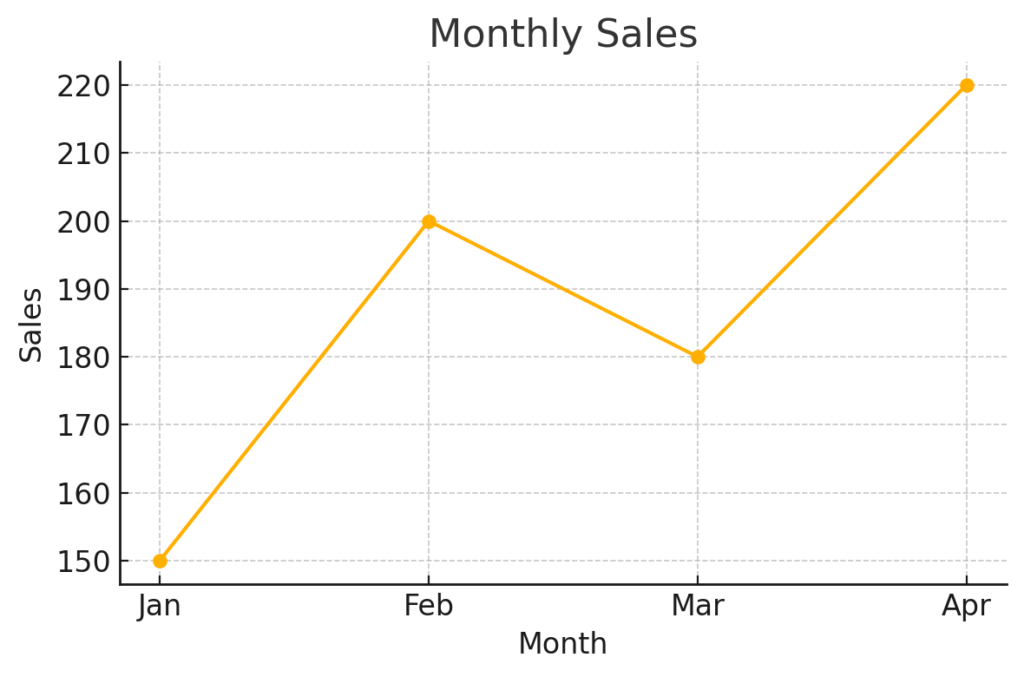
You created a line chart on a separate worksheet called “Revenue Chart”, but the sheet is hidden. Solution: Right-click any tab → Unhide → Select “Revenue Chart” → Chart reappears.
Example 2: Hidden Object via Selection Pane
During formatting, the chart was set to “invisible.” Solution: Go to Selection Pane → Click the eye icon next to the chart name to unhide it.
Example 3: Hidden Under Shapes or Cells
Your chart got pushed behind a shape or image. Solution: Use Go To Special > Objects → Navigate with arrow keys → Resize and bring to front.
Benefits of Unhiding a Chart in Excel
Restores Data Visualization Efforts
A missing chart can disrupt workflows, especially when presenting to teams or clients. Unhiding it restores visual summaries critical for decision-making.
Saves Time and Avoids Redundant Work
Instead of rebuilding the chart from scratch, unhiding preserves your original formatting, linked data, colors, and custom design. Creating a custom chart with several series, labels, and formatting takes about 15 to 30 minutes. Unhiding it in seconds saves time and avoids frustration.
Ensures Data Integrity and Presentation Consistency
Charts often contain critical KPIs or metrics. Their disappearance may cause stakeholders to question the completeness of your analysis. If a financial report goes out missing its main ROI chart, it could signal negligence or incomplete analysis. Recovering the chart quickly helps maintain professional integrity.
Enhances Collaboration and Audit Trails
When multiple team members work on the same workbook, charts may be moved or hidden by mistake. Knowing how to unhide them supports smoother collaboration. A team member hiding a chart for cleanup could leave it hidden unintentionally. Instead of emailing for help, you can find and restore it in seconds—improving autonomy and version control.
Hide & Unhide Chart in Excel || ICONIC ACADEMY
FAQ’s About Unhiding Charts in Excel
Why did my Excel chart disappear?
Charts can go missing if:
- The sheet is hidden
- Rows/columns were hidden
- The chart object was hidden or moved
- The chart was sent behind another object
- It was removed accidentally
Can I unhide a chart in Excel Online?
Excel Online supports basic chart editing but has limited tools like the Selection Pane. For full features, use the desktop version of Excel.
How do I find all charts in a workbook?
Use the Selection Pane or search via Go To Special > Objects to locate all embedded charts.
Is it possible to protect a chart from being hidden?
You can lock charts via sheet protection settings. Go to Review > Protect Sheet, and disable changes to objects or formatting.
What if I still can’t find the chart?
Try recovering the file’s earlier version via:
- File > Info > Version History
- Manage Workbook > Recover Unsaved Workbooks
Conclusion
Unhiding a chart in Excel isn’t just a fix—it’s about regaining control of your data story. Excel offers several reliable tools to help you recover items that may be hidden. They could be accidentally tucked away in a sheet, behind an object, or turned off in the Selection Pane.